



When a new order comes in, the seller will accept it notification from the VCGamers website & E-mail registered. Make sure you have activated the VCGamers website notification or registered email on the device you are using
Steps to activate notifications via Desktops;
-
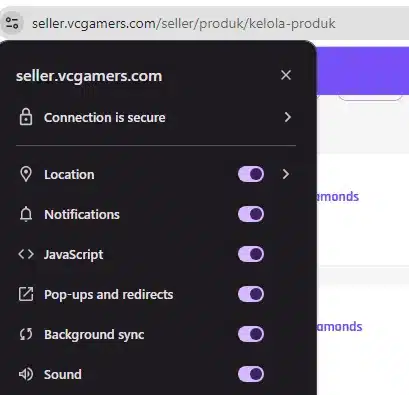
- Click menu View Site Information which is available in the top left corner of the VCGamers website page
- Click the Sites tab Settings > Permissions > Enable/Allow setting Notifications & Pop-ups
- Then, activate the settings notification for the VCGamers/Google Chrome website (Browser used)
- Next, make sure the browser pop up notifications and VCGamers website on the device used are active
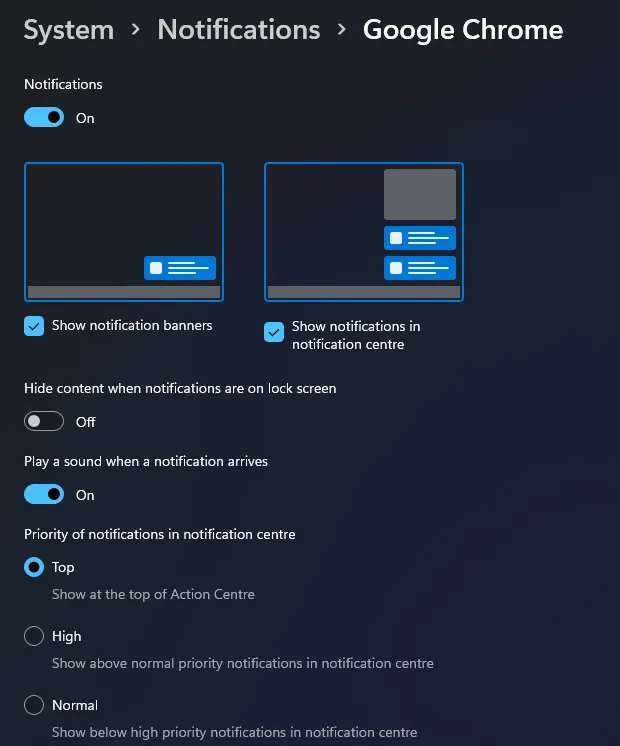
In addition to notifications from the browser, there are several additional extra notifications that you can get via Discord And Telegram to support sales activities, so that you don't miss every incoming order and complaint from buyers.
You can set additional notifications in dashboards Seller > Settings > Connection.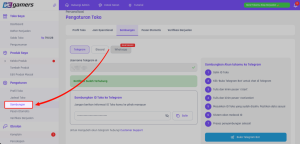
You can set which notifications you want to receive, whether from your browser, Discord, or Telegram. dashboards Seller > Settings > Notifications.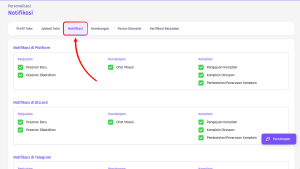
You can follow the steps available on each notification media that you want to connect.
Notes : Ensure Details and order number from VCGamers that started TRXOD appears on the shop menu page Sales List > PeNeed to be processed & E-mail before sending the order