

- You can see the password without an application via the built-in feature: Network Connections, Settings, Command Prompt in Windows.
- In MacBooks Use Keychain Access to display the WiFi password after entering the account password.
- If the password doesn't appear, make sure you use an account. administrator; check the option Show characters or use Command Prompt.
How to Easily View WiFi Passwords on a Laptop
Forgot the password Wi-Fi being connected on a laptop is quite common. This usually occurs when you want to connect a new phone, share the network with a friend, or switch another device to the same internet connection.
Fortunately, there are several ways to view WiFi passwords on laptops which can be done without additional applications. Both users Windows nor MacBooks You can check your WiFi password directly through the operating system's built-in features in a fairly easy way.
Also read:
- How to View WiFi Passwords on Windows & Mac Laptops Easily
- 5 Easy Ways to View Wifi Password on a Laptop
- How to See Connected Wifi Passwords
How to View WiFi Password on a Laptop
There are several methods you can use to view your Wi-Fi password on your laptop. Each method has different steps depending on the operating system and menus used. To make it easier to understand, here's a complete explanation in bullet points.
How to View WiFi Password via Network Connections
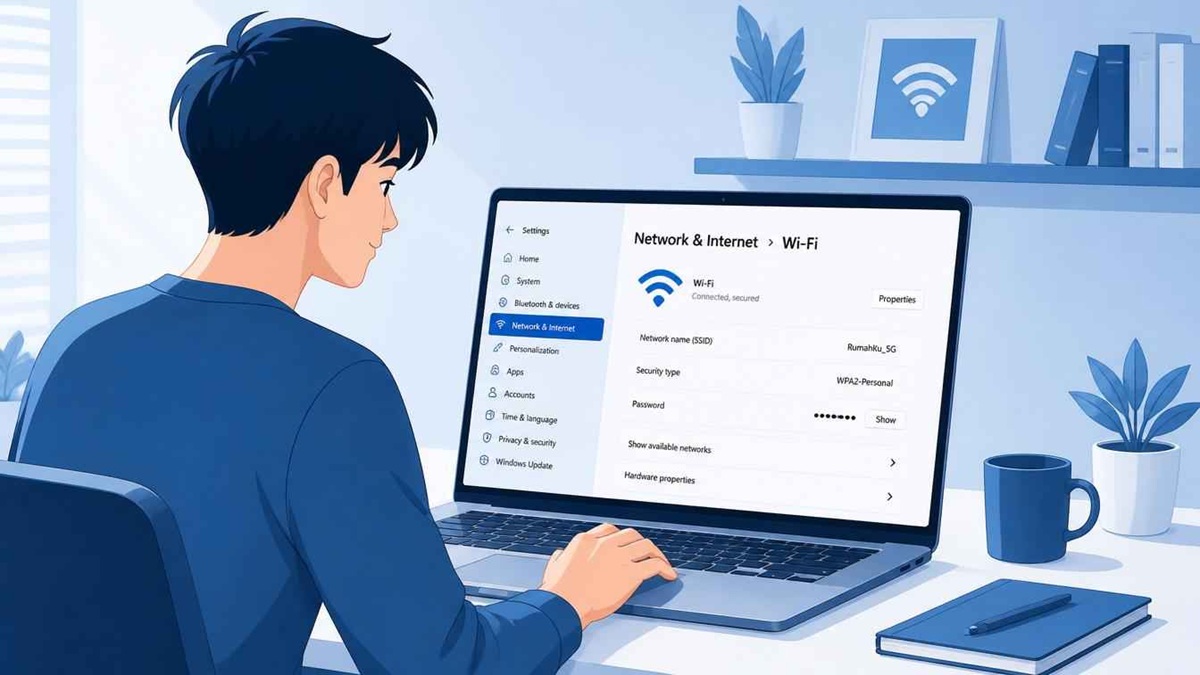
This method is one of the most common on Windows laptops. You can view your Wi-Fi password directly through the built-in Windows network connection menu without installing any additional applications.
Here are the steps:
- Press the Windows + R keys on the keyboard.
- Type
ncpa.cplthen press Enter. - After the Network Connections window appears, look for the WiFi network you are currently connected to.
- Right click on the WiFi network.
- Select the Status menu.
- Click the Wireless Properties button.
- Go to the Security tab.
- Check the Show characters option.
- The WiFi password will immediately appear in the Network security key column.
This method is quite practical because it's simple and easy for beginners to understand. Furthermore, the Network Connections method can be used in various versions of Windows, such as Windows 10 and Windows 11.
If the password doesn't appear, your laptop account likely doesn't have administrator access. So, make sure you're using an admin account to access all menus normally.
How to View WiFi Password via Settings (Windows 11)

Windows 11 users can also view their Wi-Fi passwords through the Settings menu. The settings interface is more modern, making it more user-friendly than the older Control Panel.
Here is the complete tutorial:
- Click the Start button and then open Settings.
- Select the Network & Internet menu.
- Scroll down and click Advanced network settings.
- Select the More network adapter options option.
- Once the connection window opens, click on the currently active WiFi network.
- Select the Wireless Properties menu.
- Open the Security tab.
- Check the Show characters section.
- The WiFi password will appear automatically.
This method is suitable for Windows 11 users who use the Settings menu more frequently than the legacy Control Panel. Besides being more modern, the navigation also feels neater.
While the interface may vary slightly from laptop to laptop depending on the Windows update version, the basic steps remain the same. Simply open the Wi-Fi network details and display the saved password.
How to View WiFi Password via Command Prompt

Besides the settings menu, you can also use Command Prompt, or CMD. This method is quite popular because it can display a list of all the Wi-Fi networks ever saved on your laptop.
Follow these steps:
- Click the Windows search button.
- Type CMD or Command Prompt.
- Run the Command Prompt application.
- Type the following command and press Enter:
netsh wlan show profiles
- A list of previously saved WiFi names will appear.
- Select the WiFi name whose password you want to see.
- Type the following command:
netsh wlan show profile name="WiFi Name" key=clear
- Replace the text WiFiName with the name of the network you want to check.
- Press Enter.
- Look for the Key Content section.
- The WiFi password will be visible in that section.
This method is especially helpful if you want to view old Wi-Fi passwords you've previously connected to. Even if the network is inactive, the data can still be found as long as it hasn't been deleted from the system.
While it may seem technical, the CMD steps are actually quite easy if you follow the tutorial in sequence. Many users prefer this method because it's faster and more efficient.
How to View WiFi Password on a MacOS Laptop (MacBook)

For MacBook users, Wi-Fi passwords can also be viewed using a built-in feature called Keychain Access. This feature stores various account and internet network passwords on macOS.
Here are the steps:
- Open the Spotlight Search menu by pressing Command + Space.
- Type Keychain Access and then open the application.
- Select the System category.
- Search for the name of the WiFi network whose password you want to see.
- Double click on the WiFi name.
- Check the Show password option.
- Enter your MacBook account password if prompted.
- The WiFi password will appear immediately.
This method is especially useful for MacBook users who frequently forget their home or office network passwords. All Wi-Fi data is usually automatically saved on the system, making it easier to connect other devices.
Besides being easy to use, Keychain Access also has a pretty good security system. So, your Wi-Fi password data remains safe as long as your MacBook account is not used by anyone else.
Also read:
- How to View Locked WiFi Password Easily and Safely
- How to See Connected Wifi Passwords on a Snapdragon 600 HP
- Learn Various Ways to Install APKs on Your Laptop Easily
Viewing your Wi-Fi password on a laptop is actually quite easy. You can choose the method that's most convenient for you, from Network Connections, Windows 11 Settings, Command Prompt, to Keychain Access on your MacBook. By following these steps, you won't have to panic if you forget your Wi-Fi password.

FAQ How to View WiFi Password on a Laptop
Yes, you can view your Wi-Fi password without any additional software. You can simply use built-in Windows or MacBook features like Network Connections, Settings, Command Prompt, or Keychain Access.
Usually, the Wi-Fi password doesn't appear because the laptop account you're using isn't an administrator. Additionally, the Wi-Fi network may not have been previously saved on the device.
In general, the process is nearly identical. The only difference lies in the appearance of the settings menu. However, the main step remains: open the Wi-Fi network details and enable the "Show characters" option.
Yes. You can use Command Prompt to view a list of all the Wi-Fi networks ever saved on your laptop, along with their passwords.
It's safe, as long as you use your own device and don't share the password carelessly.
MLBB Product Recommendations


 BV2SHOPBV2SHOPBV2SHOP
 BANGJEFF
 RudyStorez
 TopMurBV2SHOPBV2SHOP
 AM08SHOPTopMur


 News
News




