

- Know the three ways to restart: to iPhones with Face ID, who wears Home button, and pass Arrangement.
- Use a regular restart for minor problems; use force restart if the device hangs or the screen is unresponsive.
3 Easy Ways to Restart Your iPhone for All Models
Restarting your iPhone is one of the simplest ways to solve various problems, from stuck apps, a slow system, to an unresponsive screen.
Both iPhones with Face ID ID and iPhones that still have a Home button have different button combinations. Additionally, apples It also provides a restart option via the Settings menu if the physical buttons are malfunctioning. Here's a complete guide.
Also read:
- iPhone True Tone Function, How It Works and How to Set It Up
- How to Block Unknown Numbers on Android & iPhone
- iPhone Bypass: Definition, Risks, and How It Works
How to Restart an iPhone
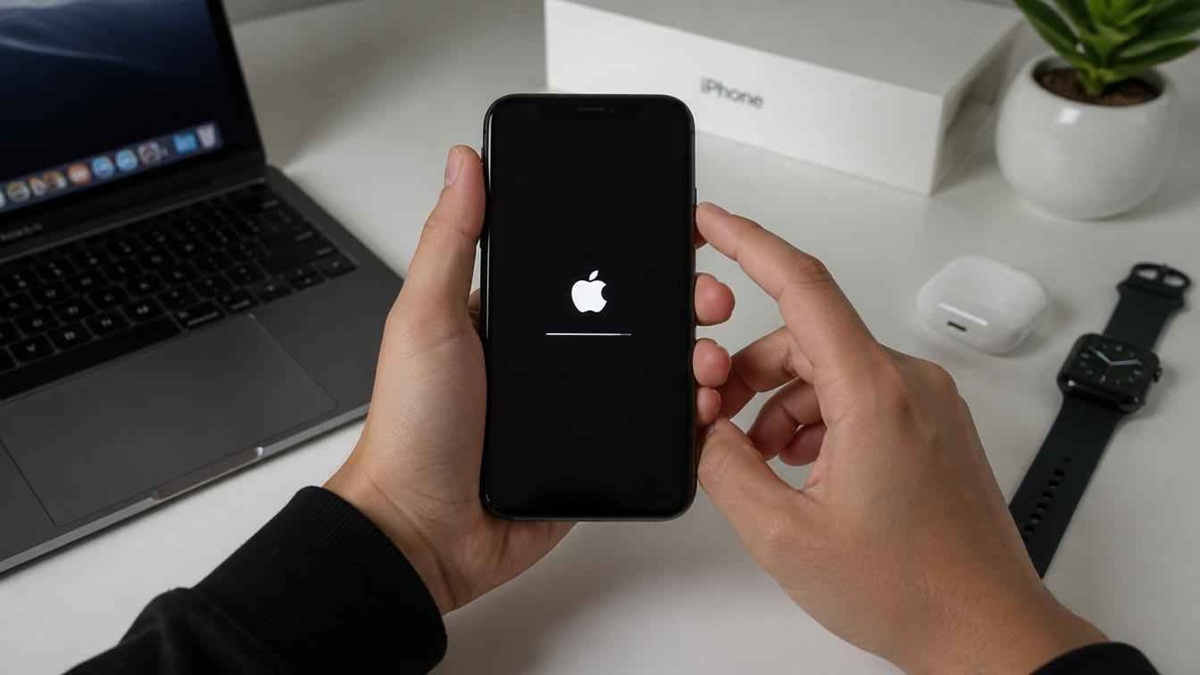
Before following the steps below, make sure you know the type of iPhone you're using. This is important because the button combinations vary across models.
If your iPhone is experiencing minor issues, a normal restart is usually enough to resolve the issue. However, if the device freezes or the screen is completely unresponsive, you can use the following method: force restart.
iPhone with Face ID (iPhone X, 11, 12, 13, 14, 15, and 16)
All iPhones using Face ID ID have the same restart method. This method applies from iPhone up to the latest series such as iPhone 16. There are two options that can be used, namely normal restart and force restart, depending on the condition of the device.
For a normal restart, press and hold one of the Volume buttons (up or down) along with the Side button until the power slider appears (power slider).
Slide the slider to the right to turn off the device, then wait about 30 seconds for the iPhone to completely shut down. Then, press and hold the Side button until the Apple logo appears, signaling that the device is turning back on.
Meanwhile, if the iPhone experiences freeze, the touch screen is not working, or the system is completely unresponsive, use force restart.
To do this, quickly press and release the Volume Up button, then quickly press and release the Volume Down button. Then, immediately press and hold the Side button until the Apple logo appears on the screen. Release the buttons once the logo appears and wait for the boot process to complete.
iPhone with Home Button (iPhone 6s, 7, 8, and iPhone SE)
For iPhone users who still use the Home button, the restart steps vary slightly depending on the device model. Apple uses different button combinations on the iPhone 6s, iPhone 7, iPhone 8, and even the iPhone SE line.
To restart normally on iPhone 8 and the latest generation iPhone SE, press and hold the Side button until the power slider appears.
Slide the slider to the right to turn off the device, wait about 30 seconds, then press and hold the Side button again until the Apple logo appears. This method is safe to use anytime your iPhone starts to slow down.
If a force restart is required, the steps vary depending on your device type. On iPhone 7 and iPhone 7 Plus, press and hold the Volume Down button and the Side button simultaneously until the Apple logo appears.
On the iPhone 6s and first-generation iPhone SE, press and hold the Home button along with the Side or Top button until the Apple logo appears. This method is especially helpful when the screen is frozen or the device won't turn off normally.
Restart Through Settings
In addition to using the physical buttons, Apple also provides a feature to turn off and restart the iPhone through the Settings menu. This method is suitable if the Power or Volume buttons are starting to break, allowing you to still turn off the device without having to use a button combination.
To do this, open Settings, then go to the General menu. Scroll to the bottom and select Shut Down.
Once the power slider appears, slide it to the right until the iPhone turns off completely. Wait about 30 seconds before turning it back on by pressing and holding the Side button until the Apple logo appears.
This method can't really do it force restart because it still requires a functioning system. However, for regular restarts, this method is very practical and easy to perform, especially for users who want to reduce the use of physical buttons to extend the life of their device.
When Should You Restart Your iPhone?

Restarting an iPhone isn't just for troubleshooting. In some situations, restarting can also help maintain stable system performance. Here are some recommended situations for restarting:
- After the iOS update is finished installing.
- When the application often closes itself (crashes).
- When your iPhone feels slow or less responsive.
- If the Wi-Fi, Bluetooth, or cellular network connection is problematic.
- After using the device for a very long time without turning it off.
Performing a periodic restart also helps refresh the system and close application processes running in the background.
Restarting an iPhone is actually very easy, but the steps vary depending on the device model. Users of iPhones with the Face ID ID use a combination of the Volume and Side buttons, while iPhones with a Home button still use a different button combination for each model.
If the physical buttons are having problems, you can also turn off your iPhone via the Settings > General > Power Off menu.
Also read:

- What is iPhone True Tone? Here's an explanation and how to check it.
- How to Limit Data Usage on Android & iPhone
- How to Change Your Phone's Touchscreen Sensitivity for Gaming on iPhone and Android
Meanwhile, for conditions where the screen is stuck or the device is not responding, use the method force restart So your iPhone can return to normal operation without having to wait for the battery to drain. By understanding the three methods above, you can solve various minor iPhone problems more quickly and safely.
FAQ How to Restart iPhone
No. Restarting your iPhone simply restarts the system, keeping your photos, videos, apps, and other data safe.
Restart is usually used when the iPhone is still functioning normally, whereas force restart done if the device hangs or is unresponsive.
Generally, the restart process only takes about 30 seconds to 1 minute, depending on the model and condition of the device.
No. The restart method is different for iPhones with Face ID ID and iPhones that still use the Home button.
Yes. You can turn off your iPhone by going to Settings > General > Power Off, then turning it back on using the Side button.
MLBB Product Recommendations


 BV2SHOP
 DEMPET STOREBV2SHOPBV2SHOP
 RudyStorez
 BANGJEFF
 TopMurBV2SHOPBV2SHOP
 AM08SHOP


 News
News




