

- Discord Overlay is a built-in feature that displays the speaker's name, voice status, and messages directly above the game screen without the need for alt-tab.
- In PC, activate Enable In-Game Overlay, add game in Activity Status, then set the position and appearance.
- In MOBILE PHONE, Use Picture in Picture Discord, sound notifications, bubbles, or split screen for a similar overlay experience.
Discord Overlay: Understanding It and How to Activate It
Have you ever been in the middle of a game but had to alt-tab just to check who's talking on Discord? Discord Overlay solves that problem by displaying Discord information directly on top of the game screen without having to exit any app.
This feature displays the name of the currently speaking player, voice connection status, and even message notifications in real-time in the corner of your screen while you're playing. You can monitor all of Discord's important information without interrupting your gameplay.
Well, here's a complete guide on how to activate and use Discord Overlay, along with tips on how to troubleshoot any issues. Read it all the way through to ensure your gaming sessions with friends are more coordinated and enjoyable from start to finish.
Also read:
- Tips for Using the Old Version of Savefrom Net
- Blockaway: a Solution for Accessing Blocked Websites on Your Phone and Computer
- Upgrade Photo Quality with Nightmaer AI Tools
What Is Discord Overlay?
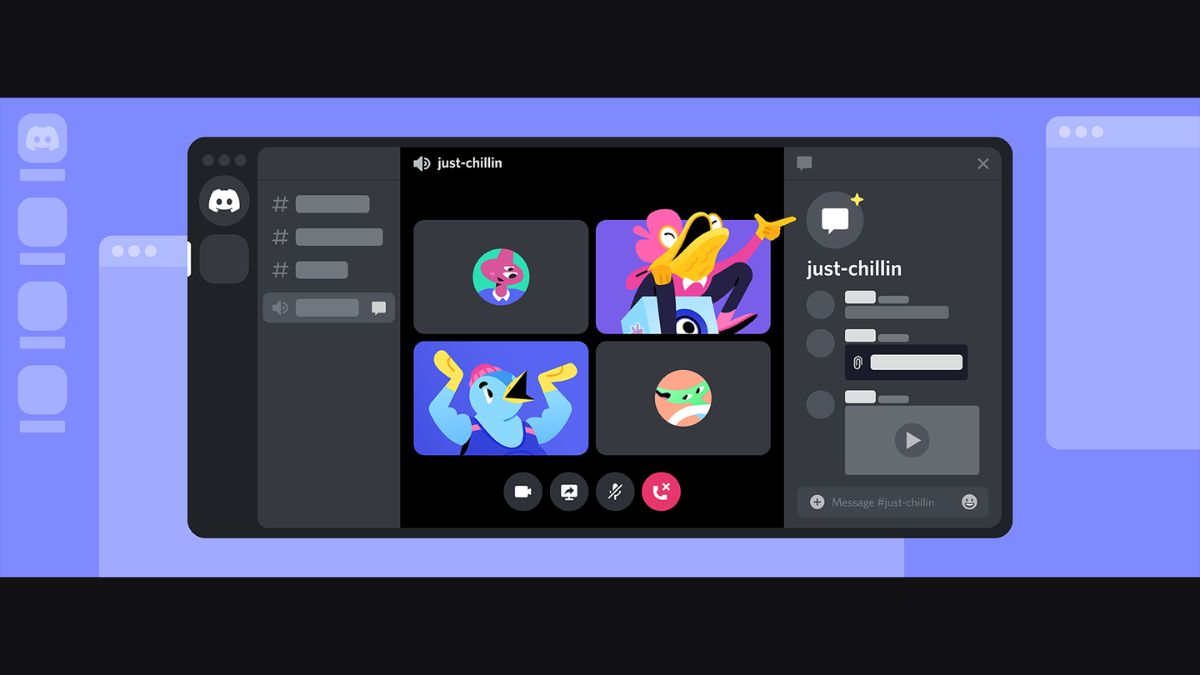
Discord Overlay is a built-in feature Discord which displays the Discord interface transparently over the running game screen. This feature allows players to see who is speaking in a voice channel and read text messages without having to leave the game screen.
Overlays work by inserting a transparent layer over the game display that is only visible to the player on their own device without affecting the display seen by others.
The position, size, and transparency of the overlay can be fully customized to your preferences so as not to interfere with important areas of the game screen.
How to Enable Discord Overlay on PC
Here are the complete steps to activate Discord Overlay on your PC so you can use it immediately while playing games.

- Open Discord Settings: Click the gear icon in the bottom left corner Discord screen to enter the User Settings page and look for the Game Overlay menu in the settings list on the left;
- Enable Toggle Enable In-Game Overlay: Slide the Enable In-Game Overlay toggle to the on position and Discord will start setting up overlays for all compatible games automatically;
- Add Games to Discord Activity List: Open the game you want to use the overlay on first, then alt-tab back to Discord and check whether the game has been detected in the Activity Status menu;
- Enable Overlay for Specific Games: Open the Game Overlay settings then search for the name of the game you want to configure and enable or disable the overlay toggle for that game individually;
- Set Overlay Position and Appearance: Open the overlay using the preset shortcut and then click and drag it to the most comfortable position without covering important elements.
How to Enable Discord Overlay on Mobile

Here are some ways you can get a similar overlay experience on mobile devices.
- Use Discord's Picture in Picture Feature: Some Android devices support Picture-in-Picture mode, which allows Discord to remain small in the corner of the screen when you switch to a game app. Enable Picture-in-Picture permissions for Discord in your phone's app settings to allow this feature to work when switching between apps.;
- Enable Discord Sound Notifications: Make sure Discord's voice notifications are enabled so you can still hear who's speaking in the voice channel even if your screen is showing another game. This feature doesn't display a visual overlay but still helps with team coordination without having to leave the current game.;
- Use Floating App or Bubble Mode: Enable the bubble notification feature for Discord in your phone's notification settings and tap the bubble whenever you want to check messages without having to close the game;
- Take Advantage of the Split Screen Feature: This method is most effective on tablets or phones with large screens because the larger display area allows both applications to remain comfortable to use.
Also read:
- How to Check Passwords Saved on Your Phone and PC
- How to Easily View WiFi Passwords on a Laptop
- Switch 2, Nintendo's Hybrid Console with Even More Powerful Performance
That concludes our discussion of the Discord overlay feature, from its definition to how to activate it. So, are you interested in trying this Discord feature?
MLBB Product Recommendations


 BV2SHOP
 DEMPET STOREBV2SHOPBV2SHOP
 TopMur
 RudyStorezBV2SHOPBV2SHOPTopMurBV2SHOP


 News
News




