

- Roblox can be downloaded on a laptop Windows and Mac; make sure it meets the minimum specifications such as RAM, storage, and stable connection.
- If that fails, check and address common causes: anti virus, firewall, try another browser, or make sure your operating system is updated.
How to Download Roblox on a Laptop & Solutions If It Doesn't Work
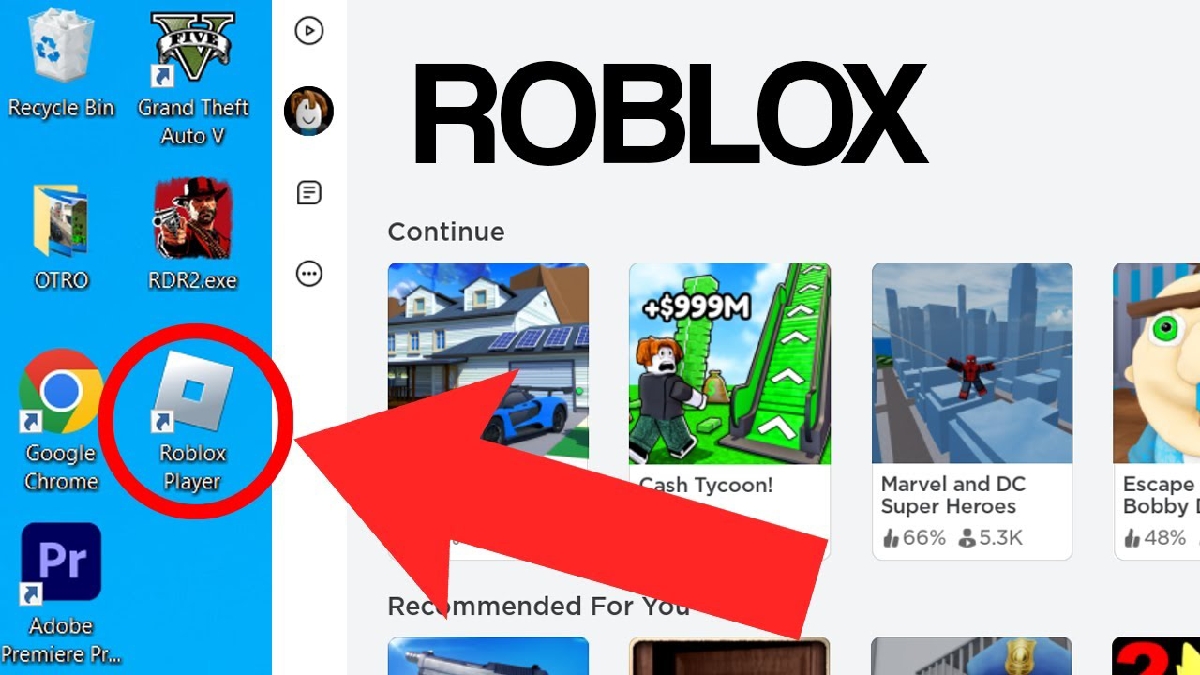
You are looking for a way to download Roblox Quickly and easily download Roblox on your laptop? Don't worry, you're in the right place. Roblox is one of the most popular gaming platforms today, offering thousands of exciting games that can be played for free. But many people are still confused: can Roblox actually be downloaded on a laptop?
In this article, you will get a complete explanation starting from the minimum specifications, how to install, to solutions if your laptop cannot download Roblox.
Can Roblox be downloaded on a laptop?
Roblox Product Recommendations

 Hero AliveHero Alive
 Hero AliveHero Alive
 Kumay10shop
 MONSTOREHero AliveHero AliveKumay10shop
 NEXT STORE
Roblox is available for a variety of devices, including Windows and Mac-based PCs and laptops. You don't need an expensive gaming laptop to play it, as Roblox is a relatively lightweight game.
Roblox Minimum Specifications on PC/Laptop
In order for Roblox to run smoothly, here are the minimum specifications you need to pay attention to:
For Windows:
- Operating System: Windows 7, 8, 8.1, 10, or 11
- Processor: Minimum 1.6 GHz or higher
- RAM: Minimum 1 GB (4 GB recommended for smoother operation)
- Storage: Minimum 20 MB of free space
- DirectX: Version 9 or later
- Internet Connection: Stable for online play
For Mac:
- macOS 10.11 (El Capitan) or later
- Intel Processor
- Minimum RAM 1 GB
If your laptop meets the specifications above, you should be able to download and play Roblox without any major issues. However, if your RAM is too low or your internet connection is slow, the game will often lag.
Also read:
- 40 Roblox Avatar Photo Ideas for Girls and Boys, Really Cool
- 100 Great Roblox Account Names for Unisex
- Get to Know What the Fish It Script Is and All Its Features
How to Install Roblox on a Laptop
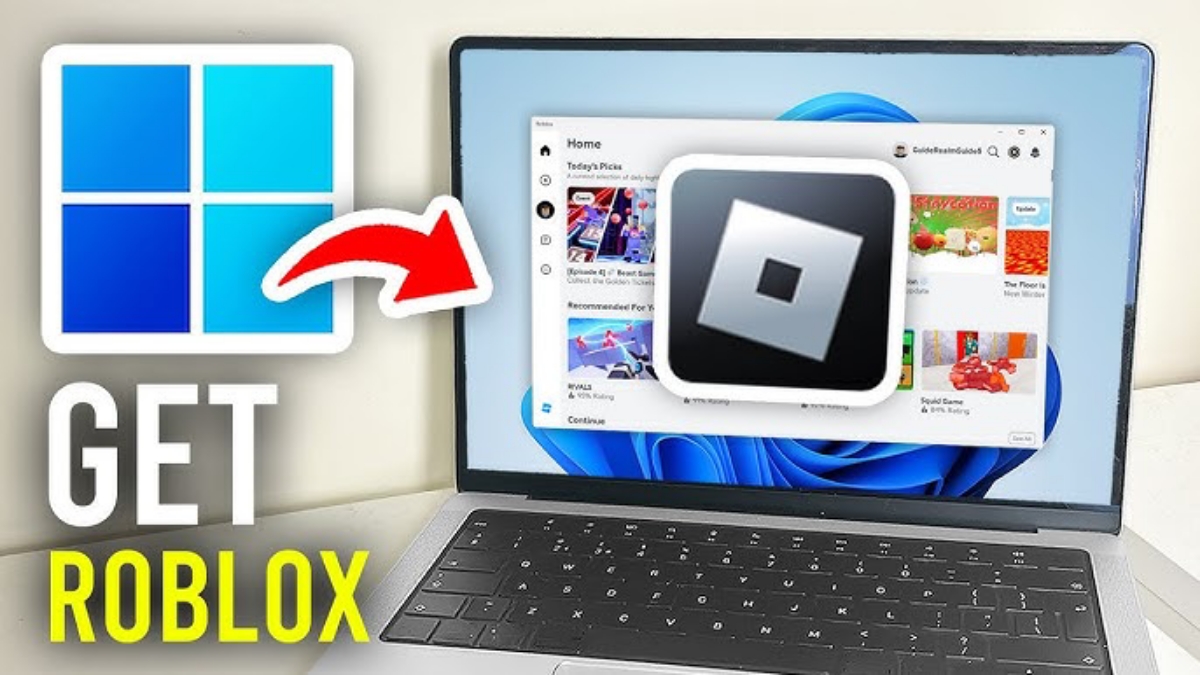
For those of you who are doing this for the first time, here are the steps to easily download Roblox on your laptop:
1. Open the Official Roblox Website
Go to the official Roblox website via a browser such as Chrome or Edge.
2. Login or Register an Account
If you don't have an account yet, you can register for free. The process is quick and hassle-free.
3. Choose Any Game
After logging in, try clicking on one of the games on the main page.
4. Click the “Play” button”
When you click the Play button, a notification will usually appear to download Roblox Player.
5. Download and Install
The installer file will download automatically. Open it and wait for the installation process to complete.
6. Roblox Ready to Play
Once the installation is complete, Roblox will open automatically and you can start playing.
This process generally only takes a few minutes depending on your internet speed.
Laptop Can't Download Roblox? Here's Why and How to Fix It
Sometimes there are problems downloading Roblox on a laptop. One of the most common causes is antivirus or internet security software.
Many security software programs attempt to control which programs can access the internet. Typically, these programs are cautious and, by default, no program is allowed to access the internet, including Roblox.
As a result, the download or install process may fail.
How to fix it
Here are some solutions you can try:
1. Check Antivirus
Check to see if your antivirus is blocking Roblox. If so, add Roblox to the “Allow” or “Whitelist” list.
2. Temporarily turn off the firewall
You can temporarily disable the firewall to determine if that's the cause. After a successful installation, re-enable it for security purposes.
3. Use a Different Browser
Sometimes problems occur due to browser errors. Try downloading using a different browser.

4. Ensure a stable connection
If the internet is intermittent, the installer file may be damaged or fail to download.
5. Update the Operating System
If your laptop is still using an old system that is no longer supported, Roblox may not be able to be installed.
Downloading Roblox on a laptop is actually easy and straightforward. As long as your laptop meets the specifications and your internet connection is stable, the installation process only takes a few minutes.
If you encounter problems, the cause is usually your antivirus, firewall, or internet connection. By following the solutions above, you can quickly enjoy the various exciting games on Roblox without any problems.
Also read:
- Roblox Coloring Pages: Fun Activities for Kids & How to Download Them
- How to Get and Make Pal Face Roblox
- Functions and How to Get Free Skins on Roblox
Now you know the complete guide to downloading Roblox on your laptop. Just put it into practice and start playing!




 News
News




