

- Start Screen Sharing in Discord: join voice channel, select screen/window, set resolution, click Go Live.
- To run smoothly: use a cable connection, close background applications, adjust the resolution to the internet, restart Discord before an important session.
An Easy Way to Discord Screen Share and Create Fun Interactions
Have you ever been engrossed in a game or watching a movie with friends, but wondered how to share your screen in real-time? Discord Screen Sharing is a highly sought-after feature, allowing you to display your screen directly to your friends in a voice channel without the need for any additional apps.
This feature is incredibly useful for a variety of purposes, from watching movies together, online presentations, collaborative coding sessions, to simply showing something interesting on the screen. All of this can be done directly from the device. Discord, without having to switch to other applications where the process is more complicated.
So, here's a complete guide on how to use Discord Screen Sharing from various devices, along with tips on how to fix problems if the feature isn't working. Read it all the way through to ensure your screen sharing session runs smoothly without any technical glitches ruining the experience.
Also read:
- How to Lock Facebook Profile, Help Protect Privacy!
- How to Transfer (TF) FUNDS Without Premium Upgrade
- How to Make a Space FF Nick Easily
How to Enable Discord Screen Sharing on PC

Here are the steps you can follow directly without the need for any complicated prior settings.
- Enter the Voice Channel First: Join one of the available voice channels on your Discord server and ensure a stable internet connection. Once successfully logged in, you'll see a monitor icon in the control panel at the bottom of the screen;
- Select the Screen Area You Want to Share: Click the screen share icon and Discord will display a menu allowing you to choose between sharing your entire desktop screen. Selecting a specific window is recommended if you don't want your teammates to see notifications or other private content on your screen.;
- Set Resolution and Frame Rate: Free Discord users can use a maximum resolution of 720p with a frame rate of up to 30 fps. Discord Nitro users can enjoy resolutions up to 1080p with a frame rate of 60 fps for a much sharper and smoother display.;
- Start Screen Sharing and Manage Sessions: Click the Go Live button to start the session, and your colleagues in the voice channel can immediately see your screen in real time. To end the session, simply click the Stop Sharing button in the bottom control panel, and your screen will immediately stop being visible to everyone.
How to Use Discord Screen Sharing on Mobile
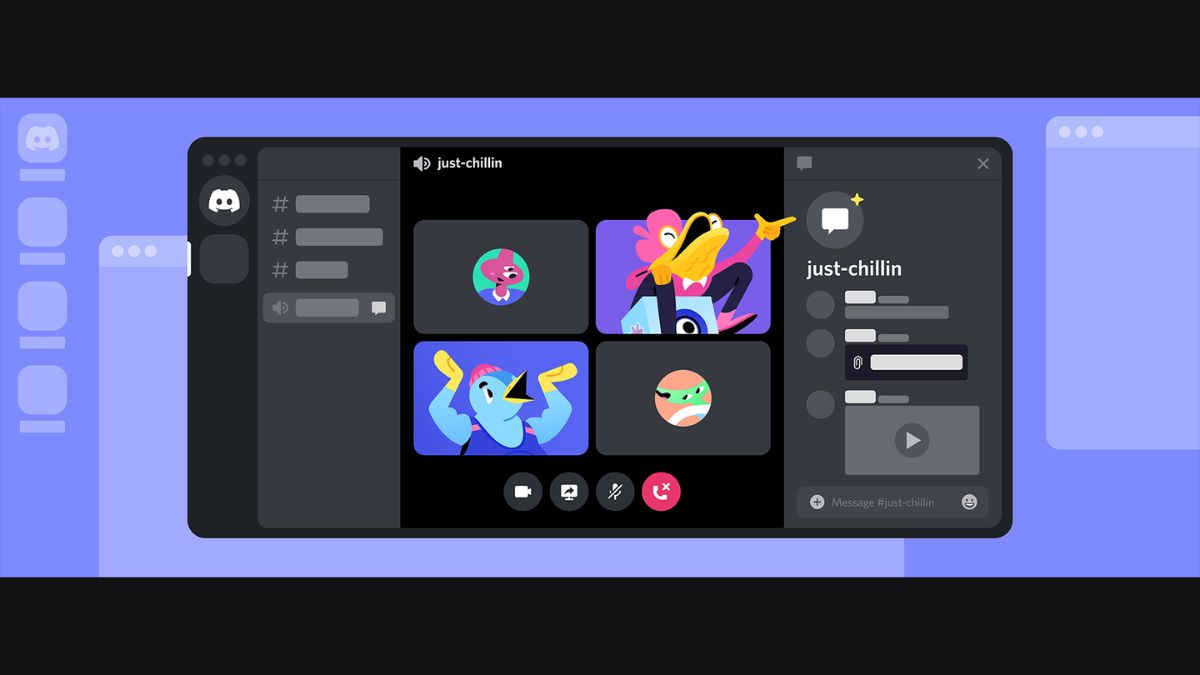
Here's how to activate it directly from Discord app on mobile without the need for additional settings.
- Join a Voice Channel from the App: Open the Discord app and enter an active voice channel, then tap the channel name and select the Join Voice option to enter the communication session;
- Enable Screen Share from Control Panel: Unlike the PC version, screen sharing on mobile automatically shares the entire screen without the option to select only specific application windows;
- Make Sure Your Content Is Ready Before You Start: Once everything is ready, tap Start Now and your phone screen will be displayed in real-time to all members in the voice channel.
Tips to Make Discord Screen Sharing Run Smoother
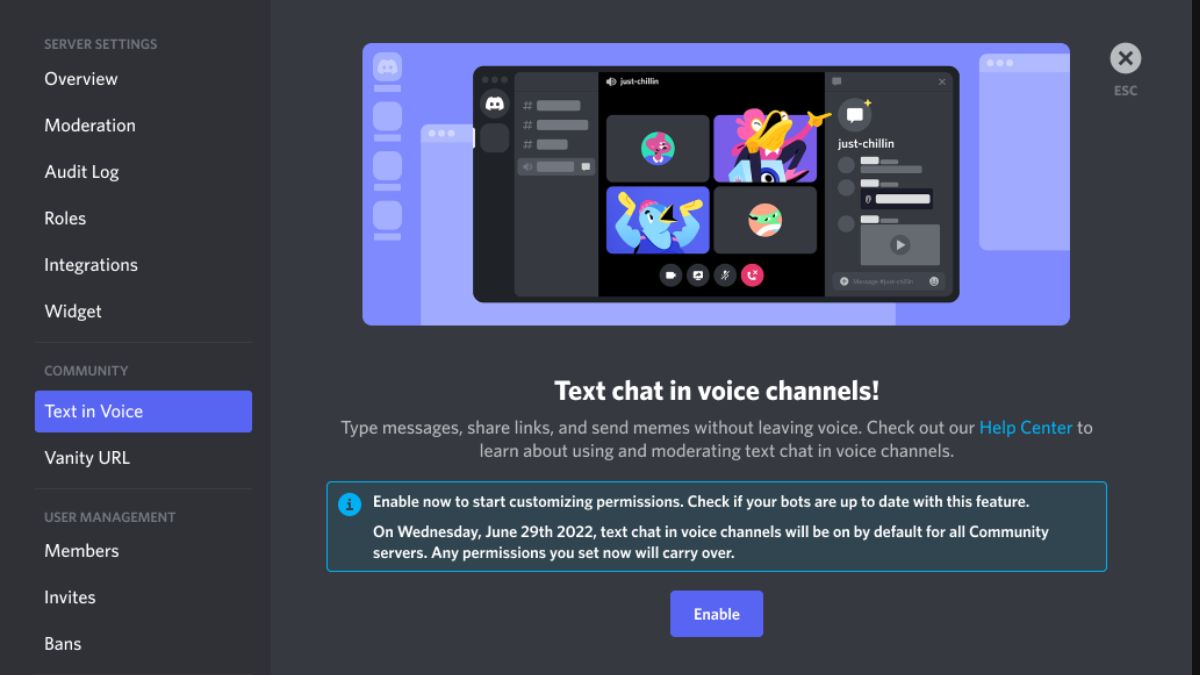
Here are some practical tips you can apply right away for a smoother, more hassle-free screen sharing experience.

- Use a Wired Connection Instead of Wi-Fi: Internet connection is much more stable than Wi-Fi and really helps to keep screen sharing quality consistent without lag;
- Close Unnecessary Apps: Apps running in the background can suck up the bandwidth and CPU resources Discord needs to run screen sharing optimally;
- Set Quality According to Internet Speed: Don't force 1080p resolution if your internet speed is not adequate because this will actually make the screen appear jerky and uncomfortable to watch;
- Restarting Discord Before a Session is Important: If you plan to screen share for important purposes such as presentations or online meetings, restart Discord first before starting.
Also read:
- How to Unblock Friends on FB
- Forgot Your Facebook Account Access Code? Follow These Steps to Recover It!
- Android System UI Not Working? Follow These Steps to Fix It!
Enabling screen sharing in Discord isn't difficult as long as you follow the instructions carefully. Now that you know how, are you eager to try it out now?
MLBB Product Recommendations


 BV2SHOP
 DEMPET STOREBV2SHOPBV2SHOP
 TopMur
 RudyStorezBV2SHOPBV2SHOPTopMur
 AM08SHOP



 News
News




