

- Vysor allows displaying and controlling the Android screen on a PC via a USB cable by enabling USB Debugging.
- General fix: enable USB Debugging, allow connection, change data cable, change USB mode, or install ADB Driver and restart.
Vysor: Functions, How to Use, and Solutions for Errors
Vysor is an application that lets you display and control your Android phone screen from your computer. It uses a USB connection and features. USB Debugging, the cellphone screen can be displayed on the monitor so you can operate the application using the mouse and keyboard.
Besides screen mirroring, Vysor is also useful for presentations, application demonstrations, and even taking screenshots from your computer. Using Vysor is quite simple, as long as the settings on your phone and the USB connection are correct.
Main Functions of Vysor
Vysor doesn't just allow you to display your phone screen on your computer. It also offers several features that make using your Android device from your PC more convenient.
Screen Mirroring
The main function of Vysor is screen mirroring, which displays an Android phone screen on a computer monitor. This way, whatever is currently visible on the phone screen can be monitored on the PC screen, appearing larger and clearer.
This feature can be useful when you want to view your phone's screen without having to hold the device. For example, you're showing an app, following an Android tutorial, or want to view your phone's activity on a computer monitor.
Also read:
- How to Fix a Cell Phone Screen That Cannot Be Touched or Turned Off
- Causes of Mobile Phone Screen Moving by Itself and How to Fix It Overcoming it
- To Play Games More Precisely, Here's How to Adjust Your Phone's Screen Sensitivity!”
Full Control
Vysor also lets you control your phone from your computer. Once the devices are successfully connected, you can use the mouse instead of touching the screen, while the computer keyboard can be used for typing.
This feature makes activities like opening apps, replying to messages, entering text, and navigating your phone more convenient. You can even use these controls to play mobile games, although the experience depends on the app and device compatibility.
Screen Sharing
Vysor can be used for a variety of screen sharing needs, especially when you want to show someone else what's happening on your phone. The phone's display on your computer makes it easier to show during presentations or demonstrations.
Additionally, the screen displayed on the computer also simplifies the documentation process. You can take screenshots from your computer when you want to save an app's appearance, create a tutorial, or demonstrate specific steps on an Android device.
How to Use Vysor
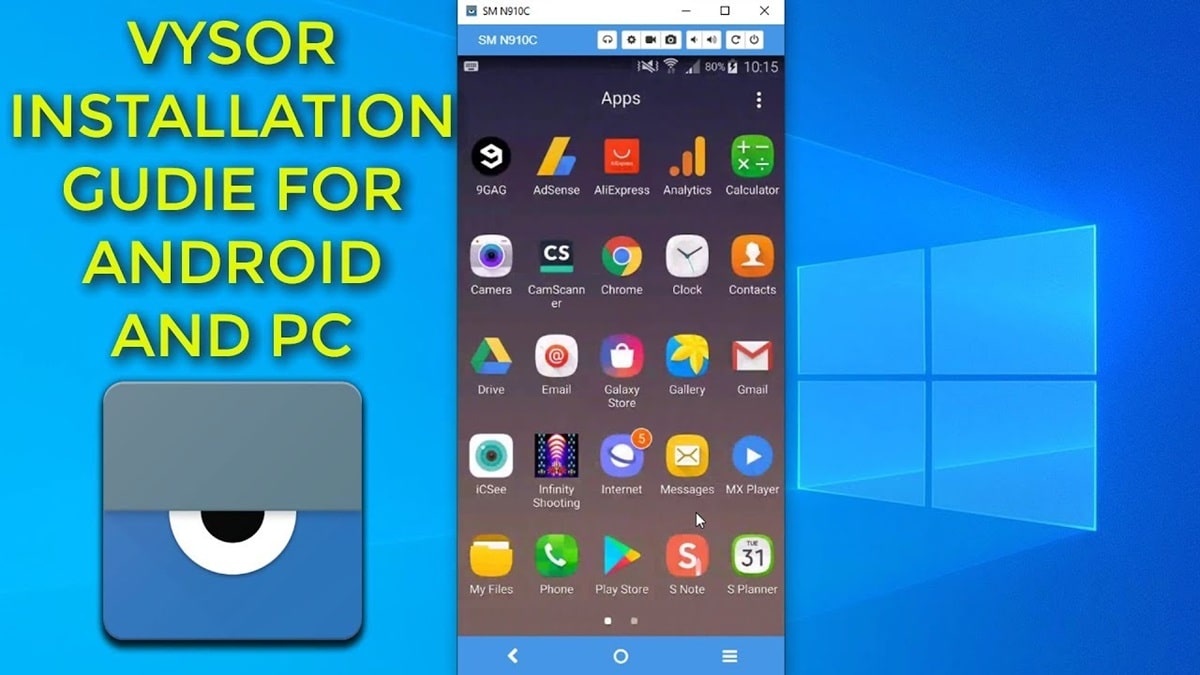
Before using it, there are several settings that need to be made on your Android phone. The most important part is activating Developer Options and USB Debugging so that the computer can communicate with the device.
Preparation on Android Phone
The first step is to open the Settings menu on your phone. Then, find the About Phone menu and find the Build Number option.
Tap the Build Number seven times until a notification appears indicating developer mode is enabled. Next, go to Developer Options, then find and enable USB Debugging.
Connecting to a Computer
Once the setup is complete on your phone, download and install the Vysor app on your computer from the official website. Then, connect your phone to your computer using a USB data cable that supports data transfer.
Open the Vysor app on your computer and click the View button, or select the name of the detected phone. When the USB Debugging pop-up window appears on your phone, select Allow. If all steps are correct, the phone's screen will immediately appear on your computer and can be controlled using a mouse or keyboard.
How to Fix Vysor Not Detecting Your Phone

A phone not appearing in this application is usually related to USB Debugging settings, the cable, the USB connection mode, or the computer's drivers. Before attempting more complex steps, check these basics.
Enable USB Debugging
Make sure USB Debugging is enabled on your phone. If not, open Settings, go to About Phone, tap Build Number seven times to enable Developer Options, and then enable USB Debugging.
Allow Connection
Check your phone's screen after connecting it to your computer. If a pop-up appears asking for USB Debugging permission, select Allow. Without this permission, your computer may not be able to access the device via ADB.
Replace Data Cable
USB cables that only support charging cannot be used for data transfer. Try using a quality USB cable and ensure it supports data connections.
Change USB Mode
While your phone is connected to your computer, swipe down the notification panel and check your USB connection settings. If available, change the USB mode to File Transfer or Android Auto/MTP, then try opening Vysor again.
Install ADB Driver
If your phone still isn't recognized by Windows, the problem could be with the drivers. You can install the appropriate ADB drivers to ensure your computer's system can properly recognize your Android device.
Restart Device
If all settings are correct but Vysor still doesn't detect your phone, try restarting both your phone and your computer. Once both are back on, connect your phone via USB and reopen the Vysor app.
By understanding the functions and how to use Vysor, you can more easily display and control your Android phone from your computer.
Also read:

- Phone Screen Moving on Its Own? Here's Why & How to Fix It
- Causes and How to Fix a Mobile Phone Screen Moving by Itself
- 5 Ways to Fix a Cell Phone Screen That Cannot Be Touched or Turned Off
If the device is not detected, checking USB Debugging, connection permissions, data cable, USB mode, and drivers are usually the first steps that need to be taken.
FAQs
Yes, there is a free version with basic features to display and control your phone screen via computer.
Not always. The connection method may depend on the app version and the device used.
Usually because USB Debugging is not active, the cable does not support data transfer, or the device driver is not installed.
Yes, because the phone screen can be controlled using a computer mouse and keyboard. However, control response depends on the connection and device.
MLBB Product Recommendations


 BV2SHOP
 DEMPET STOREBV2SHOPBV2SHOP
 TopMur
 RudyStorezBV2SHOPBV2SHOPTopMurBV2SHOP


 News
News




