

- Start with Restart atau ketuk notifikasi Safe Mode; periksa tombol volume dan hapus aplikasi baru yang bermasalah.
- Jika masih terjebak, coba Wipe Cache Partition via Recovery Mode, or Factory Reset setelah backup data.
How to Easily Remove Safe Mode on Your Phone
How to remove safe mode on a cellphone is often searched for when cellphone suddenly displays writing Safe Mode on the screen. This condition prevents some applications downloaded from outside the default system from opening as usual.
As a result, you might think your phone is damaged, even though safe mode is actually a built-in feature to help detect problems on the device.
You don't need to panic immediately when your phone enters safe mode. There are several methods you can try. Here's an explanation of safe mode's functions and the steps to disable it.
Also read:
- How to Turn Off Safe Mode on Android Phones Easily
- How to Remove Safe Mode on HP Without Restarting
- How to Disable Google Safesearch on PC and Mobile Browsers
What is Safe Mode?
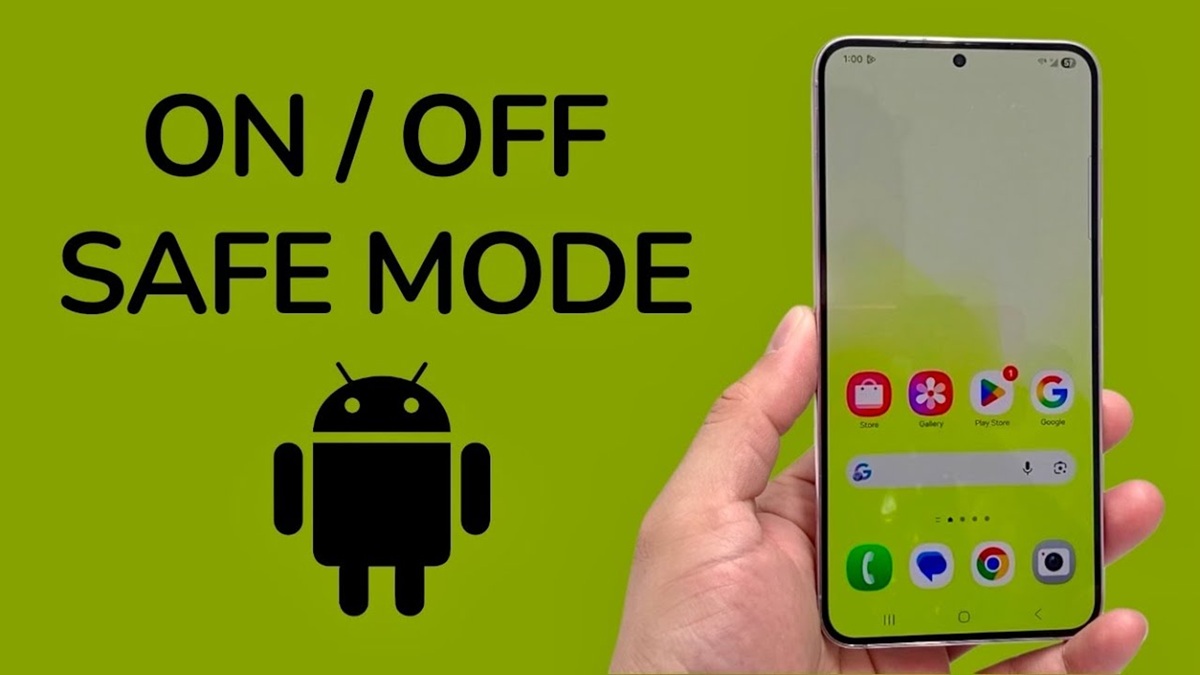
Safe mode or Safe Mode is a diagnostic feature on HP Androids which runs the system with only essential built-in apps and services. In this state, most of your installed third-party apps will be temporarily disabled.
Its main function is to help users find out whether the cellphone problem comes from additional applications or the device system.
For example, if the cellphone often experiences crashes, apps suddenly close, or the device feels slow, safe mode can help narrow down the cause.
Safe mode can sometimes be activated accidentally. This can be caused by pressing the volume button while the phone is turned on, or by a third-party application that is experiencing issues. error, or interference with the operating system.
If the writing Safe Mode appears, you can try the following steps to return your cellphone to normal condition.
How to Remove Safe Mode on Your Phone

How to remove safe mode on your cellphone can be done in several easy steps, starting from restarting to deleting problematic applications.
Restart your phone normally
The easiest way to remove safe mode on your phone is to do restart. This method is usually sufficient if safe mode is activated due to a temporary interruption.
To do this, press and hold the power button until the options menu appears. Then, select Restart or Restart. Wait until the phone turns back on and check if the writing appears. Safe Mode already lost.
If there is no choice Restart, you can choose Turn off the power, wait a few seconds, then turn the phone back on. Menu names and button combinations may vary depending on the device brand.
Turn off safe mode via notification panel
Some Android phones provide a shortcut to exit safe mode via the notification panel.
To do this, swipe down from the top of the screen to open the notification panel. If a notification appears, Safe Mode, tap the notification and follow the instructions to disable it. The phone may do restart automatically.
However, this feature isn't available on all Android brands or versions. If you don't see this notification, try another method.
Check the volume buttons and the phone casing
The volume button is continuously pressed when the cellphone is doing boot can cause the device to enter safe mode. This can happen because the buttons are stuck, dirty, or pressed by a case that's too tight.
Try removing the phone case, then check if the volume buttons can be pressed and return to their original positions. After that, do the following: restart and see if the problem is resolved.
Avoid pressing the buttons too hard or disassembling the device yourself if the buttons are physically damaged.
Delete newly installed apps
If safe mode appears after you install a certain app, that app may be the cause of the problem.
Open the Settings menu, select Apps, then find the app you recently installed before the problem started. Select it and tap it. Uninstall or Uninstall.
Once finished, do restart. It's best to delete any suspicious apps first to determine if they're actually the culprit.
Alternative Solutions If Your Phone Is Still Stuck in Safe Mode
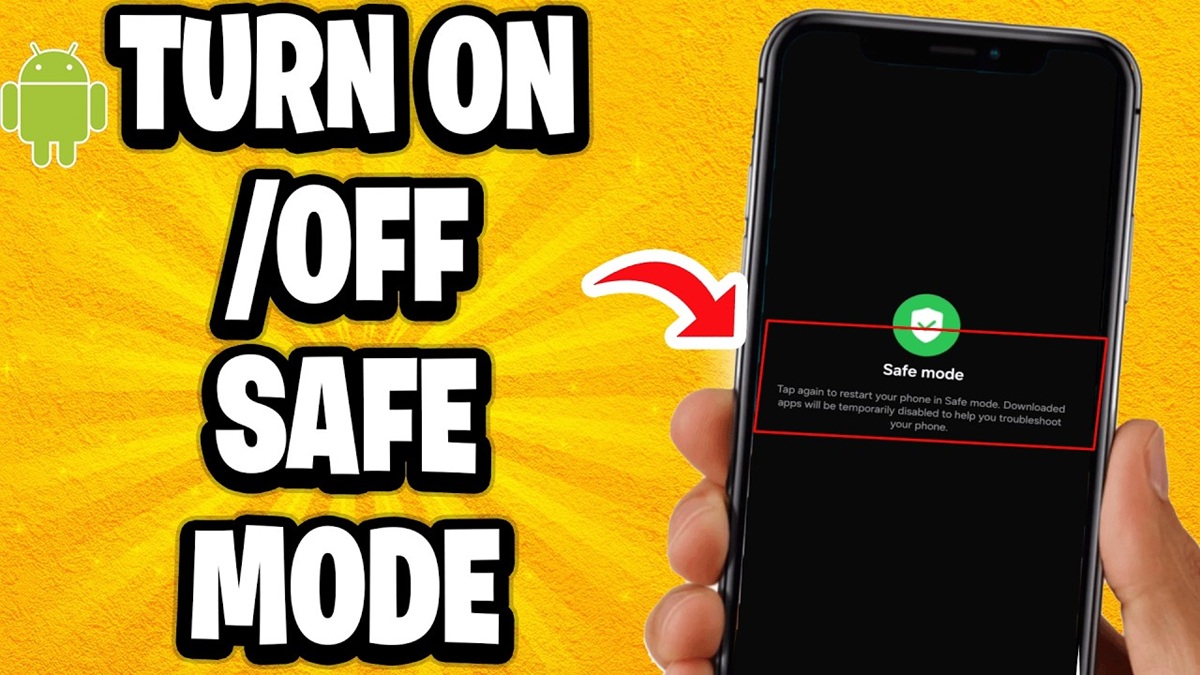
If the various methods above don't work, you can try several advanced solutions to overcome the problem of your cellphone being stuck in safe mode, starting from clearing the system cache to performing a factory reset as a last resort.
Try Wipe Cache Partition
On some Android devices, you can try Wipe Cache Partition through Recovery Mode. This feature is used to clear the system cache partition without deleting personal data, although its availability depends on the device.
How to log in to Recovery Mode varies by phone brand. If the device supports it, use the physical buttons according to the manufacturer's instructions, then select the option Wipe Cache Partition if available. Do not choose other options that you do not understand, especially Wipe Data.
Perform a Factory Reset as a last step
If all else fails, Factory Reset This could be a last resort. This step resets the phone to factory settings and erases any user data stored on the device.
Before doing so, make sure you have done backups Photos, videos, contacts, documents, and other important data. Also, make sure you know which Google account is used on your phone.
Once the data backup is safe, open Settings, select the System or General Management menu, then look for the Reset option and Factory Reset. The menu name may vary on each device.
If your phone still enters safe mode after a reset, there may be a problem with the physical buttons or the device's system. You can contact an authorized service center for further investigation.

How to remove safe mode on a cellphone can be started by doing restart, checking the notification panel, making sure the volume buttons aren't stuck, and uninstalling problematic apps.
Also read:
- Easy Way to Permanently Delete a Google Account on Your Phone
- How to Hide Apps on a Samsung Phone, Keeping Your Privacy Safe
- Here's how to log out of WA on your cellphone easily and safely
If your phone remains stuck in safe mode, consider your next steps carefully. Factory Reset as a last option and always do backups before wiping device data.
FAQs
No, safe mode is a built-in feature to help detect problems with the system or applications.
The cause could be the volume button being pressed when the phone is turned on, a problematic application, or a system error.
No. Safe mode only temporarily disables some third-party apps without deleting personal data.
It can help if the problem is software related, but all user data may be erased if it has not been backed up.
MLBB Product Recommendations


 BV2SHOP
 DEMPET STOREBV2SHOPBV2SHOP
 RudyStorez
 TopMurBV2SHOPBV2SHOP
 AM08SHOPTopMur




 News
News




