

- Debloat Windows 11: Remove or disable built-in apps to reduce background load and improve performance.
- Safe Preparation: Download debloat tools from trusted sources and understand the consequences before running the process.
- Practical Steps: Run the tool, let the process complete, then restart device for the changes to take effect.
- Benefit: The system is lighter, more responsive, more stable, and storage is more efficient without losing the main function.
How to Use Debloat on Windows 11 to Improve System Performance
Debloat Windows 11 This often occurs when users feel the system is running slowly after a factory installation. Many default applications are active in the background and ultimately interfere with the user's daily computer use.
Without proper adjustments, the device performance feels slow even with the specifications. hardware In fact, it's still considered capable of being used. This situation has prompted many people to look for ways to streamline their systems so that their computers work more efficiently and optimally.
MLBB Product Recommendations


 BANGJEFF
 BV2SHOPBV2SHOPBV2SHOP
 TopMur
 RudyStorezBV2SHOPBV2SHOPRudyStorezTopMur
The debloating process aims to reduce background load without compromising the core functionality of Windows for active users. With the right steps, you can enjoy a lighter, safer, and more stable computer experience every day.
Also read:
What is Windows 11 Debloat?
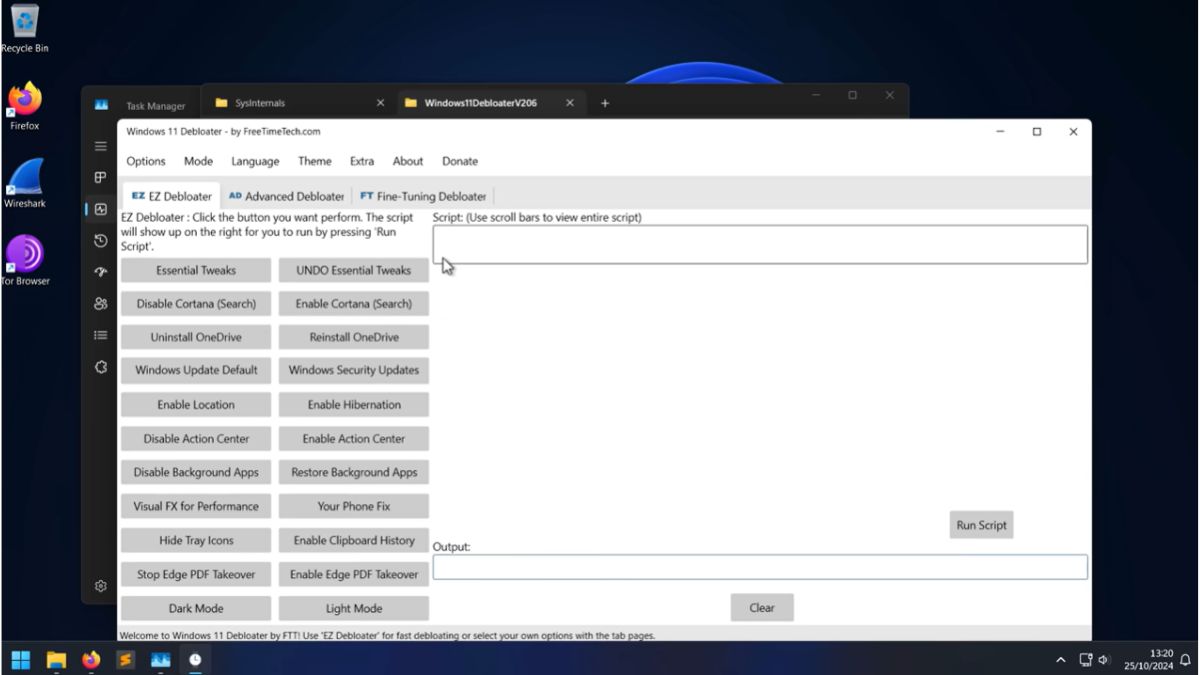
Debloat Windows 11 This is the process of removing or disabling built-in applications that are rarely used. This step is done to reduce the system load and make the computer run more smoothly.
On Windows 11, many default apps run in the background without the user's knowledge. This can impact RAM usage., CPUs, as well as slowing down system response during daily use.
By debloating, users have greater control over their systems. Computers can run more efficiently without losing essential core functions.
Furthermore, this process also helps create a cleaner and more focused work environment. Users can customize the system to their needs without being distracted by irrelevant built-in applications.
How to Use Debloat Windows 11
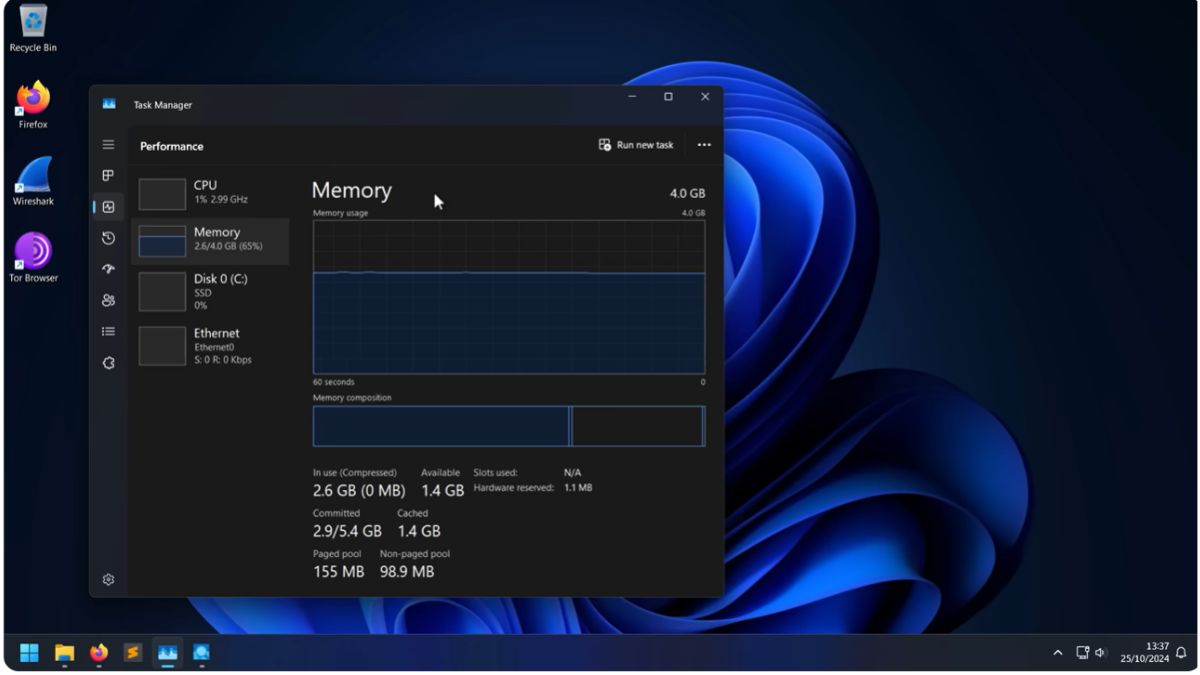
Before we get into the technical details, it's important to understand that the process isn't as complicated as it's often imagined. With the right approach, users can customize their systems without requiring in-depth technical expertise or complex configurations.
However, there are still some basic things you should prepare to ensure the process runs safely and smoothly. Ensuring a stable connection and understanding the consequences of each step will help avoid problems when the debloat begins.
Here are the general steps that can be taken to run the process to activate this debloat in a more targeted manner:
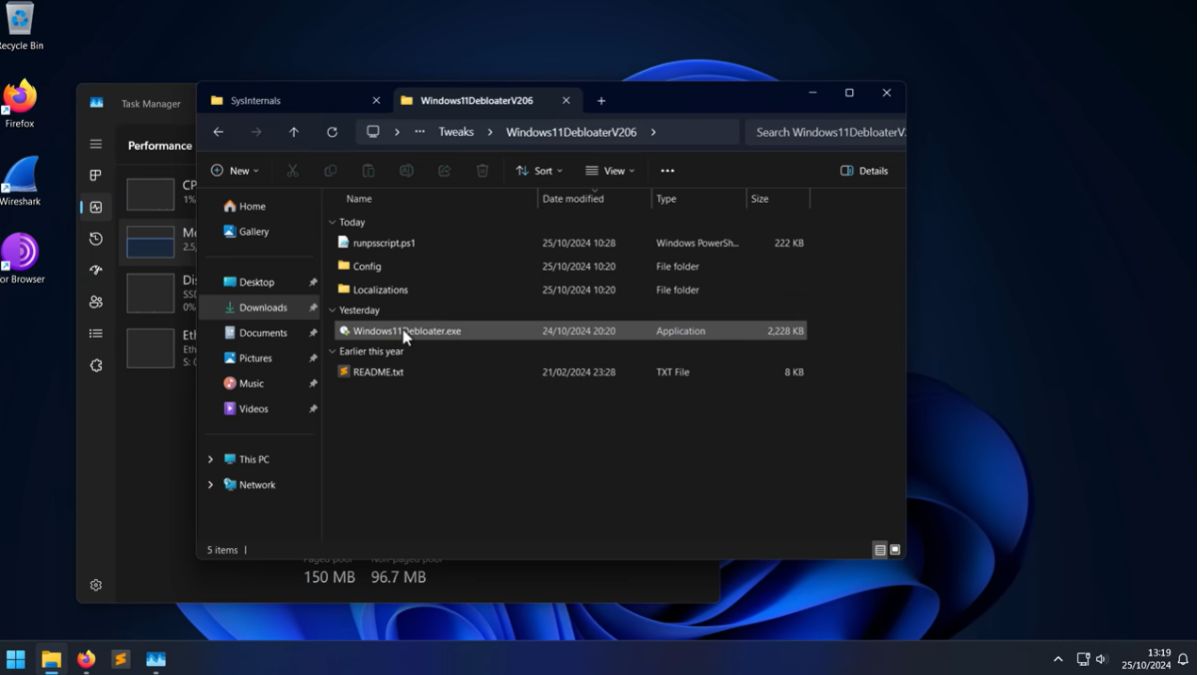
- Select and download trusted debloat tools from official sources or developer repositories;
- Open the downloaded file, then run the application according to the instructions provided in it;
- Let the system process the removal of built-in applications until all stages are complete;
- Restart your device so that the system changes can be applied optimally.
- Done and you have activated debloat on your PC or laptop.
Purpose of Using Debloat Windows 11
This process aims to improve system performance, making it run more smoothly, responsively, and stably for daily use. By reducing background processes, device resources can be optimally allocated to the user's primary needs.
By trimming background processes and non-essential built-in apps, the device can allocate resources optimally, keeping storage more efficient.
Another goal is to remove unnecessary, rarely used pre-installed apps that could potentially disrupt user experience. This results in a cleaner system, fewer distractions, and easier software management based on personal preferences.

Windows 11's Debloat feature also helps improve storage efficiency by removing irrelevant components from the start. This promotes a more optimal computing experience, especially for devices with limited specifications.
Also Read:
So, by using Windows 11 debloat, you can optimize your device's system performance.
After knowing about and how to use debloat, you can immediately try it to make your device faster and more stable.





 News
News




