

- Activate Find My, Find My Network, and Send Last Location on the device before it is lost for optimal tracking.
- Track via app Find My or iCloud: open Devices, select iPhone, check map, use Play Sound or Lost Mode.
- Use Play Sound if the device is nearby; activate Lost Mode to lock, disable Apple Pay, and display contacts.
- If you suspect theft, consider Erase Device as a final step; remember Apple ID and password for access.
How to Find a Lost iPhone with iCloud Tracking in Find My
Lost iPhones Of course, it can cause panic, especially if the device stores lots of photos, contacts, documents, and important accounts.
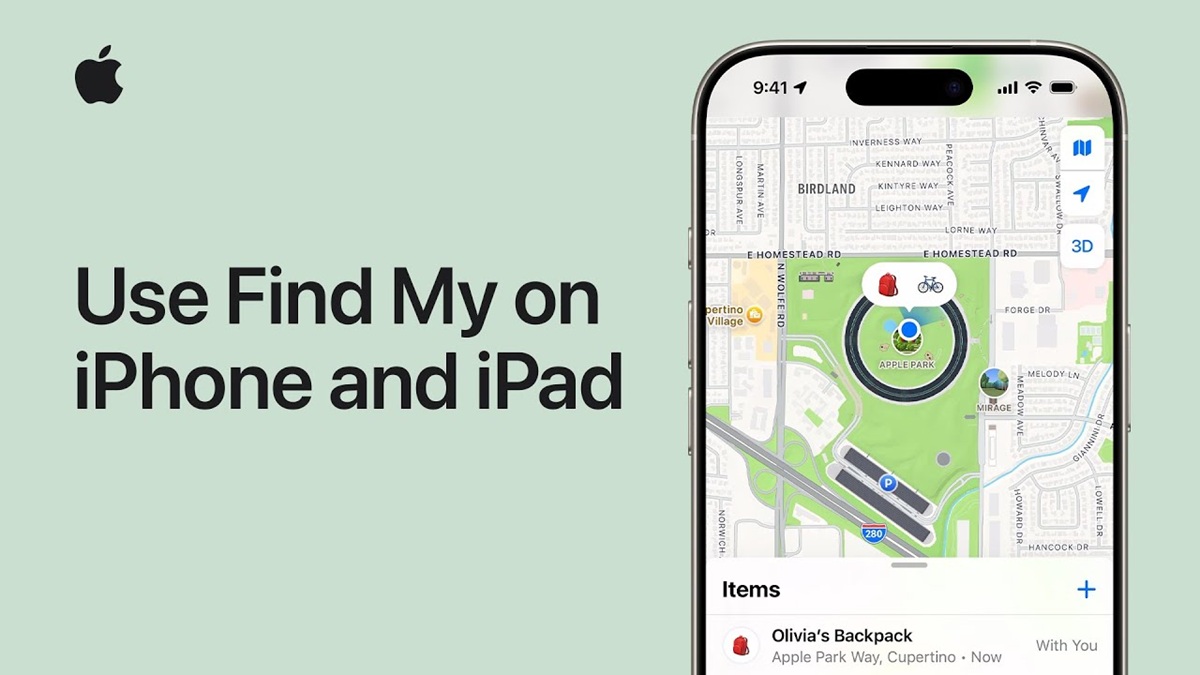
Fortunately, Apple provides a feature Find My which allows you to track iCloud to find out the location of devices connected to an Apple account.
This feature can be used to find iPhone, iPad, Mac, Apple Watch, and other previously connected Apple devices.
However, there is one important thing to note, Find My must be activated before the device is lost for the tracking feature to work optimally.
Also read:
- Learn How to Scan Wifi Barcodes for Android and iPhone
- Causes of iPhone Battery Health Decreasing and How to Check It
- How to Set Telkomsel APN on Android and iPhone
How to Enable Find My Before Your Device Gets Lost
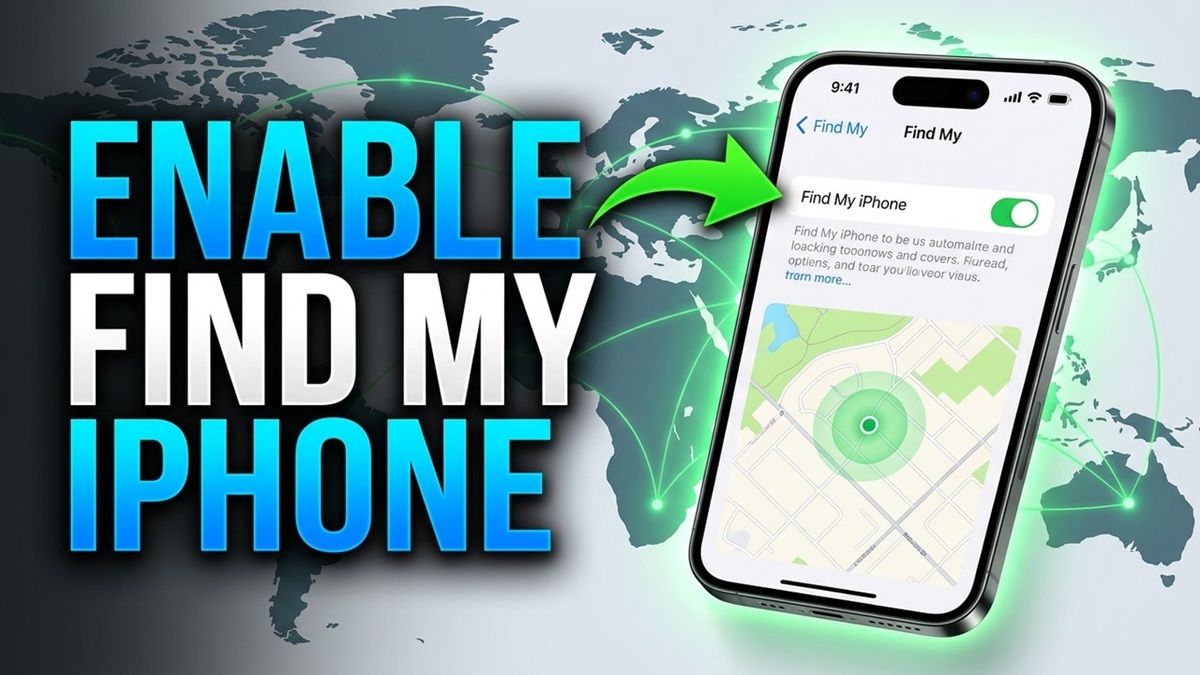
Before experiencing an unwanted incident, you should make sure the features Find My is already active on the device. Here's how to activate it on an iPhone:
- Open Settings on your iPhone.
- Tap your Apple account name at the very top.
- Select the Find My menu.
- Tap Find My iPhone.
- Enable the Find My iPhone option.
- If available, also enable Find My network so that the device can still be found over the network. Find My.
- Enable Send Last Location to help send the device's last location when the battery is low.
Once this feature is enabled, your device will be easier to find if it's lost. Also, make sure you remember the Apple account and password used on the device.
Tracking Lost Devices
If your iPhone is already lost, you can try tracking it using iCloud via the application. Find My on another Apple device or through a service Find Devices in iCloud. Here are the steps you can take:
- Open the Find My app on your iPhone, iPad, or other Apple device that's connected to your account.
- Select the Devices tab.
- Select the lost iPhone from the list of devices.
- Check the location of the device displayed on the map.
- If the location is near you, select Play Sound to make the iPhone play a sound.
- If the device is in a location you don't recognize, use Lost Mode to secure your iPhone.
- If the device is certain to be unlocated or stolen, consider using the Erase Device option.
If the device is offline, the latest location may not be immediately available. In this case, you can view the last known location and wait until the device reconnects to the network.
iCloud Remote Security Features

In addition to helping locate devices, Find My It also has several security features that are useful in case your iPhone is lost. You can choose the action based on the device's condition.
Play Sound
This feature is suitable if your iPhone is actually still nearby, for example, tucked away in your room, on the sofa, in your car, or in a nearby area. Once activated, the device will emit a sound, making it easier to find.
Lost Mode
Lost Mode Useful when the device is truly lost. This feature can remotely lock the iPhone screen, disable Apple Pay, and display a custom message on the lock screen. You can include mobile phone number or other information so that the person who finds the device can contact you.
Erase Device
Erase Device This should be a last resort when the iPhone is confirmed stolen or the chances of recovering it are slim. This feature will erase data from the device, preventing personal information from being easily misused.
Also read:
- Learn the Causes and How to Fix an iPhone That Won't Charge
- Tutorial: How to Easily Change WhatsApp Notification Sounds on iPhone
- The Latest iPhones for 2026: These Are the Models and Specifications
However, before selecting this option, make sure you've tried other tracking and security features. By enabling Find My From the start, you have a greater chance of finding your device while protecting your personal data if your iPhone is lost.

FAQs
Yes, as long as the features Find My is active and the device can still be detected.
You can still see the last known location if the supporting feature is activated.
Can be secured by activating Lost Mode or remotely wipe the device.
Activate immediately Lost Mode and don't try to take it yourself if the location is in an unsafe place.
MLBB Product Recommendations


 BV2SHOP
 DEMPET STOREBV2SHOPBV2SHOP
 TopMur
 RudyStorezBV2SHOPBV2SHOPTopMur
 AM08SHOP



 News
News




