

- Windows 11 Debloater is a script to delete or disable default applications, make Windows 11 lighter and more efficient.
- Main steps: download from trusted source, run as administrator in Windows PowerShell, execute the script and wait for it to finish.
Learn About Windows 11 Debloater and How to Use It
Many computer users find their systems feel slower after installing a new operating system. This often leads people to look for ways to optimize performance using apps like Windows 11 Debloater.
Some built-in apps in the operating system are rarely used but still run in the background. By using a debloater app, Windows 11 Here, users can delete or disable unnecessary components to make the system run more smoothly.
MLBB Product Recommendations

 BV2SHOP
 BANGJEFFBV2SHOPBV2SHOP
 TopMurBV2SHOP
 RudyStorezBV2SHOPRudyStorezTopMur
Besides helping clean up built-in applications, this tool is also often used to manage various system features. Therefore, this application is a popular choice for users looking to improve computer performance.
Also read:
What Is Windows 11 Debloater?

Windows 11 Debloater is a script or utility used to remove some pre-installed apps that users deem unnecessary. This process allows the system to run only truly essential features.
On the Windows 11 operating system, there are a number of pre-installed apps. Some users find these rarely used apps draining their operating system's performance, leading them to consider removing them.
Using this application, users can disable or remove certain built-in applications from the system. This step is often done to simplify the system's appearance and save storage space.
Additionally, this script can help adjust several settings to make the system run more efficiently. After the adjustments are made, the computer's performance usually feels lighter when used for various activities.
How to Use Windows 11 Debloater
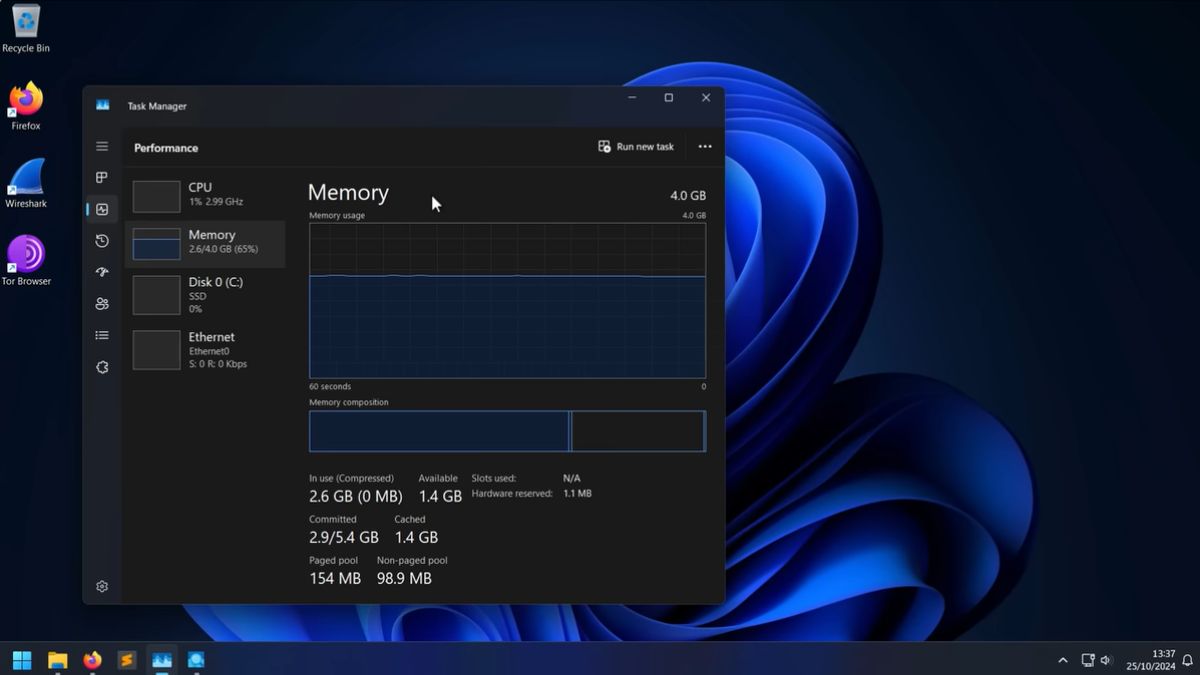
If you want to use Windows 11 Debloater on your device, you can follow the steps below.

- Download Windows 11 Debloater from trusted sources: Search for script files aDownload the application through a website that provides the latest version. Once the file has been successfully downloaded, save it to an easily accessible folder on your computer;
- Extract the file if it is an archive: If the downloaded file is still in ZIP format, extract it first. Then, open the extracted folder to view the contents of the script to be executed.;
- Run Windows PowerShell as administrator: Right-click the Start menu and select Windows PowerShell or Terminal with administrator access. This step is necessary for the script to execute system changes;
- Open the folder where the script is saved: Use the PowerShell navigation command to navigate to the directory where the Debloater file is located. Ensure the folder location is correct before running the script;
- Run the Windows 11 Debloater script: Type the command corresponding to the script file name and press Enter. Once the process starts, the system will perform several steps to remove or adjust built-in applications;
- Wait for the process to complete: This process usually takes a few moments, depending on the number of components being processed. Once complete, the system will display information indicating that the adjustment step was successful.
Windows 11 Debloater Functions

Here are some of the functions of the Windows Debloater application for your PC or laptop device.
- Removing rarely used built-in apps: This application can help reduce some of the default applications so that the list of programs on the computer feels more concise;
- Save storage space: Deleting unnecessary apps can free up additional space on your device's storage;
- Make the system feel lighter: Reducing the number of built-in applications often helps reduce the system load when the computer is in use;
- Adjusting system settings: This application can be used to adjust several features to suit usage needs;
- Simplifying the program display: After some applications are removed, the menu and program list usually look neater and are easier to access.
Also read:
Overall, Windows 11 Debloater can be an option for users who want to simplify and streamline their system. By removing unnecessary applications, the computer can generally be used more comfortably for various daily activities.





 News
News




