

- Ensure minimum specs: OS, 1.6 GHz processor, minimum 2 GB RAM, DirectX 10 VGA, and 1 GB storage to run Roblox smoothly.
- Register or login at roblox.com, select the game, click the button play, then download and install Roblox Player.
- Basic quasi-control: WASD to move, Space to jump, Shift to run, mouse for camera, Esc for menu, Tab for leaderboard, / for chat.
How to Play Roblox on a Laptop, Complete Guide for Beginners
Many people are still confused about how to play Roblox on a laptop, but it's actually really easy. If you're used to playing on your phone and want a more comfortable experience on a big screen, a laptop might be the best choice.
Apart from the wider display, the controls are also more precise. keyboards and mouse.
So, before you start playing, you need to know the minimum specs, installation instructions, and the key buttons used while playing. Let's take a look at the complete guide.
Also read:
- How To Get Free Roblox Hair
- Fabulous Rod Fisch Roblox: Features, and How to Get It
- How to Download Roblox on a Laptop Easily
Minimum Specs for Playing Roblox on a Laptop
Before discussing how to play Roblox on a laptop, first make sure your device meets the minimum specifications. Roblox is a lightweight game, so you don't need an expensive laptop to play it.
Here are the minimum specs required:
For Windows:
- OS: Windows 7, 8, 8.1, 10 or 11
- Processor: Minimum 1.6 GHz
- RAM: 2 GB (4 GB recommended for smoother operation)
- VGA: DirectX 10 compatible
- Storage: Minimum 1 GB of free space
- Internet: Stable connection
For Mac:
- macOS 10.13 (High Sierra) or later
- Minimum RAM 2 GB
- Minimum 1 GB of free storage
If your laptop has higher specs, Roblox is guaranteed to run smoothly. However, if you only have 2GB of RAM, it's best to close other applications to avoid lag while playing.
How to Play Roblox on a Laptop
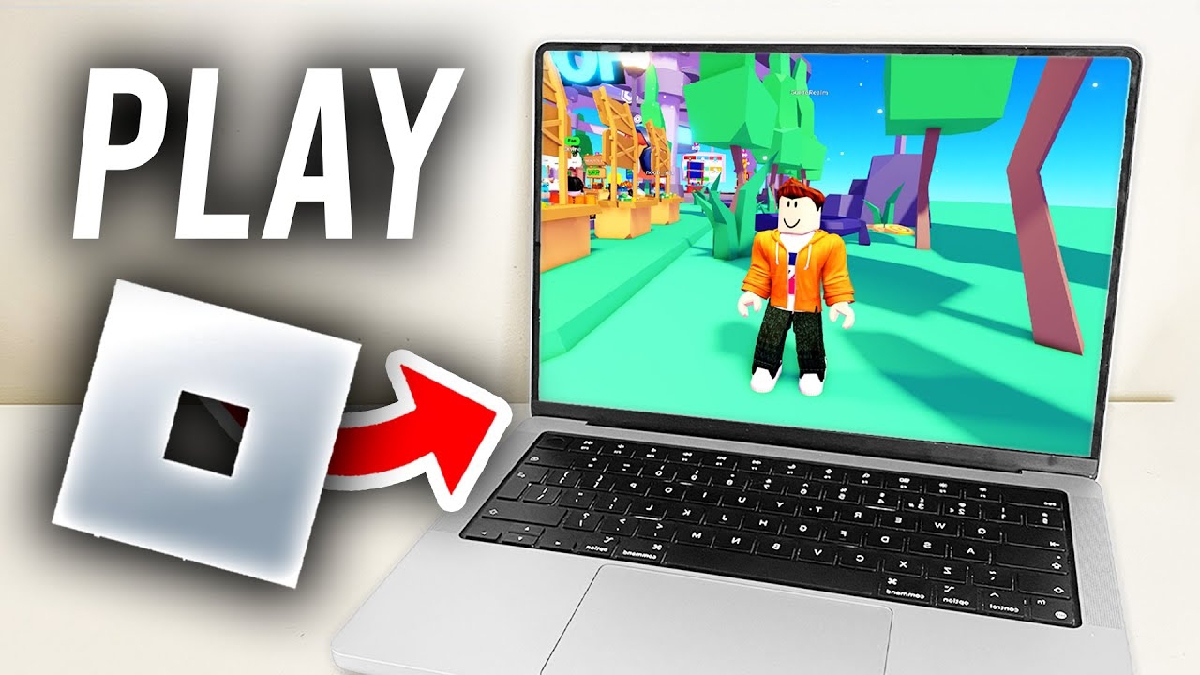
Now that you know the specs are safe, let's get to the heart of the discussion: how to play Roblox on a laptop from start to finish.
Open the Official Roblox Website
First, open a browser like Chrome or Edge. Then visit the official Roblox website at www.roblox.com.
Register or Login Account
If you don't have an account yet, you can register for free by filling in:
- Date of birth
- usernames
- Passwords
If you already have an account, just click Login and enter your account details.
Choose the Game You Want to Play
After entering the main page, you can immediately search for games via the search field or select the ones that are currently popular.
Click on one of the games you like.
Click the Play Button
Press the green Play button. A notification will usually appear to download Roblox Player.
Install Roblox Player
Download the installer file, then open it and wait for the installation process to complete. The process is quick and hassle-free.
Once installed, the game will automatically open.
Start Playing
Once you're in the game, simply follow the instructions. Each Roblox game has a different concept, from roleplaying games to simulators to action games. It's super easy, right?
Buttons to Play Roblox on Laptop
So you don't get confused while playing, here's a list of basic buttons you should know when playing Roblox on a laptop:
Basic Character Controls
- W → Forward
- A → Swipe left
- S → Back
- D → Swipe right
- Space → Jump
- Shift (hold) → Sprint (in some games)
Camera Control
- Mouse → Adjust the viewing direction
- Left click → Interaction or attack (depending on the game)
- Right click (hold) → Change camera angle
Additional Buttons
- Esc → Open menu
- Tab → View leaderboard
- / (slash) → Open chat
Each game may have additional controls, but in general the buttons above are standard across all Roblox games.

If your laptop already has SSD and 8 GB RAM, usually the game runs very smoothly.
In essence, Roblox is lightweight and easy to play, even on standard laptops.
If it's your first time playing on a laptop, it might take a while to get used to the keyboard. But once you get used to it, it's guaranteed to be more fun than playing on a phone.
Also read:
- How to Delete Chat in Roblox Easily for Beginners
- How to Create a Roblox Account on Your Phone & Laptop, It's So Easy
- How to Use Roblox Username Generator
Have fun and keep winning at your favorite games!
Roblox Product Recommendations

 Hero AliveHero Alive
 Kumay10shop
 Hero Alive
 Hero AliveHero Alive
 Center Cegel Seal
 MONSTOREHero Alive


 News
News




