

- Customize FF 2 finger HUD with the screen size and your grip for comfort, agility, and more stable aim control.
- For function: left thumb for movement, right thumb for camera, aim, shoot and practice drag shot.
- Set shoot button size according to screen: 45% to 50% (small), 55% to 65% (large). Test on training ground.
FF 2-Finger HUD: The Most Agile Custom Settings for Auto Headshots
HUD Free Fire Two fingers are a popular choice for players who want simple, comfortable gameplay while remaining agile during duels. Using just two thumbs allows you to adjust the button positions for easier control of movement, aiming, and shooting.
The right 2-finger FF HUD settings can also help you do it drag shot and get headshot with more consistency.
The key is not just to copy other players' HUDs, but to adjust the button sizes to your phone's screen and the comfort of your grip.
Also read:
- How to Transfer Your FF Account to a New Phone, Safely and Hassle-Free
- About the Nexterra FF Map and Tips for Rotating When Playing
- How to Play FF to Become a Master: Here Are 4 Tips You Can Try
Advantages of Custom HUD FF 2 Fingers
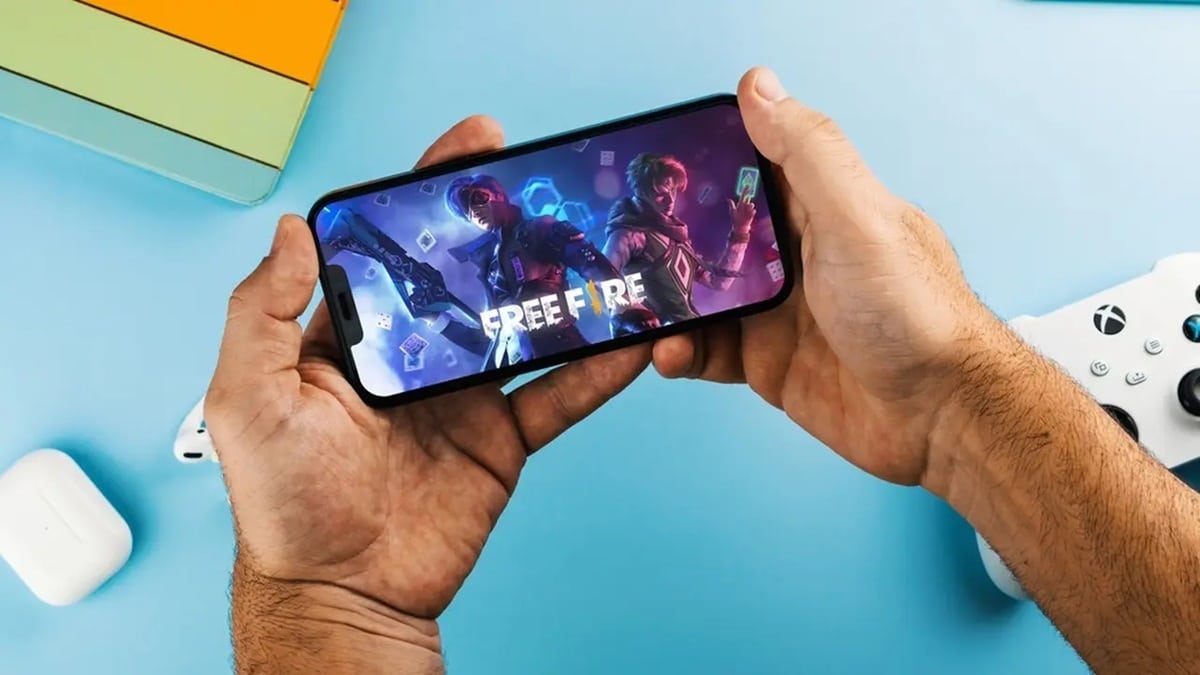
Custom HUD FF 2 fingers have several advantages that make them suitable for players who prioritize comfort when playing for long periods.
The simple button position also makes it easier for the thumb to reach important functions without having to change hand position too much.
First, grip comfort is a major advantage. Because the primary controls are shared between just two thumbs, your hands can remain in a natural position while playing.
Furthermore, it keeps your hands from getting tired quickly, especially when playing multiple games simultaneously. The 2-finger HUD is also perfect for all phone screen sizes, especially those with smaller screens, due to the simpler control area.
The Most Agile 2-Finger Free Fire Custom HUD Settings
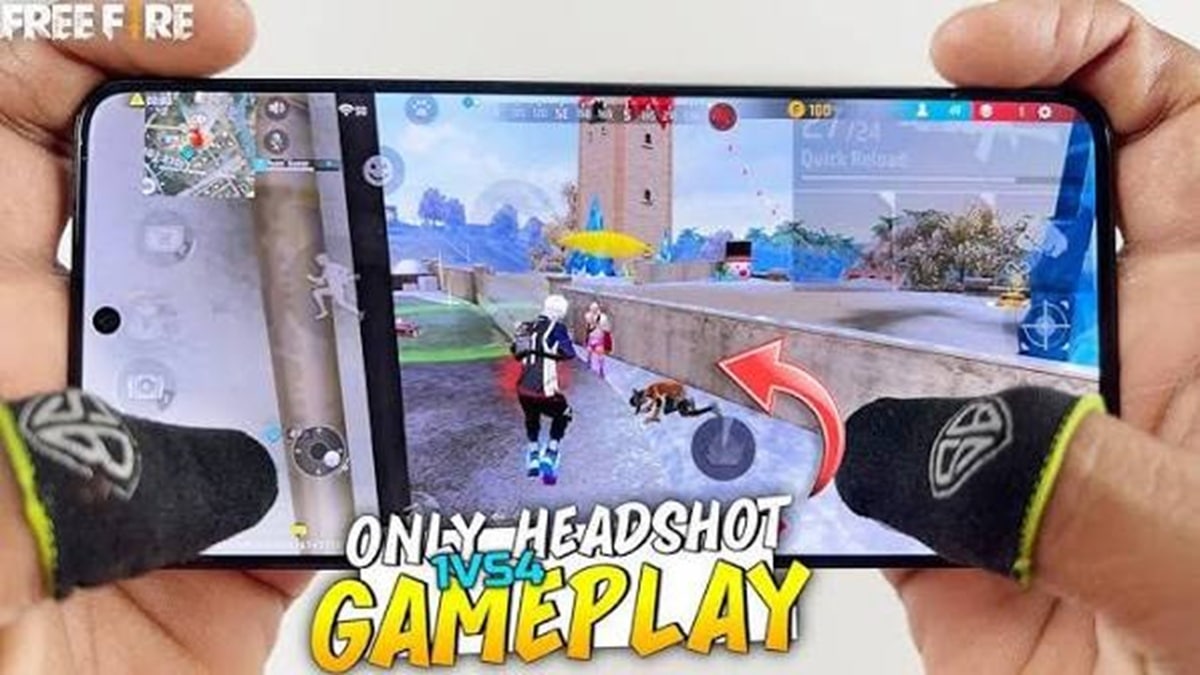
In order for HUD 2 fingers To feel agile, you need to divide the control functions between the two thumb working areas. This division helps each thumb have a clear task so that character movement and aiming don't interfere with each other.
Left thumb work area:
- Joystick: Place it on the bottom left with a size large enough to be easy to move.
- Additional movement buttons: Place buttons like crouch and lie down in an area that is still easy to reach with the left thumb.
- Joystick position: Don't stick too close to the sides of the screen so that your thumbs have room to move freely.
- Focus control: The left thumb should be focused on character movement and avoiding enemy attacks.
Right thumb work area:
- Shoot button: Place it on the right side where it is easy for your thumb to reach without having to change your grip position.
- Scope button: Position it close to the fire button so that the transition from aiming to shooting feels fast.
- Knob gloo wall: Place it in an area that can still be pressed quickly when protection is needed.
- Focus control: The right thumb is used to adjust the camera direction, aim, shoot, and take pictures. drag shot.
This division ensures each thumb has a clear work area. You can also shift the button positions a few millimeters until you find the most comfortable position for your playing style.
Best Shoot Button Size for Auto Headshot
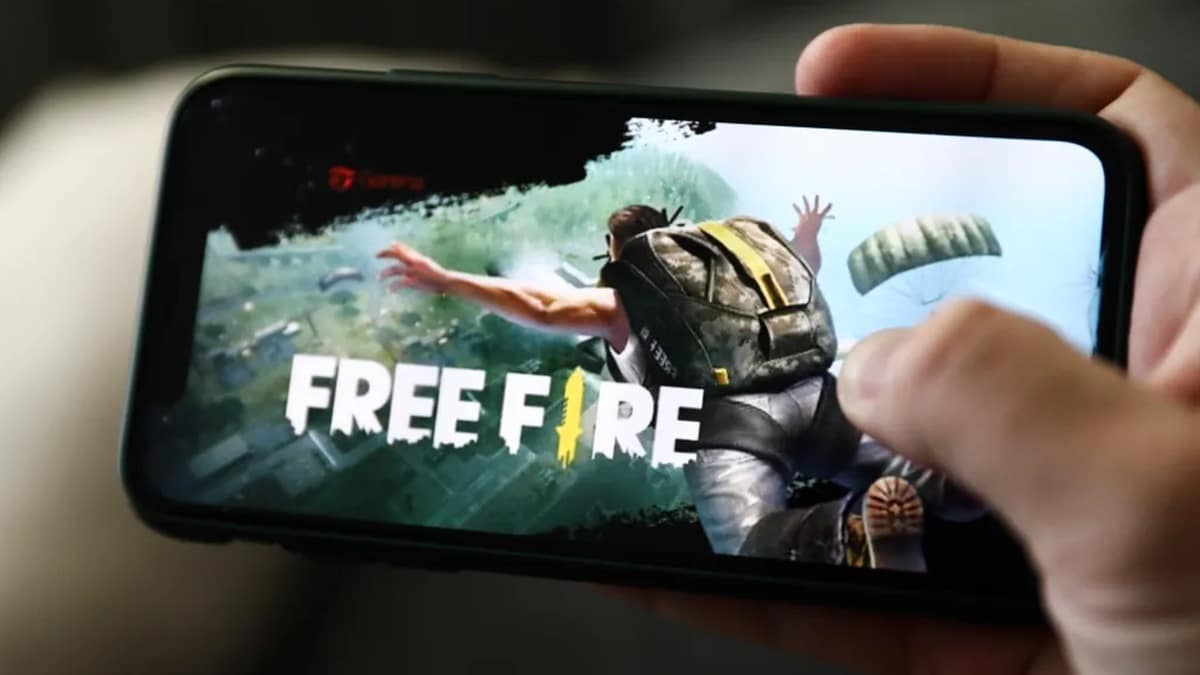
The size of the right shooting button greatly influences the comfort of shooting. drag shot. Buttons that are too small make it easier for your thumb to miss, while buttons that are too large can make the screen feel cramped and reduce your shooting freedom.
The correlation between the size of the fire button and the sensitivity of the screen is also worth considering. On smaller screens, a medium-sized fire button is usually easier to control because the thumb doesn't have to move as far.
Meanwhile, large screens or tablets require slightly larger buttons to ensure easy reach. As a guide, you can use the following sizes:
- Small/standard screen HP: use the fire button around 45%–50%.
- Widescreen phones/tablets: use the fire button around 55%–65%.
However, this size isn't an absolute rule. If your phone's screen sensitivity is high, buttons that are too large can actually make movement difficult. drag Lack of precision. Conversely, if sensitivity feels low, enlarging the fire button can help your thumb perform upward movements more comfortably.
Ultimately, the best 2-finger FF HUD is the setting that makes you comfortable moving, aiming, and shooting without changing your grip position.
Also read:
- How to Change the FF Lobby Background Easily
- How to Recover a Lost FF Account? Try These Steps
- 30 Really Cool FF Guild Logo Ideas, You Must Use Them
Try using the basic settings above, then make some adjustments in training ground until you find the combination of button sizes and positions that works best.

FAQs
Yes, this setup is simple enough that it is easy for a beginner player to learn.
Adjust it to the size of your phone screen and the comfort of your thumb so it remains easy to control.
Yes, larger screens usually require slightly larger buttons.
Practice the movement drag shot regularly and adjust the sensitivity to the controls you use.
No. The best position varies depending on hand size, HP, and playing style.
Free Fire Product Recommendations


 TopMurTopMur
 RudyStorez
 TopMurTopMur
 TopMur
 RudyStorez
 RudyStorez
 RudyStorezRudyStorez



 News
News




