

- Download all data important (photos, emails) before deleting Google account in MOBILE PHONE.
- Open the app Google, click profile, select Manage Your Google Account, Data & Privacy, then Delete Your Google Account and verification.
- If it was accidentally deleted, open it. recovery page Google account, answer the questions and recover then create a new password.
Easy Way to Permanently Delete a Google Account on Your Phone
Do you want to delete? Google account which is no longer used in MOBILE PHONE permanently? It turns out, the way to do it is very easy.
Google Accounts store a lot of important information related to various Google services including payment information.
Therefore, it is highly recommended to delete Google accounts that you no longer use to avoid data misuse.
So, this time we'll discuss Google accounts and how to delete them from your phone. So, read this article until the end!
Also read:
- How to Change Your Name on Google Meet, It's Easy!
- Google Activity: How to Check, Functions, and Management Tips
- How to View Passwords in Chrome Saved in Google Account
What is a Google Account?

A Google account is an account that allows its users to access all Google services such as Gmail, Google Drive, and YouTube.
You only need to create one account to register for all Google services, making your activities more flexible and efficient.
Another function of a Google account is to sync data on your device, such as contacts, calendars, and photos.
When you change phones and link your Google account from your old device to your new one, you can sync your saved data for easy access.
How to Delete Google Account on Mobile
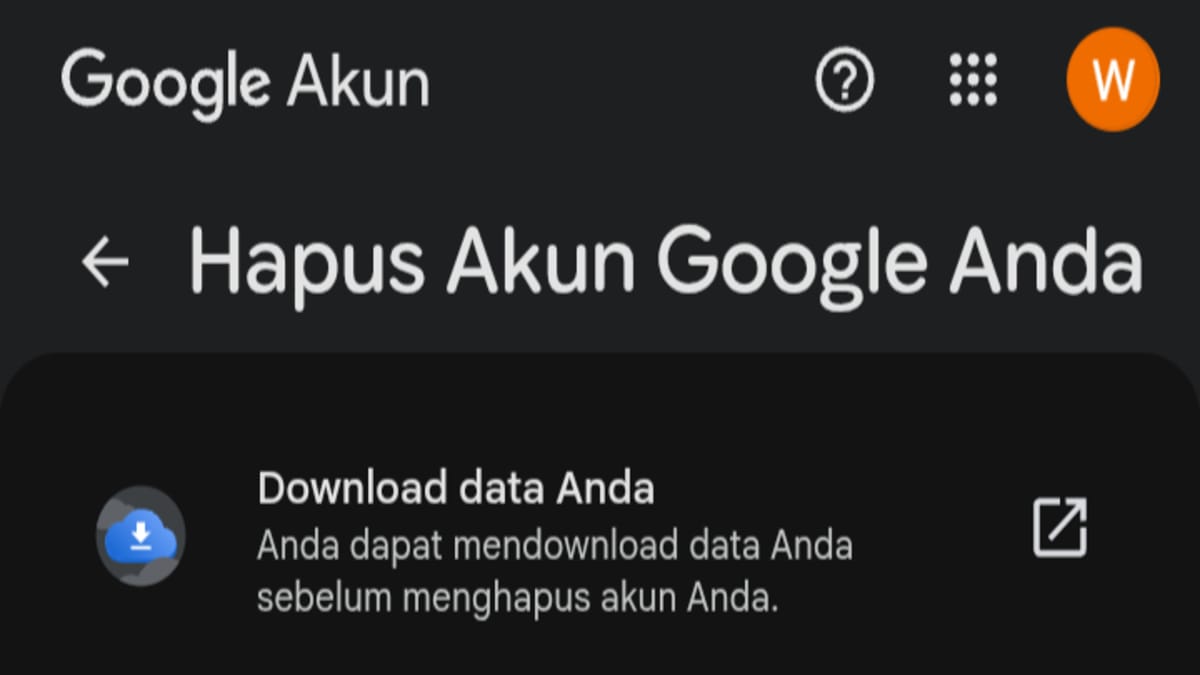
Before deleting an account, it is highly recommended to download all data stored in it such as photos or e-mail important.
This is because you will no longer be able to access all content related to that account if you have permanently deleted it.
Once you've downloaded everything, you can now proceed with deleting your Google account. How do you delete an account on your phone? Here's a complete guide.
- Go to the Google app and click on your profile at the top right.
- Click the “Manage Your Google Account” menu”
- Scroll down until you find the “Data & Privacy” menu.”
- Next, select the "Delete Your Google Account" menu.“
- Verify yourself with a screen lock using a fingerprint sensor or PIN
- Read carefully about the explanation of deleting an account from Google
- If you are sure, check all the options and click “Delete Account”
- Wait until the process is complete
How to Recover a Deleted Google Account

Did you accidentally delete your account or change your mind after a while? There's a chance you can get your Google account back.
If the account recovery process is successful, you will also regain access to all data stored in the account.
How do I recover a deleted account? You can follow the steps below.
- Go to the account recovery page here
- Enter the email you want to recover
- Answer as many questions as possible correctly.
- Follow all processes until completion
Once successfully recovered, create a new password that you have never used before for that account.
So that you don't forget easily, you can write it down first in a safe place until you really remember it.

For additional information, an inactive Google account is an account that has not been used for a period of 2 years.
Google will delete inactive accounts along with their activity and data across various other services for 2 years.
Also read:
- How to Recover a Google Account & How Long Does It Take?
- Google Pixel 10 Pro XL vs Pixel 10 Pro and 10 Pro Fold Specs
- How to Spin Diamond ML for Free from Google
So, that's how to easily delete a Google account on your phone. Hopefully, this guide helps. Good luck!
MLBB Product Recommendations


 BV2SHOP
 DEMPET STOREBV2SHOPBV2SHOP
 TopMur
 RudyStorezBV2SHOPBV2SHOP
 AM08SHOPTopMur




 News
News




