
- Delete all or part of the history via the menu Google account and My activity; select a time range or specific item.
- In Computer/PC, Androids, and iOS the method is different: open Google/Chrome, open Browsing History, then select Delete.
- Activate Auto delete (3, 18, 36 months) or delete data chrome (Browsing History, Cookies, Cache) for your privacy.
How to Delete Google History on All Devices
You can do a number of things to delete Google history. Of course, it depends on what device you use.
Some people may consider everything searched on Google to be private. So, you don't want other people to know.
However, some users also want to clean it from Google to make it easier to search there.
Google allows users who frequently use their search engines to save all their activities.
There, Google will save all search history to your Google account, such as locations or recommended applications and content.
However, Google itself actually has a method for deleting Google History. However, don't worry, in this article you will find out how you can apply it to all your devices.
Also read:
How to Delete Google History
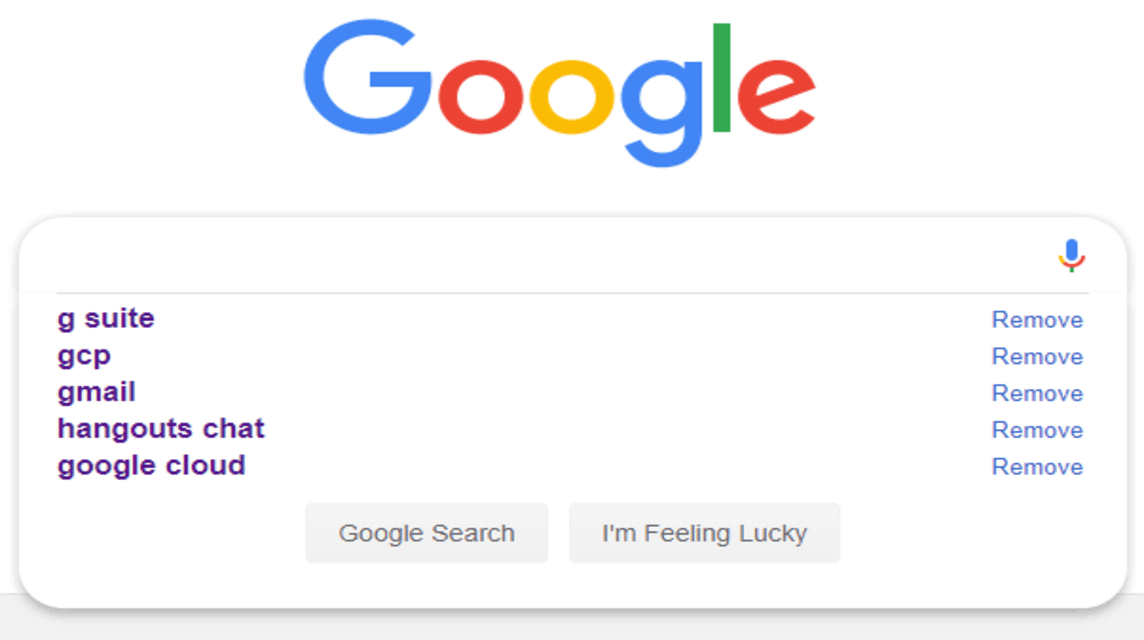
Before starting, you need to know that if you delete all your history on Google, you won't be able to get it back.
You can set it based on the time range according to your wishes or on a certain date.
For those of you who often search in the Google application, and if you want to delete your history on Google, just read the method here!
Computer/PC
The following is how to delete Google history on Computer/PC. Listen!
- Open Computer/PC you.
- Open Search History who are in My activity.
- You can Select Browsing History what you want to delete:
- For All Browsing History: Click History > Select Wipe > Remove all.
- Specific Time Range: Click History > click Wipe > Delete Custom Range.
- Specific Days: Click Wipe and choose All Activities from the selected Day.
- Specific Activities: Click Activity > click Delete Activity Item.
Androids
The following is how to delete Google history on Androids. Keep listening, okay?
- Open the Google app on Android.
- Tap Profile Photo the one in the corner Top right.
- Click Search History.
- All Browsing History: click History > Select Wipe > Remove all.
- Specific Time Range: Click History > click Wipe > Delete Custom Range.
- Specific Days: Click Wipe and choose All Activities of the selected Day.
- Specific Activities: Click Activity > click Delete Activity Items.
You can also delete history automatically within a certain time period as you can choose 3 Months, 18 Months or 36 Months.
iOS
The following is how to delete Google history on iOS. Listen here!
- Open Google app on iOS.
- Tap Profile Photo the one in the corner Top right.
- Click Search History.
- All Browsing History: click History > Select Wipe > Remove all.
- Specific Time Range: Click History > click Wipe > Delete Custom Range.
- Specific Days: Click Wipe and choose All Activities from the selected Day.
- Specific Activities: Click Activities > click Delete Activity Items.
How to Delete Chrome History

You can delete Google Chrome history through a number of steps. These methods depend on the device you use. Here's the list:
Computer/PC
The following is how to delete history from Google Chrome on a computer/PC, namely:
- Open Computer/PC and Open Google Chrome.
- Click Other or Point Three who are in Top right.
- Click History.
- Click Clear Browsing Data who are in To the left.
- Choose Delete All History.
- Tick on Box who was there for Info you want to delete including Search History.
Androids
The following is how to delete history from Google Chrome on Android, namely:
- Open Google Chrome.
- Choose Point Three who are in Top right.
- Click History.
- Click Clear Browser Data.
- Tick On features “Browsing History”, “Cookies & Site Data”, “Cache Images & Files”.
- If so, click Clear.
- Done.
iOS
The following is how to delete history from Chrome on iOS, namely:
- Open Google Chrome.
- Choose Point Three who are in Top right.
- Click History.
- Click Clear Browser Data.
- Tick On features “Browsing History”, “Cookies & Site Data”, “Cache Images & Files”.
- If you have clicked Clear.
- Done.
Also read:
So, that's the information about deleting Google searches on all devices. How? really easy, right?

FAQ About How to Delete Google History
Open the Google app on your phone or tablet.
Tap your profile picture or initials in the top right corner.
Select Search history.
Select the desired deletion option: Delete all, a specific range, a specific day, or just one item.
Open the Google Chrome browser.
Press Ctrl + H on your keyboard, or click the three vertical dots icon in the top right corner and select History > History.
Click Clear browsing data (Clear browsing data).
Select a time range (e.g.: last 1 hour, last 24 hours, last 7 days, or All time).
Check the data you want to delete (such as Browsing history, Cookies, or Cache), then click Clear data.
Visit the official Google Accounts website and sign in (login).
Select the Data & privacy menu.
Scroll to the History settings section and select Web & App Activity / My Activity.
Click the Delete button, then select a time range such as Last 1 hour, Last 24 hours, All time, or Custom range.
Yes. You can enable the auto-delete feature.
Through the Web & App Activity menu, select the Auto-delete option.
Determine the desired data storage duration before it is automatically deleted by the system, namely 3 months, 18 months, or 36 months, then click Next then Confirm.
MLBB Product Recommendations


 BV2SHOP
 DEMPET STOREBV2SHOPBV2SHOP
 RudyStorez
 BANGJEFF
 TopMurBV2SHOPBV2SHOP
 AM08SHOP





 News