
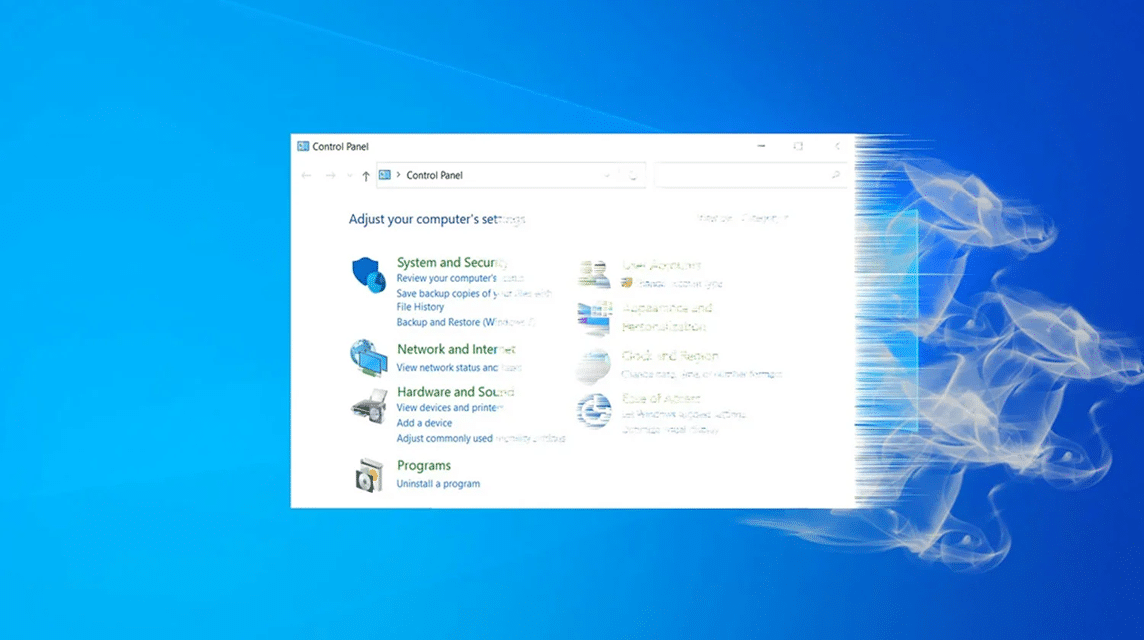
How to Check Windows on a Laptop Easily and Quickly
When you want to install software, system updates, or simply ensuring device compatibility, knowing how to check Windows on a laptop is very important.
Many users laptops who are still confused about what they use Windows It doesn't matter what version it is, whether it's 32-bit or 64-bit, or even what build version it's running. This information is incredibly useful, especially if you need to upgrade your system or troubleshoot specific errors.
Cheapest MLBB Diamonds!


 BANGJEFF
 KING OF DIAMONDSKING OF DIAMONDS
 RudyStorez
 BV2SHOPBV2SHOP
 TopMurKING OF DIAMONDSBV2SHOPBV2SHOP
So, in this article, we will discuss in a light and clear way how to check the Windows version on your laptop, starting from Windows 10, Windows 11, to other alternative methods.
Also read:
- How to View WiFi Passwords on Windows & Mac Laptops Easily
- Easy way to install Atlas OS on Windows 10 and 11
- Increase Image Resolution on Windows and MacBook
Why is it important to know the Windows version?

Knowing the Windows version on your laptop is important, not only for IT technicians, but also for those of you who frequently use your laptop for work, study, or gaming. Here are some reasons why:
- Customizing applications and software
Every software typically has minimum operating system requirements. If you install an application that's incompatible with your Windows version, it could fail to run or cause the system to crash. - Ensuring compatibility when updating the system
Not all versions of Windows support the latest updates. By knowing your OS version, you can determine whether your laptop needs an upgrade before a major update is performed. - Makes troubleshooting and repair easier
When your laptop has problems and you want to look for a solution on the internet or consult a technician, they will definitely ask: "What version of Windows are you using?" This information speeds up the diagnostic process. - Check whether Windows is active and original or not
Unactivated or pirated Windows can have limited features and security vulnerabilities. By checking the version, you can also verify the system's activation status. - Performance optimization according to hardware capabilities
If you know whether your system is running on 32-bit or 64-bit, you can adjust your software installation and maximize your laptop's performance.
How to Check Windows on a Laptop

There are several ways you can use to check it, depending on which one is easier for you to understand.
Via Settings
This method is the easiest and most commonly used.
- Click Start Menu.
- Select Settings (gear icon).
- Go to the System menu.
- Click About.
- Check the Windows Specification section to see the Windows edition and version.
- Also check the Device Specification section to find out whether your system is 32-bit or 64-bit.
An example of what it usually looks like:
Edition: Windows 11 Pro
Version: 23H2
OS Build: 22631.xxx
System type: 64-bit operating system
The “winver” command
This method is faster and displays system version information immediately.
- Press Windows + R on the keyboard.
- Type winver and then press Enter.
- The About Windows window will appear containing your system version and build.
It's perfect for those of you who don't want the hassle of opening the settings menu.
Via Command Prompt (CMD)
If you like technical methods, you can use the following method:
- Press Windows + R, type cmd, then Enter.
- Type the command:
system info - Press Enter and wait for the process.
- Complete system information will appear, including Windows version, build, laptop manufacturer, and other details.
This method is also good if you want to know the OS installation date.
Check if Windows is Original or Not
To check whether your Windows is official and activated:
- Go to Settings > Update & Security > Activation.
- If the message "Windows is activated" appears, it means the system is officially activated.
- You can also do it via CMD by typing:
slmgr /xpr
If "The machine is permanently activated" appears, it means your Windows is genuine.
The difference between 32-bit and 64-bit Windows

Here is a simple and easy to understand explanation of the difference between 32-bit and 64-bit Windows:
| Comparison | Windows 32-bit | Windows 64-bit |
|---|---|---|
| Maximum RAM Limit | Maximum ±3.5 GB | Can be >4 GB (up to hundreds of GB) |
| performance | Slower | Faster & more stable |
| Software Compatibility | Suitable for legacy applications | Can run old & new applications |
| Suitable for | Old laptop with small RAM | Modern laptop with large RAM |
| System Security | More basic | Higher & support the latest protection features |
| Optimal for Gaming/Editing? | Not | Yes |
| Supported Processor Types | 32-bit only | 32-bit & 64-bit |
32-bit Windows is suitable for older laptops or those with less than 4GB of RAM. This system is lightweight, but limited in performance and unsuitable for demanding applications.
64-bit Windows is more modern and can utilize large RAM, has faster performance, and supports professional software, such as editing, design, and gaming applications.

If your laptop has 4GB of RAM or more, 64-bit Windows is highly recommended for optimal performance. However, if your device is older and has less RAM, 32-bit Windows may still be an option.
Now you know how to check Windows on your laptop, from the simplest to the most technical methods. Checking Windows isn't complicated, it only takes a few seconds, but it has a significant impact on your laptop's performance.
Also read:
- 5 Ways to Check Windows on a Laptop, It's Easy
- How to View Windows and Macbook Laptop Specifications
- How to Uninstall Applications on Windows and Mac Laptops, Easy
If after checking it turns out that your Windows has not been activated or is still an old version, you should update it for more stable and secure performance.




 News
News




