

Epson L120 Resetter: How to Use and Causes of Failure
Printers Epson An L120 experiencing errors and not being able to print usually hinders activities. One solution that users often seek is Epson L120 resetter to solve problems with the ink counter or waste ink pad counter.
Epson L120 resetter can help restore printer function when a message appears service required or light The ink and paper indicators flash simultaneously. However, users still need to understand how to use it and why the reset process might fail to avoid causing new problems.
Also read:
- How to Print from Android and iOS Phones to All Printer Models
- What is the Epson L120 Resetter and How to Reset it?
- How to Reset Epson L360 Easily
Epson L120 Resetter Function

Before using a resetter, it is important to understand what problems it can address. software This. Basically, the resetter is used to reset certain values in the printer memory, especially the counter. waste ink pad.
Overcoming the Error of the Ink and Paper Lights Flashing Simultaneously
One sign that the Epson L120 needs a reset is when the ink and paper indicator lights flash simultaneously. This can occur when the counter value is waste ink pad counter has reached the printer's specified limit.
With a resetter, the counter can be reset so the printer can resume printing. However, a software reset doesn't actually empty the physical ink pad.
How to Remove the Service Required Message on Your Computer
When the counter value has reached the limit, the computer can display a message. service required. This message indicates that the printer requires special handling before it can be used again.
The resetter can be used to reinitialize the counter so that the message service required can be lost and the printer is detected normally again.
Making the Epson L120 Printer Reusable
For problems that actually stem from the printer's counter values, a resetter allows the Epson L120 to be reused without having to replace physical components. This method is convenient for users who want to try software solutions first.
However, if the ink pad is completely full, the resetter alone won't be enough. The component still needs to be cleaned or replaced to prevent ink overflow.
Save on Service Costs
If the problem is only on waste ink pad counter, Using your own resetter can save you money on repair costs. You won't have to take your printer to a repair shop just to reset the counter.
How to Use Resetter
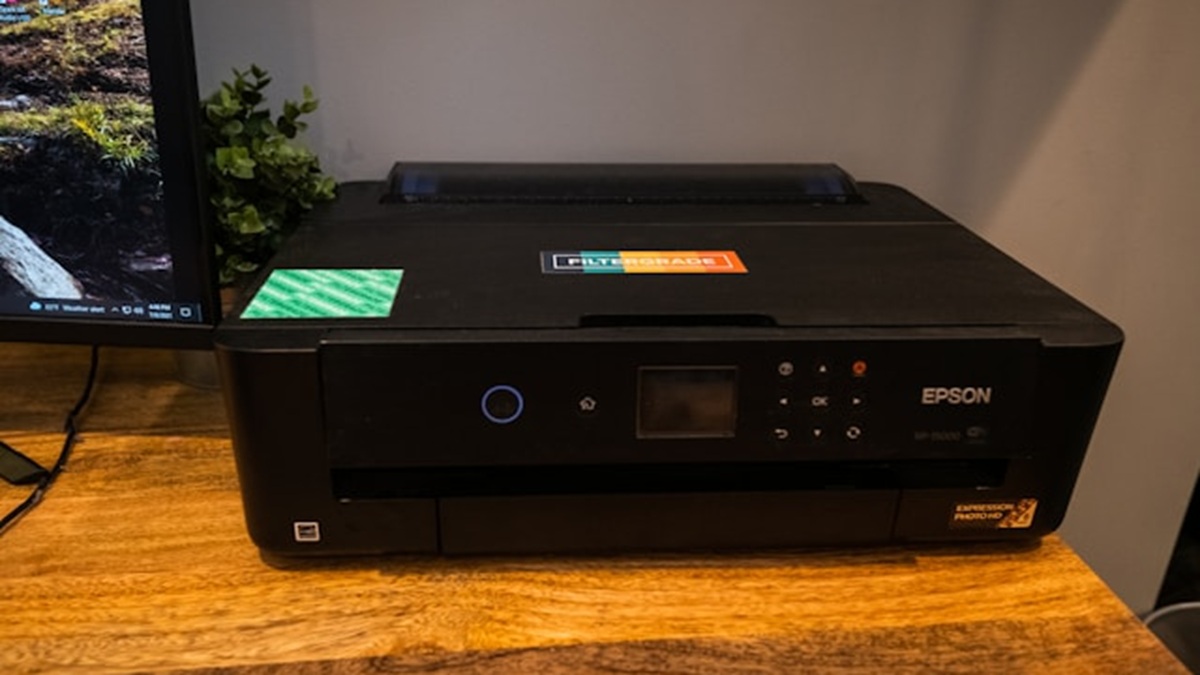
Here are the steps you can follow to use it. Epson L120 Adjustment Program more easily.
- Turn off anti virus while on the computer so that the resetter file is not blocked.
- Download and extract the software Epson L120 Adjustment Program on the computer.
- Connect the Epson L120 to the computer using a USB cable, then turn on the printer.
- Open the Adjprog.exe application, then click Select.
- Select the Port section according to the USB where the printer is connected, then click OK.
- Select the Particular adjustment mode menu.
- Find and double-click the Waste ink pad counter option.
- Put a check mark on Main pad counter and Initialization or Check.
- Click Check or Initialization, then click OK to start setting the counter back to zero.
- Wait for the process to complete. If a prompt appears to turn off the printer, turn off the Epson L120 and then turn it back on.
Reasons Why Resetter Failed

The Epson L120 reset process doesn't always go smoothly. Several factors can prevent the software from performing the initialization process.
Software and Computer Problems
The resetter can fail due to incompatible applications, corrupted files, antivirus software still blocking the program, or the application not being run with the appropriate access rights. USB Problems can also cause the printer to not be detected by Adjustment Program.
Ensure the resetter file comes from a trusted source and that your computer can recognize the Epson L120 before running the process. Avoid using suspicious files, as unofficial software can pose security risks.
Printer Condition Problems
Failure can also be caused by printer conditions, such as a faulty USB cable, the printer not being detected, or other component damage. If the indicator light continues to flash after a reset or the printer continues to display an error, the problem is likely not solely with the ink counter.
In such cases, the Epson L120 resetter should not be used repeatedly. Check the printer's physical condition or consider taking the device to a technician for further inspection.
Also read:

- Complete Joker Remote Codes: TV Code List & How to Set Them Up
- Output Device: Definition, Types, and Examples
- How to Reset Epson L120 Easily
Resetting the printer can be a practical solution when the Epson L120 experiences errors due to the ink counter reaching its limit. However, make sure you understand the printer's condition first to ensure the steps you take address the root cause of the problem.
FAQs
Yes, as long as you follow the steps correctly and the printer is connected to the computer.
Usually this condition is related to the ink counter limit or a certain problem with the printer.
If the problem is with the ink counter, the printer can usually be used again after the process is complete.
There may be other issues, such as physical components, USB connections, or incompatible software.
MLBB Product Recommendations


 BV2SHOP
 DEMPET STOREBV2SHOPBV2SHOP
 TopMur
 RudyStorezBV2SHOPBV2SHOPTopMur
 AM08SHOP


 News
News




