
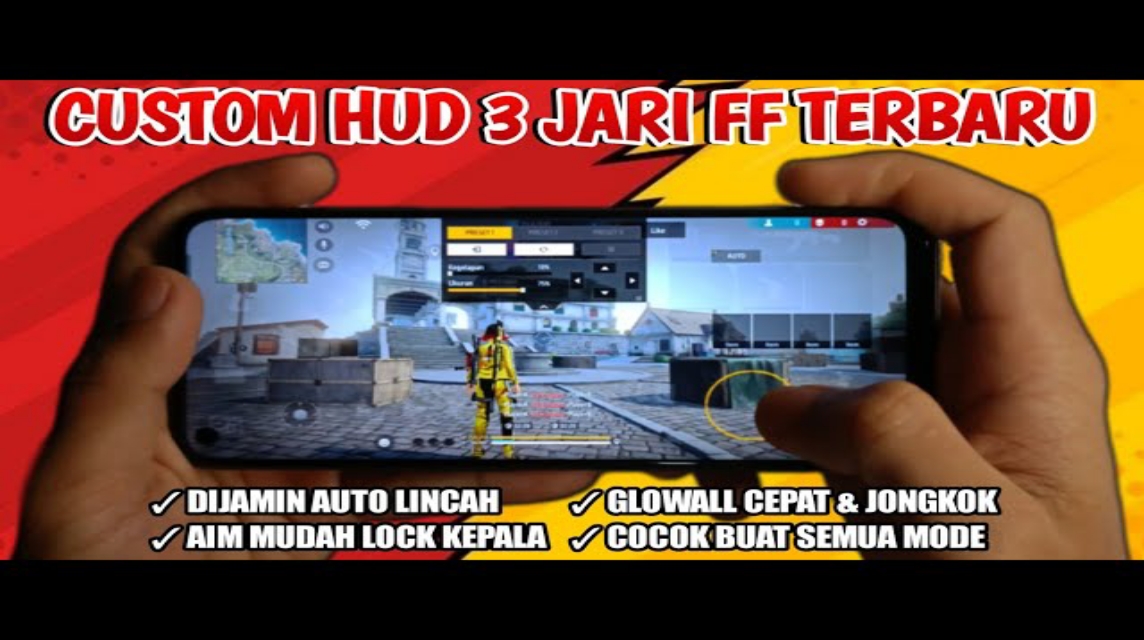
- 3 finger technique: Left thumb for movement, right thumb for aiming, and left index finger special shoot button.
- Set Custom HUD: Slide and enlarge the top left shooting button, save and then try in shooting mode Training.
- Use HUD code (1234-5678-9012-3456-7890) for quick import, then adjust the button position if necessary.
- Regular exercise: start at Groundtraining, use stable sensitivity, focus on split aim, and be patient for 3–7 days.
FF 3 Finger Control: Settings, HUD Code, and Auto Headshot Tips
FF 3 finger control is one of the players' favorite techniques Free Fire Those looking to level up their game. Using three fingers, you can move, shoot, and aim simultaneously without delay. This technique is often used by high-ranking players because it's more flexible and faster during war.
For those of you who still use 2 fingers, this article will help you understand how to set up 3-finger FF controls, complete with 3-finger FF HUD codes and tips to get used to it quickly.
Free Fire Product Recommendations


 TopMurTopMur
 TopMur
 RudyStorezTopMur
 TopMur
 RudyStorez
 RudyStorez
 Donquixoteshop
 RudyStorez
Also read:
- How to Easily Create a Blank Space FF Name
- Astute Beta Server, Advance Server Application for FF
- Causes of FF Fan My ID Verify UID and How to Verify Account
How to Set 3 Finger FF Controls

3-finger FF controls generally utilize an additional finger (usually the left index finger) for the fire button. So, the left thumb focuses on movement, the right thumb focuses on aiming, and the left index finger is dedicated to shooting.
Here are the steps for setting up 3-finger FF controls. Free Fire:
- Enter the Settings menu
- Open Free Fire
- Select the Settings icon
- Go to the Control menu
- Select Custom HUD
- Click the Custom HUD menu
- Here you can adjust the button position according to your comfort.
- Set Shoot Button
- Slide the shoot button to the top left of the screen
- Make sure it is easy to reach with the left index finger.
- Adjust Button Size
- Enlarge the shoot button so you don't press the wrong button.
- Skill and grenade buttons should be minimized so they don't interfere with aiming.
- Save Settings
- Once you feel comfortable in the position, save the HUD settings.
- Try in Training mode before ranked
This setting does require adjustment depending on your phone's screen size. Essentially, all buttons should be reachable without your fingers colliding.
FF 3 Finger HUD Code

If you don't want the hassle of setting them one by one, you can use the 3-finger FF HUD code that many players have used.
Here's an example of a 3-finger FF HUD code that you can try:
1234-5678-9012-3456-7890How to use the FF 3-finger HUD code:
- Go to the Custom HUD menu
- Select the Import option
- Paste the HUD code
- Click Confirm
After that, the control display will automatically change to reflect the 3-finger configuration. However, it's still recommended to adjust the button positions slightly to suit your hand's comfort.
Tips for Playing to Become a Champion
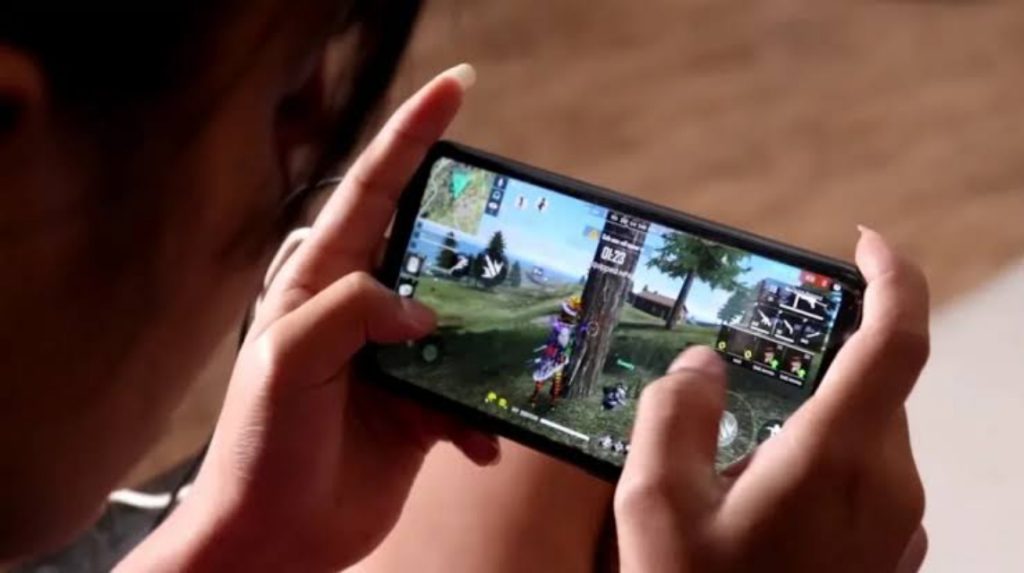
To become more skilled and adapt quickly, there are several important tips you can apply:

- Training at the Training Ground
Don't jump straight into ranked play. Get your fingers used to the new controls first so you don't panic during duels. - Use Stable Sensitivity
3-finger control works best when sensitivity is adjusted. Adjust your aim so it's not too wild but still responsive. - Split Aim and Shoot Focus
With three fingers, you can pull the aim slightly upward while shooting. This technique is effective for getting headshots. - Use Your Favorite Weapon
Start the exercise with SMG or AR with friendly recoil, such as MP40 or M1014 for close range. - Consistent and Patient
At first, you might feel stiff and lose duels frequently. That's normal. It usually takes 3–7 days for your hands to get used to it.
3-finger FF controls are the solution for those who want to play faster, more aggressively, and more competitively. With the right settings, the appropriate 3-finger FF HUD code, and regular practice, your performance in Free Fire will significantly improve.
Also read:
- FF Auto Headshot Aim Red Sensitivity Settings
- Get to Know Apkys XYZ, a Spanish Site That Provides FF Tips
- The Most Complete FF Color Codes, Let's Make Your Profile Full of Color
The important thing is, don't give up quickly and keep practicing consistently until your hands are really used to it.


 News
News




