
- Use Private DNS on Android: set host to dns.google or one.one.one.one, then restart Google Chrome.
- Use the app VPNs trusted like ProtonVPN or NordVPN, activate the connection before opening the site.
- Use the service Web Proxy like ProxySite or CroxyProxy, do not enter sensitive data.
- Safety precautions: avoid VPNs/proxy free unclear, do not input password or card number, report wrong block.
How to Open Blocked Sites in Google Chrome
The reasons why a site is blocked in search engines can sometimes be confusing. Therefore, many users are looking for a safe and hassle-free way to open blocked sites on Google Chrome on their phones.
However, each method has its own risks and limitations, so users need to choose a method that suits their individual conditions.
This review covers the steps step by step, along with important notes to ensure responsible use and avoid fraud.
Also read:
- How to View Passwords in Chrome Saved in Google Account
- How to View Saved Passwords in Google Chrome, Take Note!
- Easy Way to Play Dino Game in Google Chrome
How to Open Sites Blocked by Internet Providers on Chrome Mobile
If the blocking comes from your internet provider, you can try the following methods via Chrome on your phone.
Via Private DNS on Android
Here are the steps to open a site that has been blocked via Private DNS:
- Open Settings on your Android phone, then go to the Network and Internet or Connections menu, then look for the Private DNS option;
- Select the private DNS provider hostname option, then enter the address of a trusted provider such as dns.google or one.one.one.one;
- Save the settings, then close Chrome completely and reopen it before trying to access the site;
- It should be noted that this method does not always work, especially if the blocking is done at a deeper level.
Via VPN Application
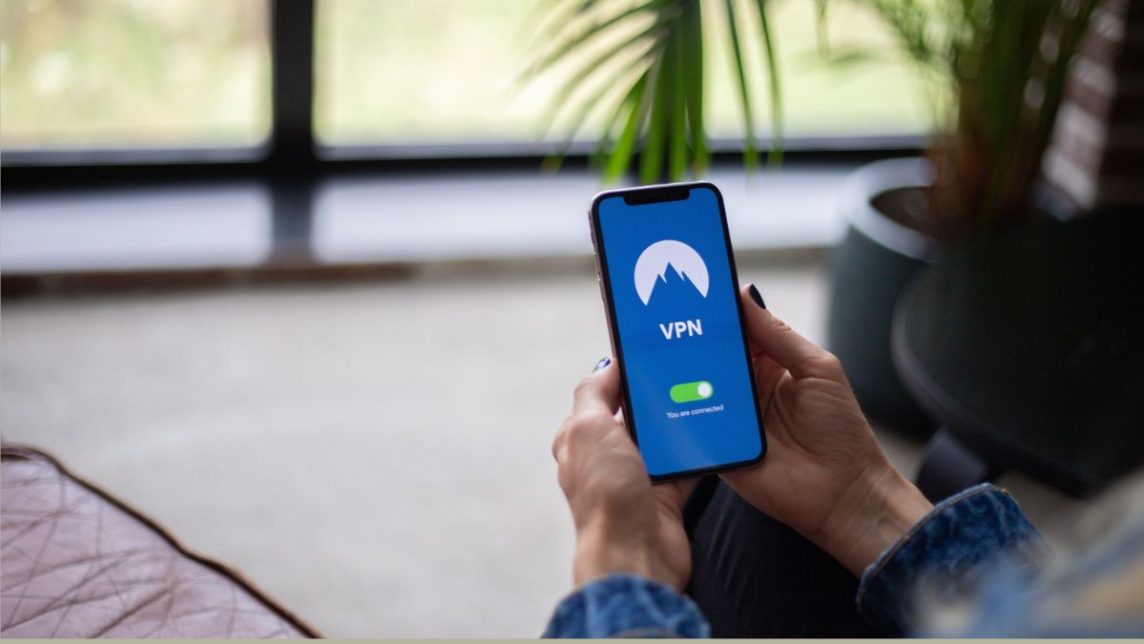
You can also use VPNs To use a blocked site, follow these steps:
- Download a trusted VPN app from the Google Play Store, such as ProtonVPN or NordVPN, and avoid apps without clear reviews and management;
- Open the application, create an account if necessary, then enable the VPN connection and grant the permissions requested by the system;
- Once the status changes to connected, open Google Chrome and re-access the previously blocked site;
- Turn off the VPN after you're done so that the connection returns to normal and battery and data usage are not wasted.
Via Proxy Website
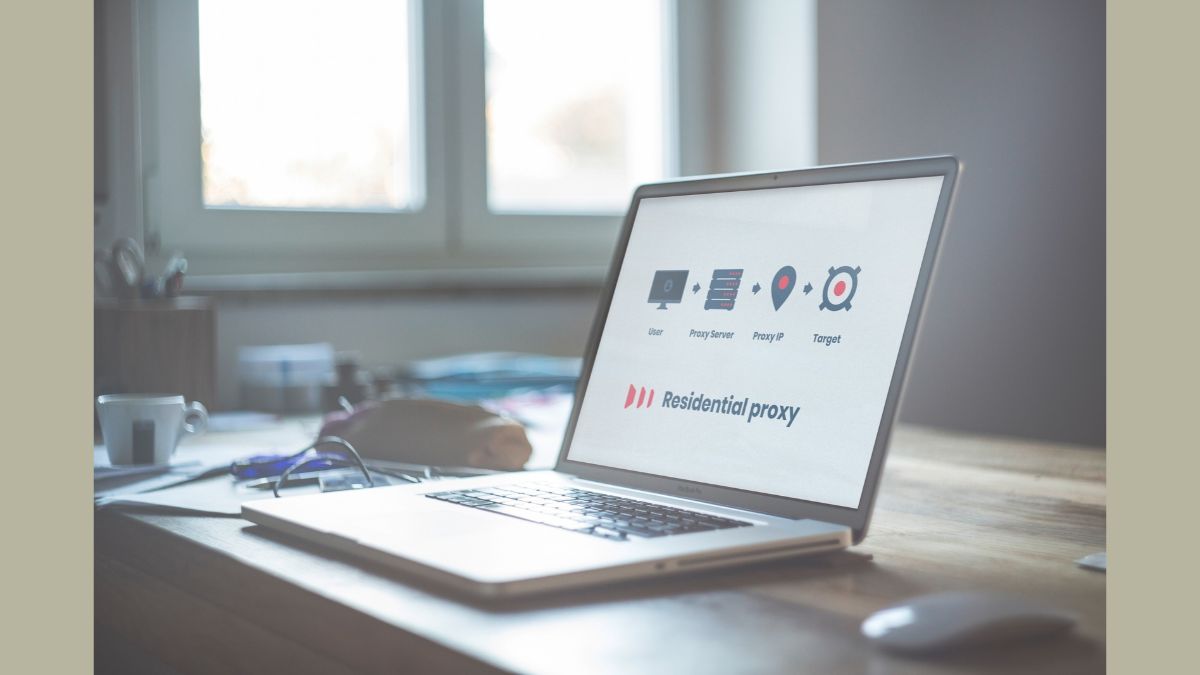
Here are the steps to open a blocked site using a Web Proxy:
- Open Google Chrome on your phone, then visit a web proxy service like ProxySite or CroxyProxy via the address bar;
- Enter the address or URL of the blocked site in the column provided on the proxy page;
- Click the Go or Browse button, then wait for the site page to be displayed through the proxy service;
- Do not enter passwords, card data, or personal information while using a web proxy because data traffic can be read by the administrator.
Things to Consider When Opening Blocked Sites
The government blocks certain sites, among other things, because they contain illegal content. So, to open them, you must pay attention to the following things:

- Avoid free VPNs or proxies from unknown developers, as some of them may record activity or misuse users' personal data;
- Do not enter passwords, card numbers, or banking data when using proxies, translators, or untrusted networks;
- Make sure the website address you open is correct and official, because fake websites often use similar names to trick users;
- If important sites such as official services are mistakenly blocked, report it through the official complaint channels of the authorities for further review.
Also read:
- Easy Ways to Open Blocked Sites Without an Application
- Looking for a free site to watch Western movies? Here are 5 of the best recommendations!
- The Most Complete List of Movie Watching and Download Apps
Although there are many ways to open blocked sites on Google Chrome, but you still need to pay attention to the site's security. So, be wise when choosing or using blocked sites.
MLBB Product Recommendations


 BV2SHOP
 DEMPET STOREBV2SHOPBV2SHOP
 RudyStorez
 BANGJEFF
 TopMurBV2SHOPBV2SHOP
 AM08SHOP



 News
News




