

- Extract video to audio: separate sound from video into separate files for music, podcasts, dialogue, or sound effects.
- Main steps: open CapCut in PC, import video, select options Extract audio, delete the optional video, then export to .mp3.
- CapCut It offers free, credit-based features; once you run out of credits, you'll need to pay for access. Audio quality generally remains clear with a good source.
How to Extract Video to Audio with CapCut PC
Many users want to extract video to audio for various purposes, such as extracting music from a video, saving podcast dialogue, copying specific sounds, and so on.
Whether it's for new content or just a library collection, it can all be done easily with CapCut! So, if you're curious about how, let's check it out!
MLBB Product Recommendations
110 DiamondsMobile LegendsBV2SHOP
IDR 32,0007%Rp. 29,50012 (11+1 Bonus)Mobile LegendsIDR 8,00053%Rp. 3,700568 DiamondsMobile LegendsRp. 170,00013%Rp. 146,900408 DiamondsMobile LegendsIDR 110,0002%Rp. 107,600110 DiamondsMobile LegendsIDR 32,0007%Rp. 29,600296 DiamondsMobile LegendsRp. 105,00025%Rp. 78,10012 DiamondsMobile LegendsIDR 8,00055%Rp. 3,600170 DiamondsMobile LegendsRp. 57,70021%Rp. 45,100110 DiamondsMobile LegendsIDR 32,0007%Rp. 29,700408 DiamondsMobile LegendsIDR 110,0001%Rp. 108,800Also read:





What is Extract Video to Audio?
Before discussing the tutorial, you need to know first what is meant by extracting video to audio. So, hopefully you'll understand the context this article will discuss.
Simply put, it's the process of extracting audio from a video and saving it as a separate file. This way, you can use it without having to include the video itself.
In this modern era, where the context of dubbing has become one of the “lifebloods” of video platforms (especially short-form ones), audio extraction skills have become very relevant.
Many people use it for a variety of digital consumption. Whether YouTubers, TikTokers, or Instagram celebrities, they typically use this technique for various purposes, such as:
-
Taking music from video
-
Saving podcast audio
-
Taking movie dialogue or content
-
Creating sound for social media content
CapCut to Extract Video to Audio
There are actually many video processing applications out there with the capability of extracting video to audio. But because CapCut It is very common, so the discussion focuses on this program only.
Yes, this video editing app from ByteDance (TikTok's parent company) is incredibly popular in Indonesia. It boasts a comprehensive range of editing features yet is easy for beginners to understand.
Furthermore, so far, all of its features are free to use. However, some of the more complex features still require a paid subscription.
And of course, the video-to-audio extraction feature is also a must-have. What's even more exciting is that CapCut is available on a variety of devices, from mobile to PC.
How to Extract Video to Audio with the CapCut App
Now, let's move on to the main part: how to extract video to audio using CapCut for PC. Please follow the steps outlined by VCGamers below:
Open CapCut

The first step is of course to open the CapCut program that you have installed on your device. PC. After that, press the New Project button as the first step to start a new project.
Import video

Next, import the video you want to extract audio from from your device's explorer. Once done, drag the imported video onto the timeline to edit it.
Select the 'Extract audio' menu‘

Select the video you want to extract, then look for the 'Extract audio' option right at the top of the timeline. The icon looks like the YouTube logo with a small sound wave in the top right corner.
Delete video (optional)

If you only want to keep the audio, you can delete the video layer from the timeline and leave the audio file so you get the sound without the visuals.
Export file
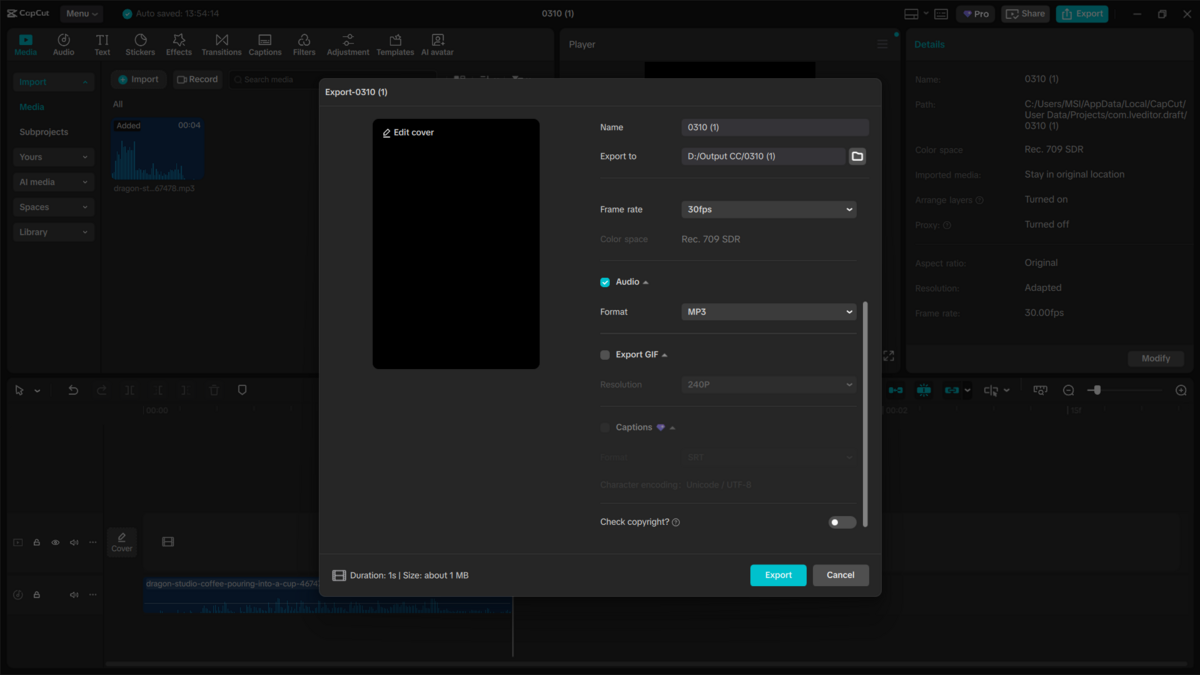
Finally, press the 'Export' button in the top right corner (next to the 'Minimize' button). Don't forget to check the 'Audio' option and select the format (recommended). .mp3).
And that's it! CapCut will immediately render the audio file. So, Vicigers, it's easy, right? Now that you understand, go ahead and try it yourself at home!
Also read:
So, that concludes our discussion on how to easily extract video to audio using CapCut for PC. If you found this article helpful, don't forget to share it on your social media!

FAQs
Extracting video to audio is the process of separating the sound from a video file so that the audio can be used separately without including images or visuals.
Yes, CapCut has an Extract Audio feature that allows users to automatically separate sound from video.
Yes, the audio extraction feature in CapCut is free to use without any additional charges. However, this feature is credit-based. So, once you run out of credit, you'll need paid access to use it again.
Usually not. If the video has good audio quality, the extracted audio will remain clear.
Yes, this feature is available in both the mobile and PC versions of CapCut so users can extract audio on various devices.





 News
News




