
- Use a charger or power bank Connect and wait a few minutes to ensure the battery is powered and the phone shows signs of life.
- Use ADB or small object use ADB via PC if you enable USB Debugging, or press the power button with a toothpick/pen ejector.
How to Turn on a Dead Cellphone Without the Power and Volume Buttons
How to turn on MOBILE PHONE which is completely dead without the power and volume buttons is often a challenge for many users. Damage to physical buttons such as power and volume can make the device unable to be operated normally.
But don't worry; there are a few methods you can try to revive your phone without having to rely on those buttons.
This article will discuss practical steps you can take to address this issue.
Also read:
How to Turn on a Dead Cellphone Without the Power and Volume Buttons
Below we will discuss the steps you can take to resolve this issue:
Using Charger or Power Bank
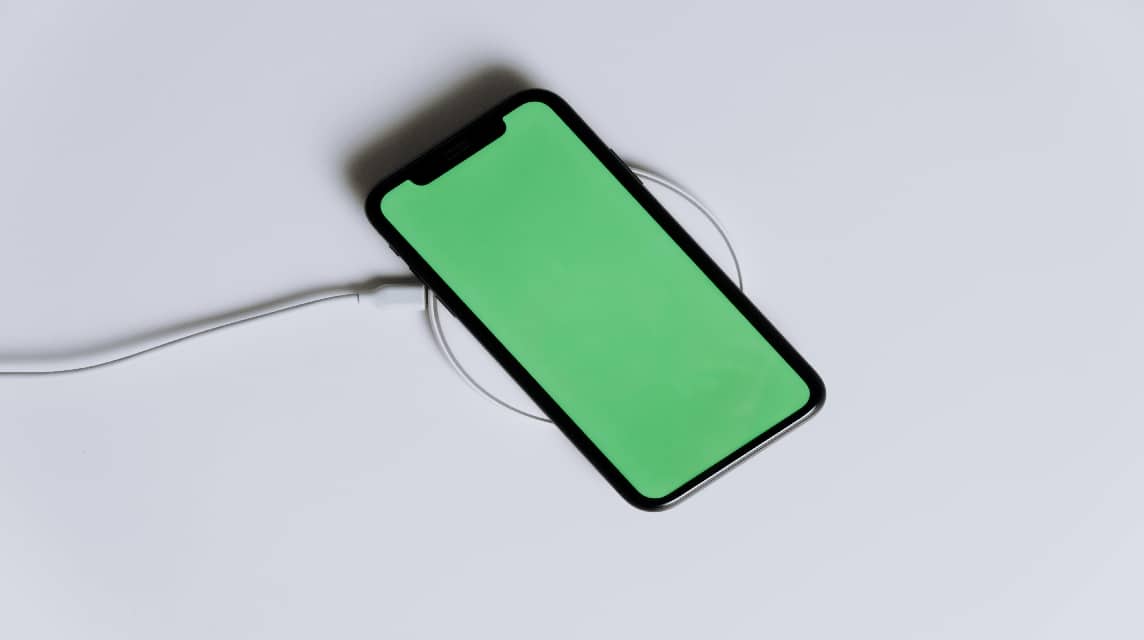
One of the simplest ways to turn on a completely dead cell phone is to connect it to a charger or power bank. Here are the steps:
- Connect the phone to the charger: Connect your phone to a power source such as a charger or power bank;
- Wait for a few minutes: Leave the phone connected for a few minutes to ensure the battery gets enough power;
- Check Response: After a few minutes, check if your phone shows any signs of life, such as indicator lights or vibrations.
This method is effective if the problem lies in a dead or improperly charged battery.
Using Commands Via PC (ADB)

If you have technical knowledge, you can use ADB commands (Android Debug Bridge) to turn on your phone. Here are the steps:
- Enable USB Debugging: Make sure USB Debugging is enabled on your phone;
- Install ADB on PC: Download and install ADB on your computer;
- Connect HP to PC: Connect your phone to PC using a USB cable;
- Open Command Prompt: Access Command Prompt on PC and navigate to the ADB directory;
- Enter Command: Type the ADB command reboot to restart your phone.
This method requires technical knowledge and access to a computer.
Use a Small Object to Press the Power Button
If the power button on your phone is not working or is missing, you can use a small object such as a toothpick, safety pin, or SIM card ejector to press the power button manually. Here are the steps:
- Prepare Small Items: Take a toothpick, safety pin, or SIM card ejector with a blunt tip to avoid damaging the device;
- Find the Power Button Location: Identify the location of the power button on your device. Typically, the power button is located on the right or left side of the device;
- Press the Power Button: Carefully press the power button using a small object that has been prepared. Make sure you press gently to avoid further damage.
This method is effective if your power button is not working or is missing.
Charge Your Phone
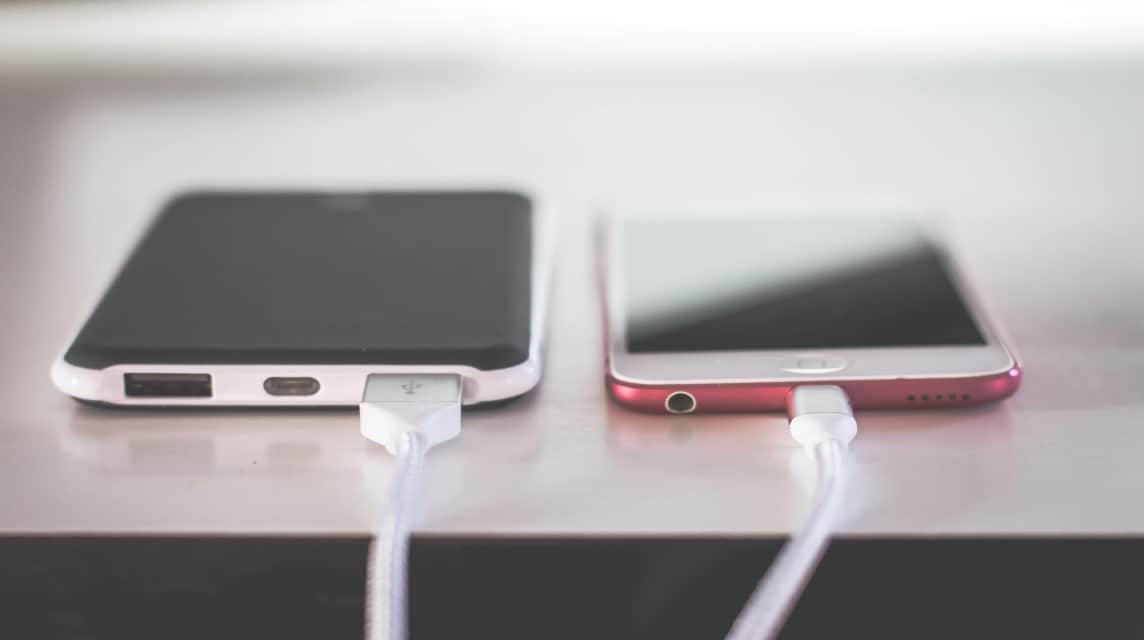
If your phone dies due to running out of power, you can try connecting it to a charger or power bank. Here are the steps:
- Connect to Resources: Connect the phone to the charger or power bank using the appropriate cable;
- Wait for a few minutes: Leave the phone connected for a few minutes to ensure the battery gets enough power;
- Check Response: After a few minutes, check if the phone shows any signs of life, such as indicator lights or vibrations.
This method is effective if the problem lies in a dead or improperly charged battery.
Replacing the Power Button Physically

If the above method doesn't work, you can consider replacing the power button physically.
Visit an authorized service center or trusted technician to replace the power button. The technician will open the phone casing, remove the broken power button, and replace it with a new one.
This process requires technical expertise and special tools, so it is recommended that it be carried out by a professional.
How to turn on a dead cellphone without the power and volume buttons can be a challenge, but with the right method, you can solve this problem without having to take the device to a service center.
Also read:
That's our discussion this time, hopefully this article helps solve your problem.
FAQ on How to Turn on a Dead Cell Phone
Connect your phone to the charger using the original cable and adapter.
Check and clean the charger port from dust using cotton or a soft brush.
Do hard restart by pressing the button power and volume simultaneously for 10–15 seconds.

Plug the charger into a power source, then press the volume down or up button simultaneously to enter Recovery Mode.
Select an option reboot device or reboot system now on the menu that appears.
Data is generally safe if the damage is only caused by a dead battery or glitches software.
Data is at risk of being lost if there is serious damage to the storage components (motherboards or memory IC).
Don't turn it on immediately: Turning on a wet phone can trigger a fatal short circuit in the internal components.
Dry immediately: Wipe the entire surface of the phone, remove the SIM/SD card, and use a fan or vacuum cleaner (do not use hair dryer hot).
Use silica gel: Put the cell phone in a closed container with lots of bags. silica gel for 24–48 hours to absorb any remaining moisture.
The phone stays cool and there is no vibration at all while charging.
The screen remains pitch black without the battery charging logo appearing (charging icon).
When connected to a computer using a data cable, the device is not detected at all.
MLBB Product Recommendations


 BV2SHOP
 DEMPET STOREBV2SHOPBV2SHOP
 RudyStorez
 BANGJEFF
 TopMurBV2SHOPBV2SHOP
 AM08SHOP



 News
News




