
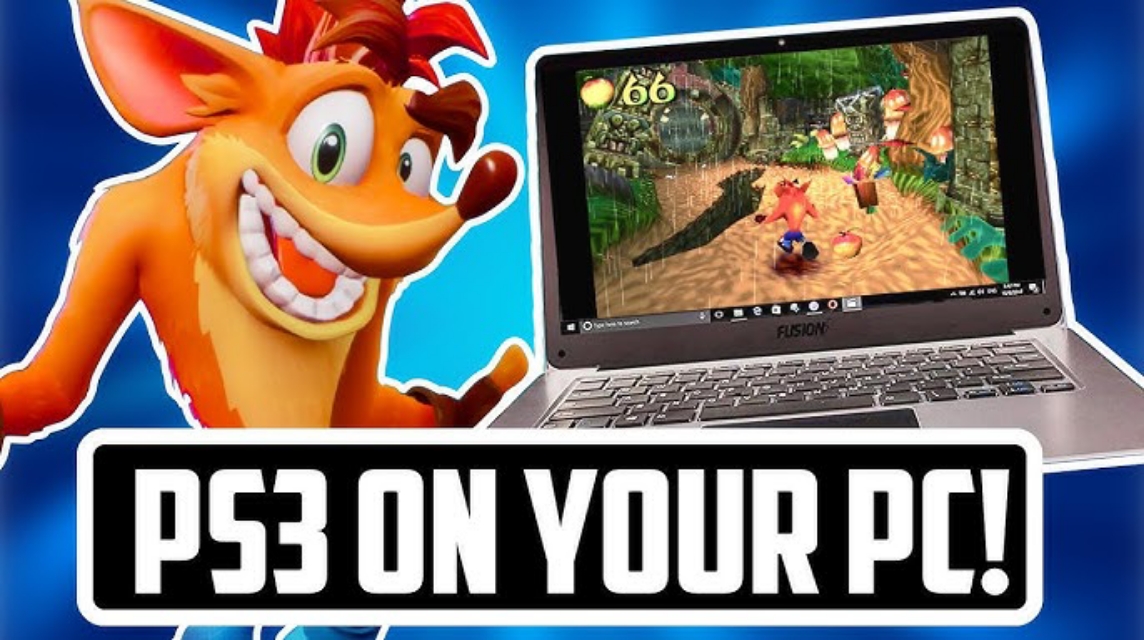
- RPCS3 is a PS3 emulator most stable and free, supports resolution upgrades and active community development.
- Need a PC with the following specifications upper middle class to run PS3 emulator smoothly; Low specs cause lag or failure.
- For legality, use the original game files (dump from your PS3 disc) and install official firmware before playing.
Best PS3 PC Emulators: Recommendations & How to Use Them
For those of you who want to play classic console games directly from your computer, PS3 PC emulators are becoming a popular topic. Without having a PlayStation 3, you can still enjoy a variety of legendary titles with sharper graphics and flexible controls.
It's no wonder this solution is considered practical, especially for gamers who want to reminisce or simply try a different gaming experience on PC.
PS3 emulators
A PS3 emulator is software that allows a PC to run games originally created specifically for the PlayStation 3 console. This emulator works by emulating the PS3 hardware and software systems so that games can run on Windows, Linux, or macOS operating systems.
However, you should be aware that the PS3 is a console with a complex architecture. That's why a PS3 PC emulator requires fairly high computer specifications to run smoothly. If your PC has low specs, don't be surprised if the game frequently lags or even stops running altogether.
Additionally, the PlayStation 3 emulator doesn't support pirated games. You'll still need to have the original game files (dumps from your own PS3 discs) to be safe and legal.
Also read:
- GTA 5 Anti-Police Invulnerability Cheat for PS and Playstation
- How to Register for a 7-Day Free Trial of PlayStation Plus All Plan Membership
- The most complete GTA 4 cheats for PlayStation, Xbox and PC
Best PS3 PC Emulator Recommendations

Here are several emulator options you can use to play PlayStation 3 games directly from your computer. Each has its own advantages and disadvantages, so choose one that best suits your needs and PC specifications.
1. RPCS3
RPCS3 is currently the most popular and stable emulator. It's actively developed and supported by a large community worldwide. Many popular PS3 games can now be played with excellent performance, and it even supports resolution enhancements for sharper displays on modern PC screens.
Another advantage is that this emulator is free and open-source, so updates and bug fixes are routine. However, you'll still need a PC with mid-range to high-end specifications to ensure the game runs smoothly and without issues.
2. ESX Emulator
ESX initially attracted attention due to its user-friendly interface and claims of easy game running. Unfortunately, this emulator still has its share of pros and cons, particularly due to its subscription system and lack of clear technical information.
For those of you who are just starting out, this emulator is actually worth trying, but you still need to be careful and compare it with other options that are more open and proven to be stable.
3. Other Experimental Emulators
Besides the two mentioned above, there are several other emulator projects still in development. These emulators are typically unstable and are only suitable for testing or experimentation, not for serious gaming.
If your goal is a comfortable gaming experience with minimal problems, the safest choice is still to use an emulator that is well-established and widely recommended by users.
How to Use RPCS3 Emulator

Here are the basic steps you can follow to play PlayStation 3 games directly on your computer using RPCS3.
1. Download and Run RPCS3
First, download RPCS3 from the official website, depending on your operating system. Once finished, extract the file to your desired folder. RPCS3 doesn't require a complicated installation process; simply run the RPCS3.exe file to get started.
2. Install PlayStation 3 Firmware
For the emulator to work properly, you need to install the official firmware. Download the PS3 firmware from Sony's official website, then open RPCS3 and select File > Install Firmware. Wait for the installation process to complete smoothly.
3. Insert Game File
Use game files copied from your own original discs. Game files are usually in folders or ISO files. To add them, click File > Add Games, then navigate to the game file's location.
4. Adjust the settings according to your PC specifications.
Before starting to play, adjust your CPU and GPU settings for optimal performance. Enable the Vulkan renderer if your graphics card supports it, as it typically provides more stable performance. You can also check the game compatibility list to find the best settings for each title.

5. Run and Play the Game
Once all settings are complete, double-click the game you want to play. If your computer's specifications are sufficient and the settings are correct, the game should run smoothly and comfortably.
A PS3 PC emulator is an attractive solution for those who want to reminisce or play PS3 games without a console. Of the various options available, RPCS3 remains the best and most stable PS3 emulator currently available.
Also read:
- PUBG Emulator: A More Comfortable Solution for Playing on PC
- 4 Best Android Emulators You Can Try on PC
- 10 Lightweight Android Emulators for 1GB RAM
As long as your PC supports it and the settings are done correctly, the gaming experience can be very satisfying.
MLBB Product Recommendations


 BV2SHOPBV2SHOP
 BANGJEFF
 TopMurBV2SHOP
 KING OF DIAMONDSKING OF DIAMONDSBV2SHOP
 RudyStorezTopMur



 News
News




