

- Make sure the laptop meets the specifications: processor Intel Core i3/AMD Ryzen 3, RAM 8GB, storage SSD, and dedicated GPU.
- Download via official website Roblox: login, select game, click Play, download then run RobloxPlayerInstaller.
- Alternative: install from Microsoft Store (Windows 10/11) for easier installation and automatic updates.
- Make sure the internet connection is stable and there is sufficient storage space; Roblox free to play and requires an online connection.
How to Download Roblox on a Laptop, Easy and Fast for Beginners
Roblox Roblox ranks as one of the most popular online gaming platforms because its community has created thousands of engaging games. You can play various genres, from adventure and simulation to horror and role-playing, for free through the single Roblox app.
Many users find it difficult to understand how to download Roblox on their laptops, especially those who are playing it for the first time. The good news is that installing Roblox is quite easy and can be done through the official website or the Microsoft Store.
Roblox Specifications on Laptop

Before downloading Roblox, make sure your laptop has adequate specifications. While players know Roblox as a lightweight game, you'll have a much more comfortable gaming experience when using a device that meets the latest recommended specifications.
Besides making the game run smoother, the right specifications can also minimize lag, frame drops, and prolonged loading times. Here are the recommended laptop specifications for playing Roblox comfortably:
- Processor (CPU): Minimum Intel Core i3 / i5 or AMD Ryzen 3 / 5.
- Memory (RAM): Minimum 8 GB.
- Storage: It is highly recommended to use an SSD (Solid State Drive) for instant game loading.
- Graphics Card (GPU): It is equipped with a dedicated GPU such as the Nvidia GeForce MX Series or AMD Radeon.
With these specifications, you can run most Roblox games more stably. Some Roblox games with large maps and high-performance graphics will also feel more responsive when played.
Furthermore, using an SSD is an important factor that's often overlooked. SSDs can speed up the laptop's boot process, open Roblox applications faster, and reduce loading times when switching servers or starting a new game.
Also read:
- Robux Moderated Item Policy: Rules, Refunds, and How to Check Your Balance
- Top 7 Roblox Games for Two to Play Together
- Get 200+ Free Roblox Accounts Today! Click Now!
How to Download via the Official Website

Downloading Roblox through the official website is the most widely used method. This method is suitable for all Windows users and allows you to get the installer directly from the official Roblox source.
The process is also very simple, as the system will automatically download the installation file when you try to play a game. Here are the steps:
- Open a browser on your laptop such as Google Chrome, Microsoft Edge, or Mozilla Firefox.
- Visit the official Roblox website.
- Click the Log In button if you already have an account or Sign Up if you want to create a new account.
- After successfully logging in, select one of the games you want to play.
- Click the Play button on the game page.
- The system will display a pop-up to download Roblox Player.
- Click Download and Install Roblox.
- Wait until the installer file is finished downloading.
- Open the downloaded RobloxPlayerInstaller file.
- Wait for the installation process to complete automatically.
- Once the installation is complete, Roblox will open automatically.
- Go back to the browser and click the Play button to start playing.
This method is the preferred method because the installer is always updated directly by Roblox. This way, you can get the latest version without having to search for installation files from other, potentially unsafe sources.
Additionally, the game update process will run automatically every time Roblox releases a new update. Simply open the app and the system will take care of the rest.
How to Download via Microsoft Store
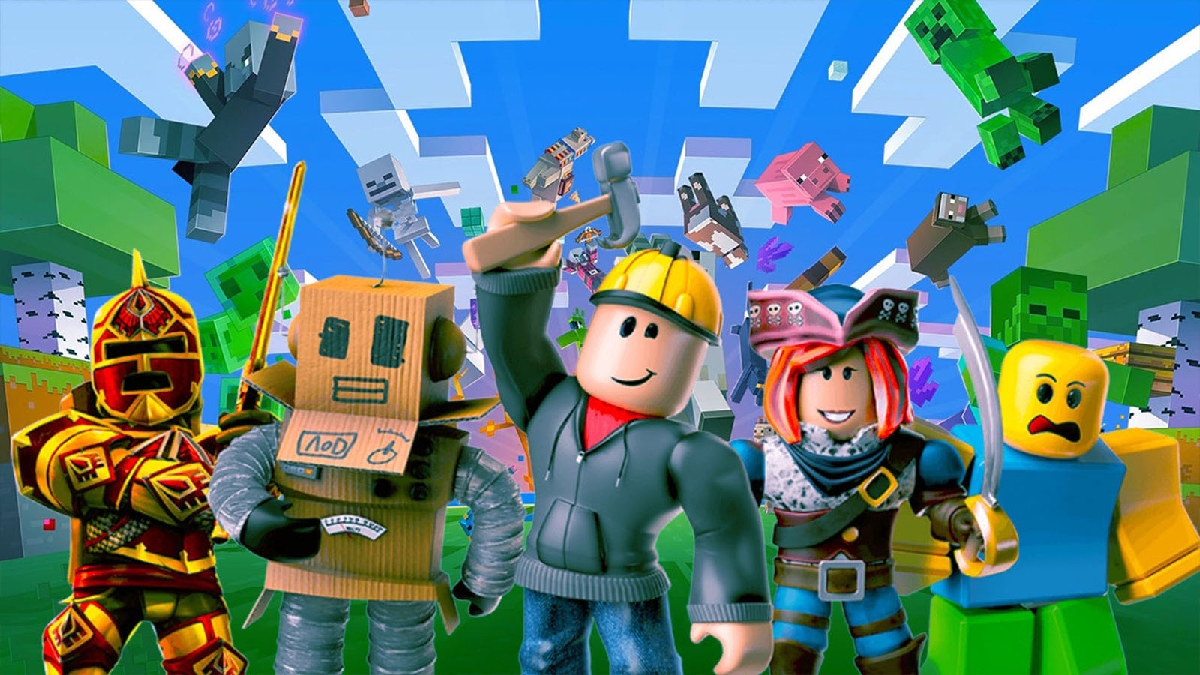
Apart from the official website, Roblox is also available on Microsoft Store. This method is quite practical because the entire application installation and update process is managed directly by Windows.
The Microsoft Store method is highly recommended for Windows 10 and Windows 11 users who want a simpler installation process without having to manually download the installer file. Here are the steps:
- Click the Start menu on your Windows laptop.
- Open the Microsoft Store app.
- Type Roblox in the search field.
- Select the Roblox application that appears in the search results.
- Make sure the app is the official Roblox app.
- Click the Install or Get button.
- Wait for the download and installation process to complete.
- Once done, click the Open button to open Roblox.
- Log in using your Roblox account.
- Click on the game you want to play and start playing.
The advantage of using the Microsoft Store is a more convenient update process. When a new version is available, Windows will automatically update the app without the need for reinstallation.
Additionally, users who are less accustomed to manually installing apps often find the Microsoft Store more convenient because the entire process is done in one place. The risk of downloading files from unofficial sources is also minimized.
Downloading Roblox on a laptop is actually very easy and can be done using two methods: the official Roblox website and the Microsoft Store. Both are equally secure and only take a few minutes to install.
Also read:
- Delta Executor Roblox: How to Download and Use It
- How to Make a Roblox Gamepass on Smartphone and PC
- What is Poki Games Roblox? About it and How to Use it
Before downloading, ensure your laptop has adequate specifications, such as at least 8GB of RAM, an Intel Core i3 or AMD Ryzen 3 processor, SSD storage, and a dedicated GPU for a smoother gaming experience. Once Roblox is successfully installed, you can immediately explore the millions of exciting games available on the platform.

FAQ About How to Download Roblox on a Laptop
Roblox can be played on most Windows laptops that meet the minimum specifications. For smooth gameplay, we recommend a laptop with an Intel Core i3 or AMD Ryzen 3 processor, at least 8GB of RAM, and SSD storage.
Yes, Roblox is free to download and play. You just need to create a Roblox account to access the various games available.
Both are equally safe and official. The Roblox website is suitable for users who want to install directly from the Roblox platform, while the Microsoft Store offers a more convenient installation and update process through Windows.
This problem is usually caused by an unstable internet connection, full storage space, an outdated operating system, or a device that does not meet Roblox's required specifications.
Yes, Roblox requires an internet connection because most of the games on this platform are played online.
Roblox Product Recommendations

 Hero Alive
 Kumay10shopHero AliveHero Alive
 RudyStorezHero Alive



 News
News




