

- Select emulator like GameLoop, BlueStacks, or MEmu Play according to the specifications and needs of the game.
- Download and install Call of Duty Mobile via Game Center or Google Play Store in the selected emulator.
- Set controls The keyboard and mouse use key mapping features to make movement and aiming more precise.
- Graphics and performance optimization by adjusting RAM, CPU, resolution, and frame rate for smooth gameplay.
Know the List of CODM Emulators and How to Play Them on PC
CODM emulator attracts the attention of players who want to enjoy Call of Duty Mobile devices offer a wider display via a computer. Large screens and alternative controls are considered to provide added comfort during extended play.
Using an emulator allows players to adjust controls using a keyboard and mouse for more precise movements. Many PC gamers find this approach more familiar, as it approximates the FPS gaming experience on a computer platform.
However, running Call of Duty: Mobile on an emulator isn't something you can do haphazardly. There are a number of rules, matchmaking systems, and account risks that you should understand before deciding to try it.
Also read:
List of Emulators to Play Call of Duty Games
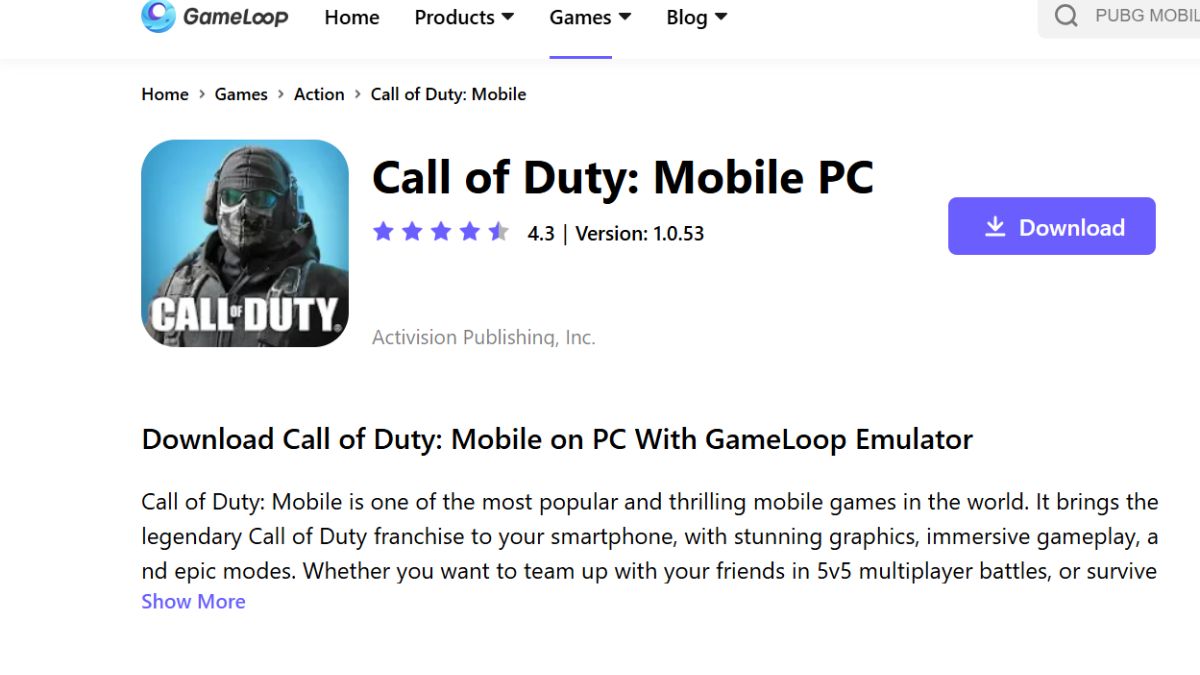
Get to know some lightweight emulators for playing Call of Duty war games, including:
- GameLoop: The official emulator recommended for playing Call of Duty Mobile on PC. This emulator offers stable performance with optimized keyboard and mouse controls suited to FPS gameplay.;
- BlueStacks: Suitable for users who want high flexibility in control and graphics settings. This emulator supports multiple instances and is compatible with a wide range of PC specifications, including mid-range ones;
- MEmu Play: Many people already know it as a lightweight emulator that focuses on gaming performance. This emulator can run Call of Duty Mobile smoothly without requiring particularly high hardware specifications.
How to Play Call of Duty with an Emulator
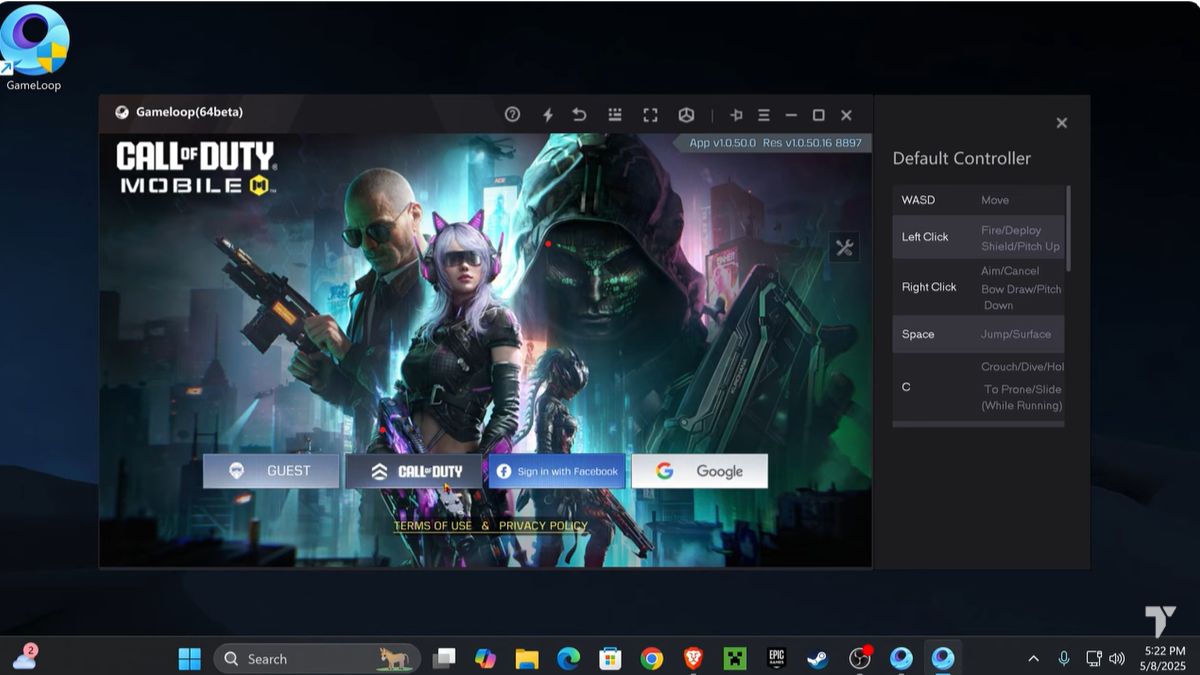
There are several steps to follow to play Call of Duty with emulators, among them:
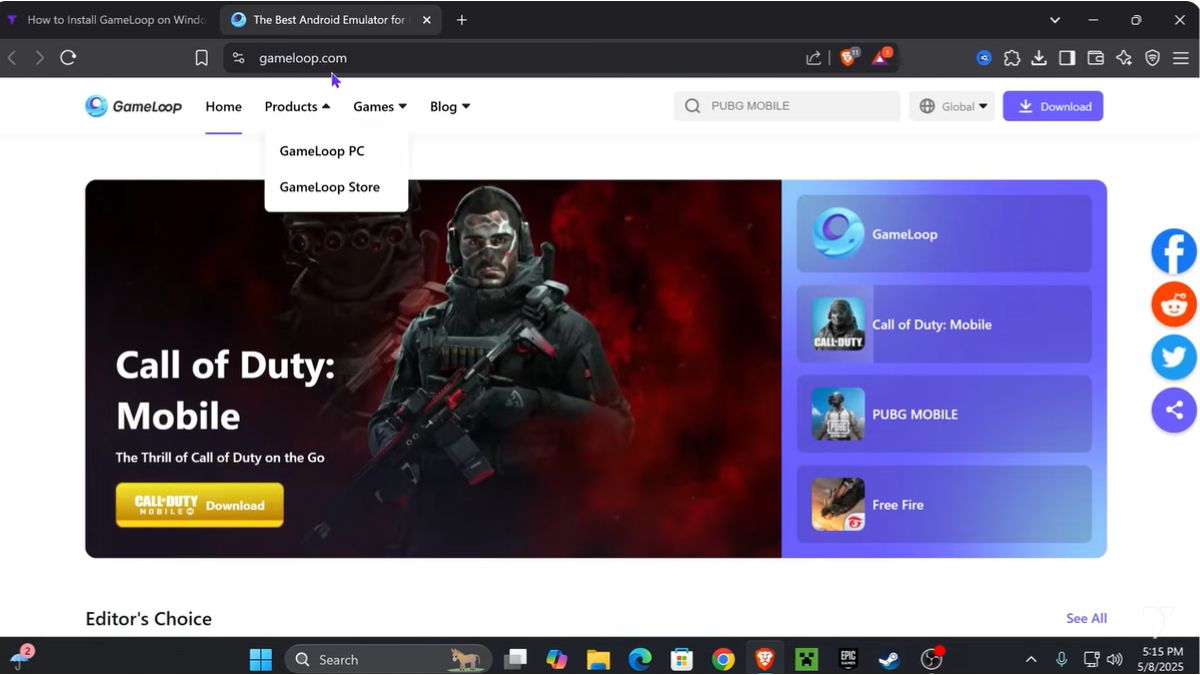
Step 1: Download the Best Emulator for Call of Duty Mobile
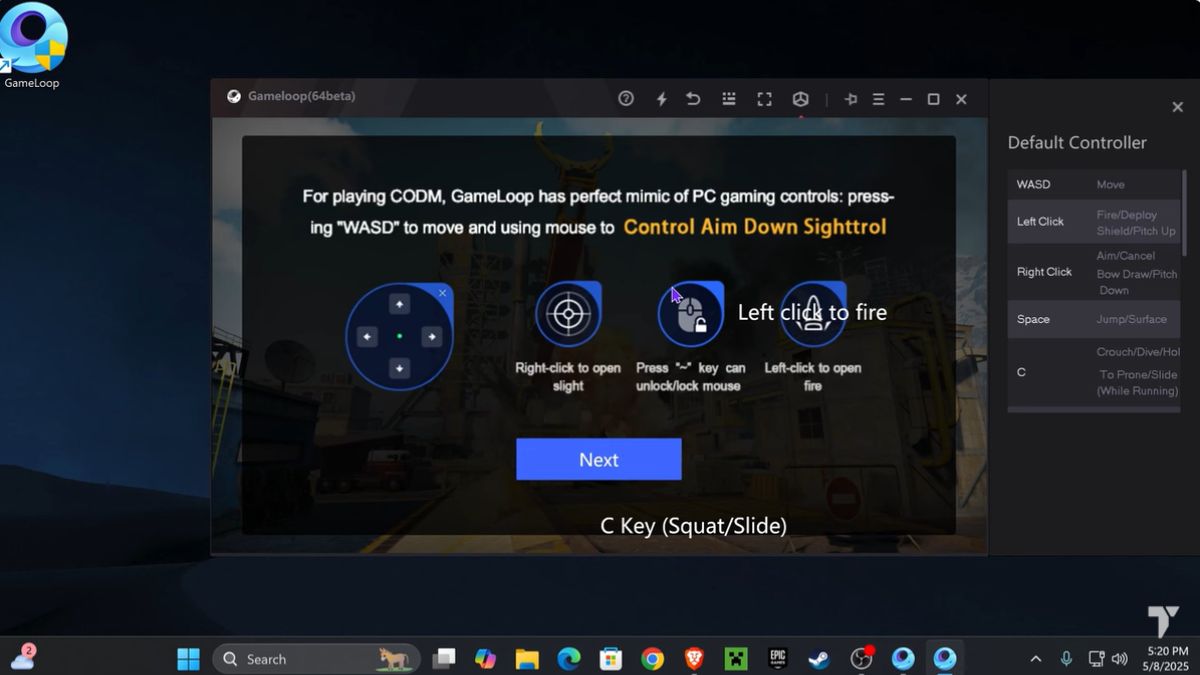
Select one of the following emulators according to your needs and the specifications of the PC device you are using;

- Gameloop: The official emulator from Tencent with stable performance and special optimization for Call of Duty Mobile;
- BlueStacks: Provides advanced customization features, multi-instance support, and strong integration with PC systems;
- MEmu Play: A lightweight emulator for gaming with a fairly good level of stability.
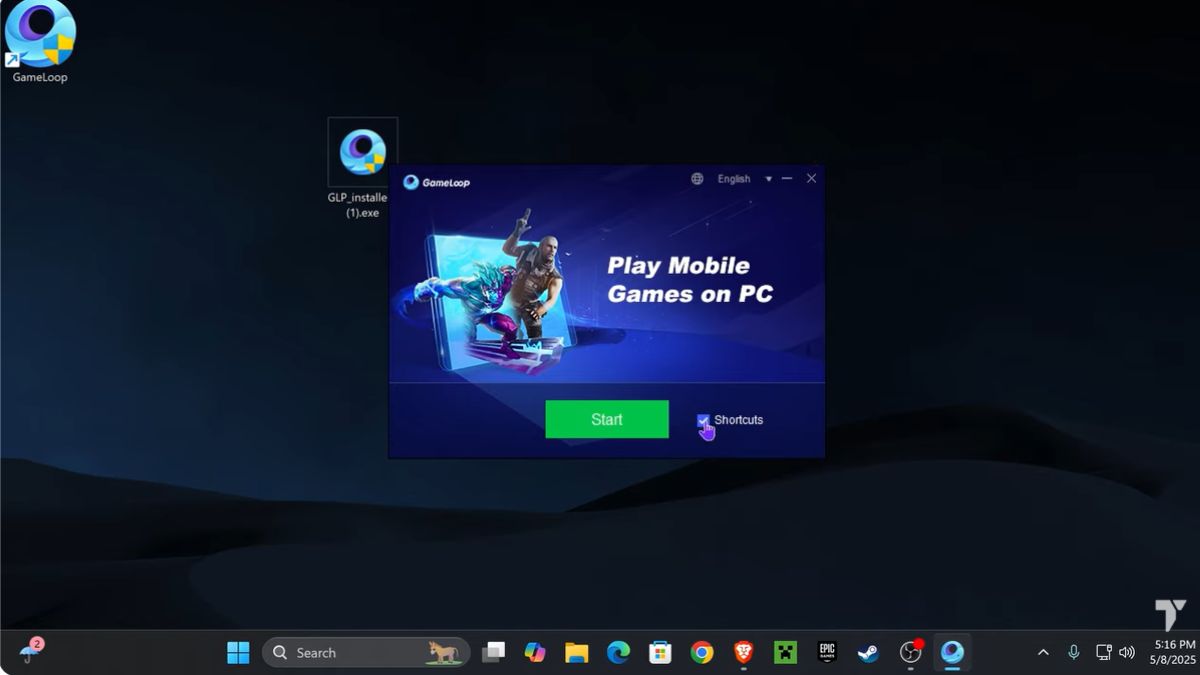
Step 2: Install Call of Duty Mobile
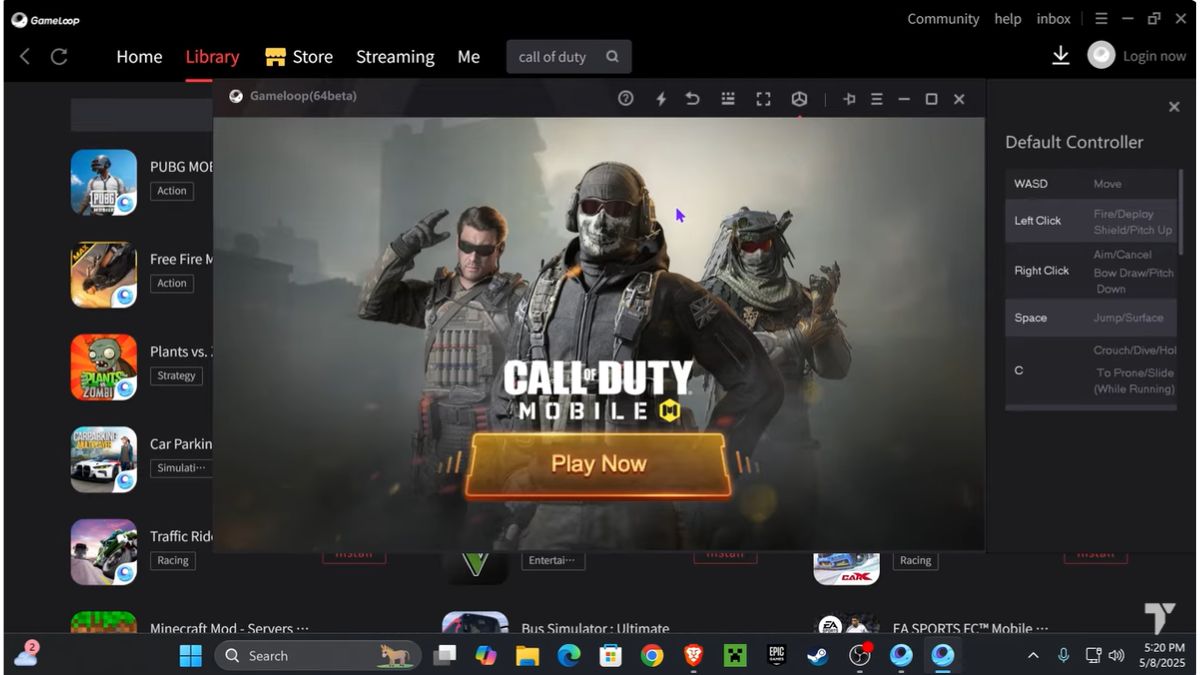
Once the emulator is installed, the next step is to download games directly from the app store.
- Open the emulator Game Center or Google Play Store available in it;
- Search for Call of Duty Mobile via the search bar;
- Click the Install button and wait for the download process to complete.
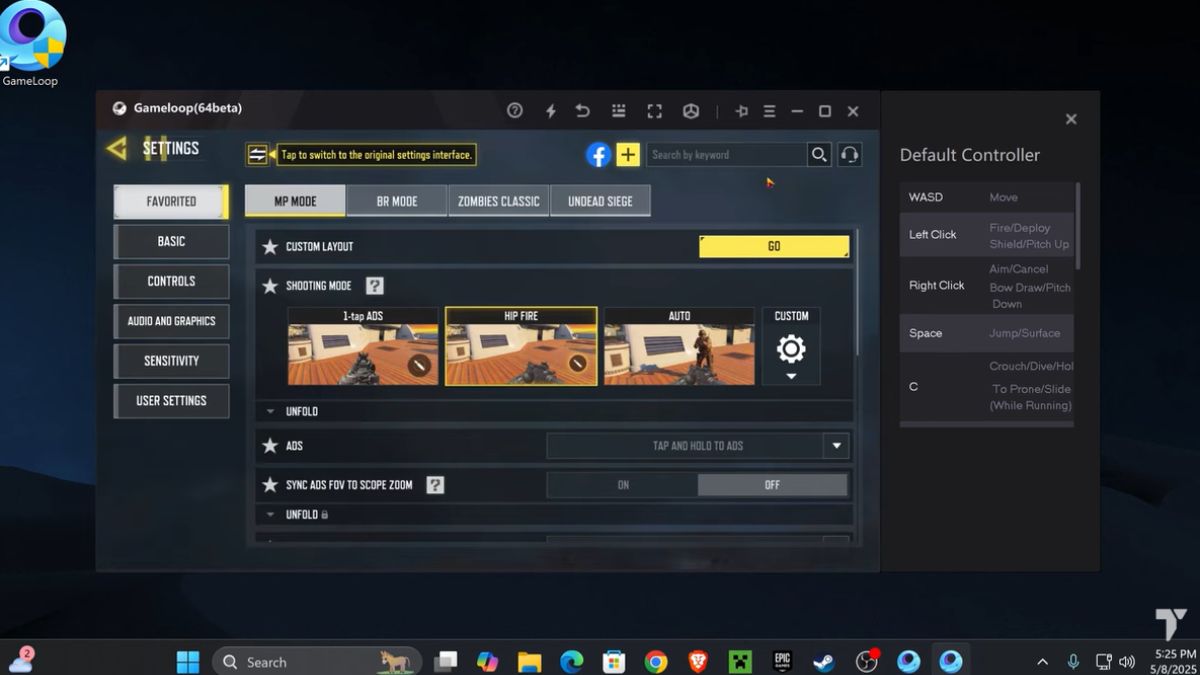
Step 3: Set up Keyboard and Mouse Controls
- Control settings are very important to make the PC gaming experience feel more precise and responsive;
- Use the emulator's built-in key mapping feature to customize the movement, shooting, and scope buttons;
- Make sure the mouse sensitivity is balanced so that the aim remains accurate during close and long range combat.
Step 4: Optimize Graphics and Performance Settings
- Adjusting graphics settings helps keep performance stable without sacrificing gaming comfort;
- Go to the Settings menu in the emulator then adjust the RAM and CPU allocation according to your PC specifications;
- Adjust the screen resolution and frame rate to keep the game running smoothly without experiencing excessive FPS drops.
Step 5: Login to your account and start playing
- Once all the settings are done, you can jump right into the game and enjoy the gameplay on the big screen;
- Log in using your Activision account or guest account to save your game progress;
- Run Call of Duty Mobile and make sure your internet connection is stable before entering multiplayer or ranked mode.
Also read:
That concludes our discussion of the list of emulators for playing Call of Duty games, along with how to play them. Once you know how, don't hesitate to give it a try.
MLBB Product Recommendations


 BV2SHOP
 DEMPET STOREBV2SHOPBV2SHOP
 TopMur
 RudyStorezBV2SHOPBV2SHOPTopMurBV2SHOP




 News
News




