- Use popular apps like canvas, Microsoft Word, WPS Office, or Google Docs to make papers on HP.
- Follow the standard steps: download, login, create a document, add a logo, set the font, fill in the discussion, then save or download.
- Always check again Fill out the paper before saving or submitting to ensure correct formatting and completeness.
How to Make Papers on Android and iOS Phones Easily
Papers are one of the assignments that are often received by students or college students. In this modern era, how to make a paper in MOBILE PHONE many have done it.
Many people have started making papers on their phones because of its convenience, practicality, and efficiency. You can make it anywhere and anytime.
How to make a paper on a cellphone usually uses an easy-to-use application. Well, so you don't get confused anymore, just read this review.
Also Read:
How to Create a Paper on a Cellphone in Various Applications
The following is an explanation of how to produce papers via cellphone with various easy and practical applications.
Use Canva

Apart from editing images, you can also create papers with the application. canvas on HP, here are the steps.
- Download the app canvas and Login with your account,
- After that, select the “Docs” feature and select the “Template” you want,
- Replace the template text and images with the paper structure,
- Determine the font type and letter size as desired,
- Continue by filling in the discussion of the paper,
- Provide the educational institution logo at the beginning,
- Check all the contents of the paper again,
- If so, save it and the paper is finished,
- Download the paper and save it on your phone.
A Few Extra Tips: If you use paid features, you will have more choices of templates and font types.
Use Microsoft Word
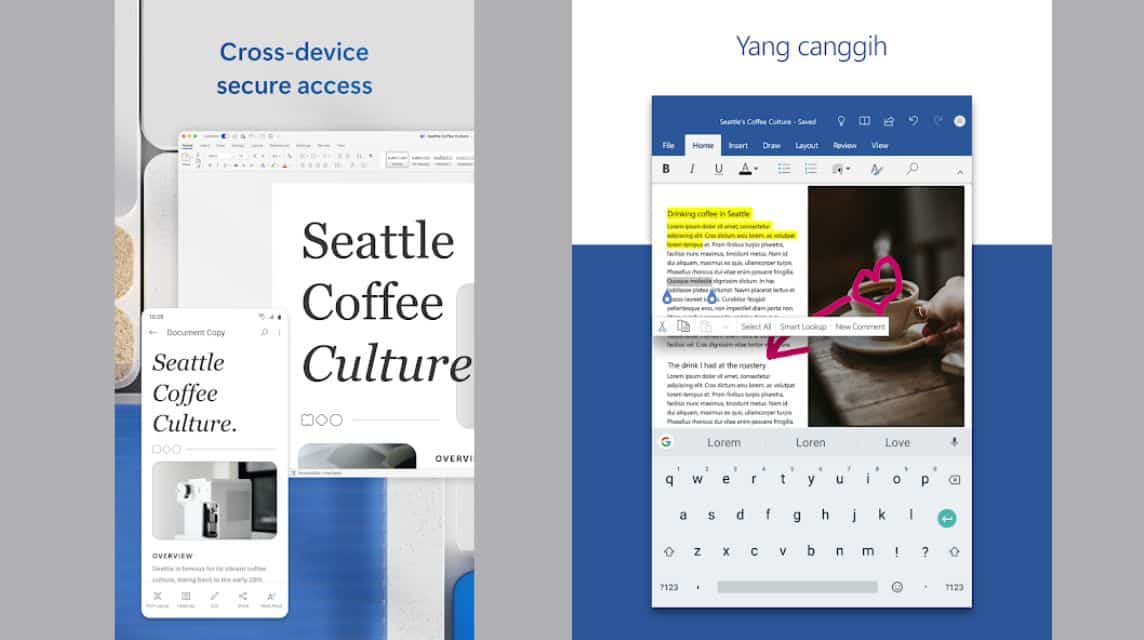
Microsoft is not only something you can use using a PC or laptops, but can be done with a cellphone. Check out how to create a paper with Microsoft Word on a cellphone.
- Download the Microsoft application and Login first,
- Then, select and click “New Document”,
- Start typing the discussion of the paper and insert the logo of your educational institution,
- Use a font that meets the paper's requirements,
- To make the content more complete, you can add graphs or tables,
- Once finished, check again and save the document,
- Download the document if you want to save it on your phone.
A Few Extra Tips: If you want to share it with others, you can select “Share” and choose the social media or email option.
Use WPS Office
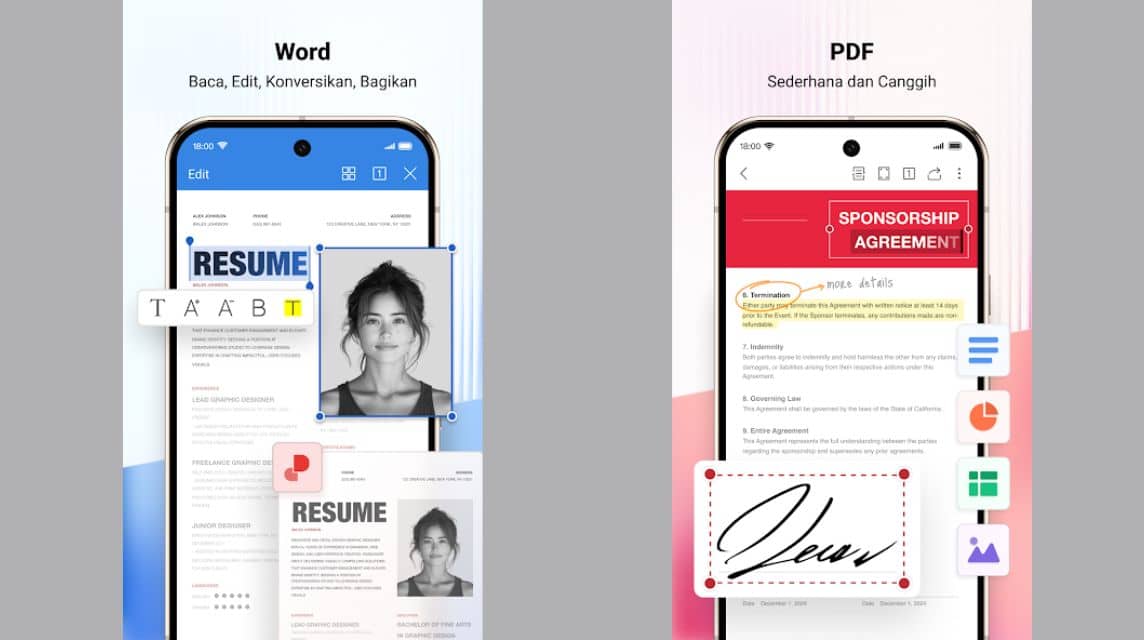
You can create a paper with the application WPS Office, here's how below.
- Download the application and login to your account,
- After that, create a new document by selecting and clicking “New Document”,
- Then, select “Blank Page” and click add,
- A new document with a blank page will appear,
- Start typing the contents of the paper according to the theme,
- Pay attention to the font type and don't forget to include the educational institution's logo,
- Always check every content of the paper that has been typed,
- If you are sure and correct, you can save the document and select the file type “docx”.
Use Google Docs
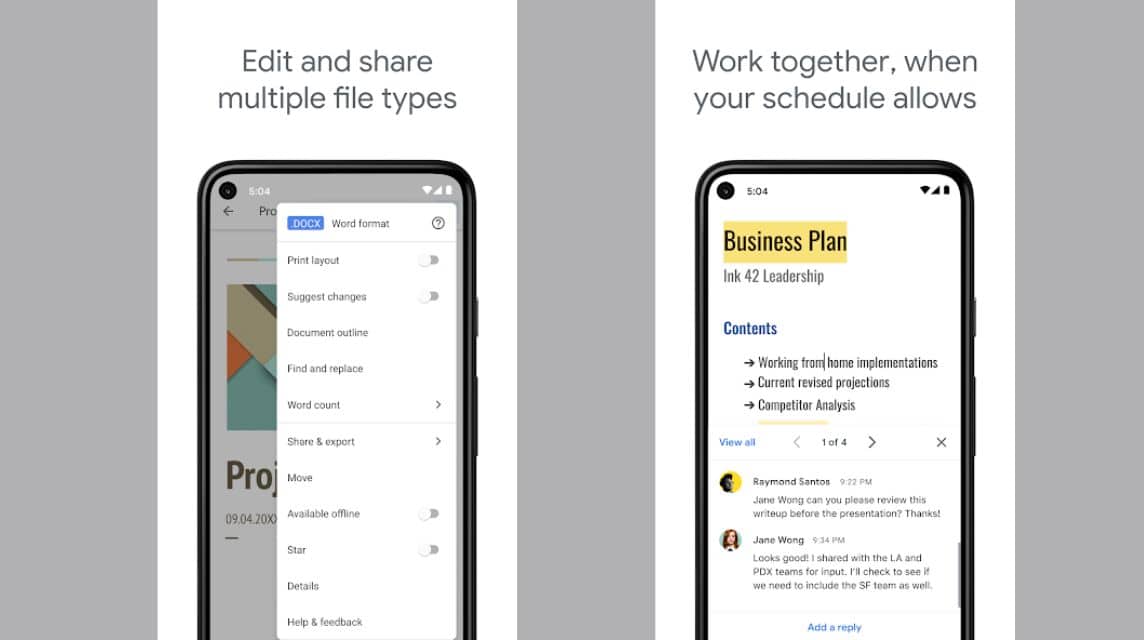
Currently, Google Docs has been used by many people to create assignments, including papers. Here's how to create a paper with Google Docs on your cellphone.
- Login to your Google account and open Google Drive,
- Then, select the “+” symbol or the “New” tab in the bottom right corner,
- After that, select Google Docs,
- Start making a paper according to existing provisions,
- Add graphs or tables to make the contents of the paper better,
- Save the file by clicking the “check mark” in the right corner of the screen,
- Files are automatically saved,
- If you want to download the file, you can click the “Share & Export” menu and select “Save As”,
A Few Extra Tips: You can tag your finished file to friends if necessary by clicking the “Share & Export” menu and selecting “Share”.
Also Read:
Even though making papers on a cellphone is very easy and practical, you still have to double-check before saving and submitting the assignment.
FAQ About Writing Papers on Mobile
Yes, for content and font styles. However, there are three things that often get messed up on mobile phones due to screen limitations: margin settings, page numbers, and the automatic table of contents.
Solution: Work on all the content, sub-chapters, and tables on your phone. In the last 5 minutes, open the file on a computer (e.g., at a campus or internet cafe) just to tidy up the margins and pages.
Microsoft Word Mobile: It's best suited if your campus has strict guidelines regarding margins, spacing, and .docx document formatting. Download the app via Microsoft Word on Google Play.
Google Docs: It is most suitable if you work on the paper in a group because it can be typed together simultaneously. real-time. If using Docs for individual assignments, download/save as Word (.docx) format at the end.
WPS Office: Alternative options with interface display (interfaces) which is easy and has quite complete document processing features.

Send format .docx, not PDF, unless your lecturer specifically asks for it to be sent in PDF format.
Pay attention to the file name (file name). Don't leave it named “Untitled Document” or “Document 1”. Use the standard format: Name_Number of Students_Assignment Name.
Use a standard academic font like Times New Roman or Arial. Don't use a unique font from your phone, as it will look messy when opened on your lecturer's computer.
For spacing, block the desired paragraph, go to paragraph settings, then select line spacing (line spacing) 1.5 or according to campus regulations. Use the right-left justified format (justify).
It is safer and faster to record library data manually from the beginning (author name, year, book/journal title, publisher) in a separate note-taking application, then sort them alphabetically at the end of the paper.
Rekomendasi Produk MLBB


 BV2SHOP
 DEMPET STOREBV2SHOPBV2SHOP
 AM08SHOP
 RudyStorez
 BANGJEFF
 TopMurAM08SHOPBV2SHOP


 News