

- 15 ringtone download links available iPhones the latest that can be downloaded directly.
- Quick way to use your favorite songs: download as MP3 from YouTube via the converter site then save.
- Make your own ringtone using GarageBand: import song, edit up to 30 seconds, save and set as tone.
- Setup tips and FAQ: change the tone in Arrangement, give a custom tone per contact, check the silent and volume switches.
Download iPhone ringtones
Bored with ringtones iPhones The same old thing? It's time to change your ringtone now!
There are many choices of Apple mobile ringtones that you can use. No need to be confused anymore about where to download because in this discussion we will recommend some of the latest ringtones.
Read this article until the end to find out some download links that we provide for your iPhone. Let's see the full explanation below!
Also read:
iPhone Ringtones
iPhone is known for its unique and iconic collection of exclusive tones. From Marimba tones to more modern and diverse choices.
Ringtone The iPhone has become an integral part of Apple's brand identity itself.
Ringing sound Apple smartphone This is not only a sign of incoming calls or messages but also reflects the user's personality.
Just like other mobile phone brands, Apple provides the option for its users to determine their favorite ringtones.
Well, if you are looking for a download link for Apple ringtones, you can click the link we have provided below!
iPhone Ringtones Download Link
Below we have provided 15 download links for the latest iPhone ringtones that you can download right now:
- Download Ringtone 1
- Download Ringtone 2
- Download Ringtones 3
- Download Ringtones 4
- Download Ringtone 5
- Download Ringtone 6
- Download Ringtones 7
- Download Ringtones 8
- Download Ringtone 9
- Download Ringtones 10
- Download Ringtones 11
- Download Ringtones 12
- Download Ringtone 13
- Download Ringtone 14
- Download Ringtone 15
How to Download MP3s for Free Ringtones
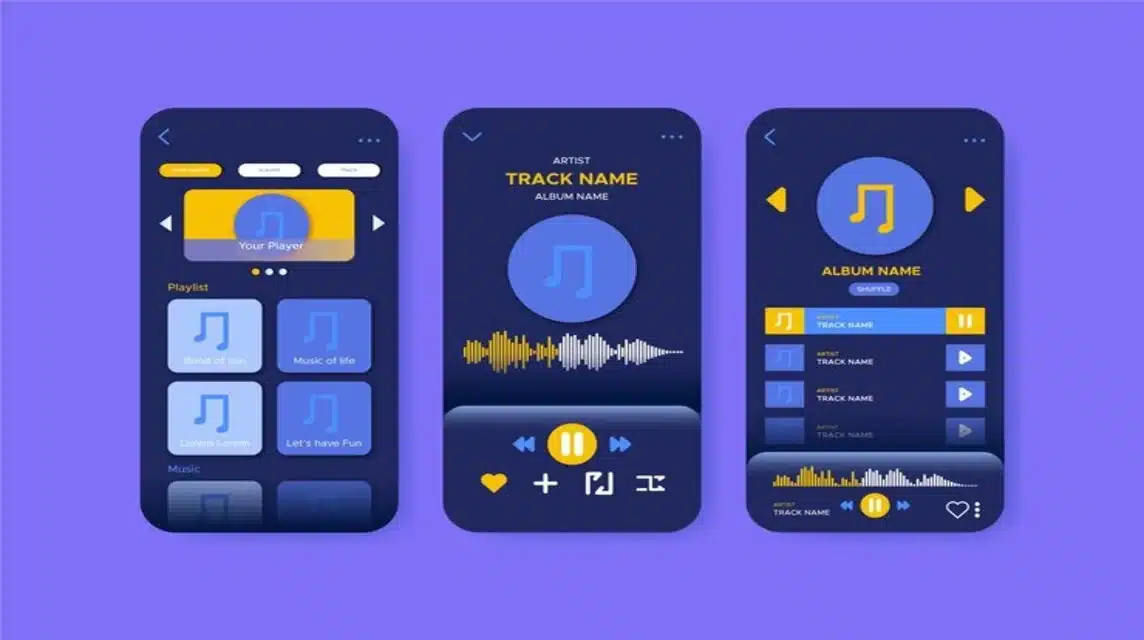
If the download link we recommend above does not suit your taste, you can make your favorite song a ringtone on your cellphone.
To do this you just need to download your favorite song with MP3. Then make the song as a ringtone on your phone.
No need to be confused anymore! Here are the ways you can do to make your favorite song as your iPhone ringtone:
- Open the YouTube app to search for your favorite song;
- Copy the URL of your favorite song video;
- Open the browser then visit the site converter;
- Paste the YouTube video URL, you will automatically enter the download page;
- Select the “Audio MP3” option then click download;
- Wait until the download process is complete.
Once the download process is complete, the file will automatically be saved as an MP3 in your iPhone device's download folder.
How to Make Your Own iPhone Ringtone

You iPhone users must be familiar with the GarageBand application. The application is software that functions like a music studio. Users can use this application to create music or podcasts, here's how to use it:
- Use the previous method to get your favorite songs;
- If you already have a song, open the GarageBand application;
- Create a new project by selecting “Audio Recorder” and tapping the microphone icon;
- Import songs by clicking the loop icon in the top right corner then select File > “Browse items from the Files App” > find and select your favorite song;
- Edit the song shorter, maximum 30 seconds only;
- If necessary, add sound effects or adjust the volume;
- Save as ringtone;
- Set as ringtone.
Also read:
Here are the recommended iPhone ringtone download links, how to download your favorite songs, and how to make your favorite songs your cellphone ringtones. Good luck!
iPhone Ringtones FAQ
Open the Settings app on your iPhone.
Tap Sound & Haptics.
Select the Ringtone option or other notification type you want to change.
Tap any ringtone or song to listen to it and set it as a new sound.

Yes, you can use any song from your music library up to 30 seconds long. You can turn a song into a ringtone using an app like GarageBand or by converting the file to .m4r format on your PC/Mac.
Of course! You can distinguish incoming calls from a specific person by:
Open the Contacts app.
Find and select the desired contact name, then tap Edit in the top right corner.
Tap the Ringtone or Text Tone option, then select the sound you want.
Tap Done.
Make sure the Silent Mode switch (at the top left side of the iPhone) is not in the orange position.
Check the Ringtone and Alert volume in the Settings > Sounds & Haptics menu.
Make sure Attention Aware Features in Face ID & Passcode Settings is disabled, as this feature will automatically lower the ringtone volume if you are looking at the iPhone screen.
You can purchase ringtones directly on your device through the iTunes Store. Tap the menu Sounds (Sound) and look for the option to purchase the available songs.
MLBB Product Recommendations


 RudyStorez
 TopMurTopMurTopMurTopMurRudyStorezRudyStorezTopMurRudyStorezRudyStorez


 News
News




