
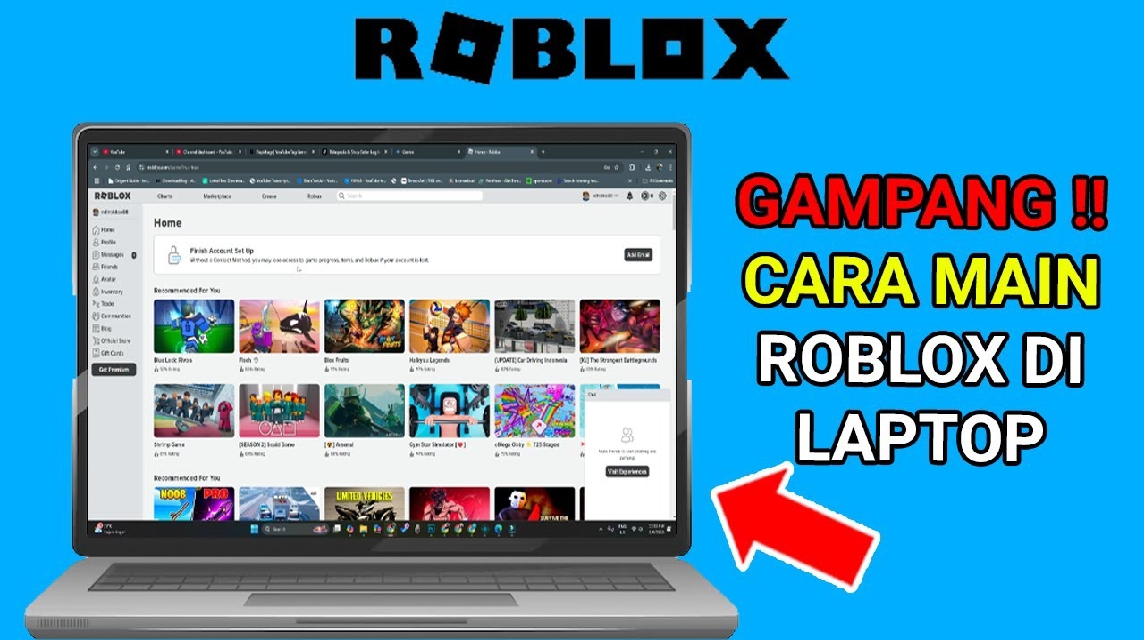
- Make sure the minimum specs: Windows 7/10/11 64-bit, Intel Pentium 4 equivalent CPU, minimum 1 GB RAM, 4–8 Mbps connection.
- Install and run Roblox Player: go to roblox.com, click Play, download RobloxPlayerLauncher.exe, then install and start the game.
- Master keyboard control: W/A/S/D move, Space jump, Shift run, mouse for camera, Esc open menu, / open chat.
How to Play Roblox on a Laptop and Its Control Buttons
If you are just starting to play Roblox On a laptop, don't worry, the process isn't complicated. Roblox can be played on many types of laptops, even those with standard specifications.
The important thing is to know the minimum requirements, installation instructions, and the buttons used during gameplay. Here's a complete guide.
Also read:
- Untitled Boxing Game Codes December 2025 Latest
- December Blue Lock Rivals Code and How to Use It
- Getting to Know What Bacon Is in Roblox
Minimum Laptop Specs for Playing Roblox

Before starting to download, make sure your laptop meets these basic specifications:
Operating system
- Windows 7, 8, 10, or 11 (64-bit is more stable)
- macOS 10.13 (High Sierra) or later
- Chromebook & Linux are not supported natively (must use a special method)
Processor
- CPUs equivalent to Intel Pentium 4 and above
- Recommended: Intel i3 / Ryzen 3 for smoother experience
RAM
- Minimum 1 GB
- Recommended at least 4 GB so the game doesn't lag
GPU (VGA)
- GPUs onboard like Intel HD Graphics is enough
- Newer GPU is recommended for more stable graphics.
Internet connection
- Minimum 4–8 Mbps
- The most comfortable is 10 Mbps and above so that map loading is faster
Storage
- Roblox is very small, only taking up about 500 MB–1 GB
- But make sure your storage is not full
If laptops If you meet these basic specifications, Roblox can run smoothly.
How to Play Roblox on a Laptop (Step-by-Step)

Here are the complete steps so you can play right away:
Open the Official Roblox Website
Entered into roblox.com via your laptop browser.
Register or Login Account
- If you don't have an account → click Sign Up
- If you already have one → just log in
Make sure data such as username and date of birth are correct, because it affects game features.
Choose the Game You Want to Play
After logging in, you can immediately select the mode/game you like. For example: Brookhaven, Blox Fruits, Adopt Me!, and others.
Click the “Play” button
When you click the button play, the website will automatically start the Roblox Player installation process.
Install Roblox Player
Usually an installer file named RobloxPlayerLauncher.exe will appear.
- Click Install
- Wait for the process to complete
- Once completed, Roblox will open automatically.
Start Playing
If the installation is successful, the game will open immediately. Simply log in (if prompted) and you're ready to play.
Adjust Graphics If Laptop Feels Heavy
If the game feels slow:
- Press Esc
- Go to Settings
- Lower the graph to a low level
This is really helpful for laptops with limited specs.
Keys Used to Play Roblox on a Laptop

If you've just switched from a phone to a laptop, the keyboard controls might feel different. Here's a complete list of commonly used keys when playing Roblox:

Character Movement Buttons
- W = forward
- A = to the left
- S = back
- D = to the right
- Space = jump
- Shift (hold) = run (depending on the game)
Camera Button
- Mouse = rotate camera
- Wheel scroll = zoom in & zoom out
- Right-click + drag = change camera angle
Common Action Buttons
- E / F = interaction (depending on the game)
- 1 – 9 = select items / tools
- R = rotate object (specific builder service)
- G = emote (if available)
Menu & Settings
- Esc = open the Roblox menu (settings, leave game, resume)
- / (slash) = open chat
- Tab = see player leaderboard
- If your mouse doesn't move, try pressing Esc → Resume
- Some games have special controls, so be sure to check the game description.
Now you know the minimum laptop specs for playing Roblox, how to play it, and the buttons used.
Roblox is incredibly flexible, so even a laptop with standard specs can usually run it without any issues.
Also read:
- How to Play Roblox on a Laptop, Including Basic Controls
- Price and How to Get Hazmat Rod at Fish It
- Guide to Easily Get Blob Shark in Fish It
Just follow the steps above, and you're ready to explore thousands of Roblox games On a laptop, it's more spacious, more stable, and the controls are more comfortable. Have fun playing!
Roblox Product Recommendations

 Hero AliveHero Alive
 Kumay10shop
 Hero AliveHero AliveHero Alive
 MONSTORE
 Hero Alive



 News
News




